Email delivery
Best practices for sending email with WorkOS.
Many WorkOS features rely on your users receiving and acting upon email. For example, this includes invitations to join your app, password reset links, or Magic Auth sign-in. Prompt delivery of these emails is crucial.
WorkOS offers four options for sending email:
- WorkOS email domain: WorkOS sends email automatically from the
workos-mail.comdomain – no setup required. - Custom email domain: WorkOS sends email automatically, from a domain you configure and control.
- Custom email provider: WorkOS sends email through an email provider you configure, using your account and reputation.
- Custom code: WorkOS emits events instead of sending email; your app listens for them and sends the email itself.
These options provide different trade-offs between convenience, customization, and control over email deliverability.
WorkOS follows industry best practices when sending email. SPF and DKIM email authentication records are configured automatically, the email content is continually refined to ensure it passes spam filters, and delivery of every email is actively monitored. However, regardless of the option you chose for sending email to your users, there are additional steps you can take to ensure that it reaches user inboxes.
By default WorkOS will send the following emails from the workos-mail.com domain in production environments.
| Sent From | Purpose | |
|---|---|---|
| Invitation | welcome@workos-mail.com | Invite a user to create an account |
| Magic Auth | access@workos-mail.com | Allow sign in with a one-time-use code |
| Email verification | welcome@workos-mail.com | Verify ownership of a given email |
| Password reset | access@workos-mail.com | Support the password reset flow |
WorkOS has configured SPF, DKIM and DMARC email authentication records for the workos-mail.com domain. These records prove to the receiving mail server that a given email comes from WorkOS.
We actively monitor the delivery of email sent from the workos-mail.com domain to protect the domain’s reputation. If we detect unusually high rates of undelivered mail or mail marked as spam from a WorkOS team account, we may suspend that team’s ability to send email.
To ensure email is delivered when using the WorkOS email domain, be sure not to allow unsolicited email to be sent on your behalf. For example, an invitation email should be sent only if a user explicitly requests access to your application for themselves or another user. Do not attempt to bulk invite users from an email marketing list.
It is also important to ensure that your WorkOS team account and all organizations under your team have appropriate names that avoid common spam words that may trigger spam filters. While our static email content is thoroughly tested, WorkOS emails can include your environment’s display name (which defaults to your team name) as well as the names of organizations under your team. There may be an impact to email deliverability if these names use terms often flagged by spam filters.
While using the WorkOS email domain option is convenient, you can provide your users a better experience. Using your own email domain means that your users will receive emails from a domain they recognize, one associated with your app. In addition, because you control the email domain, you have more control over the domain reputation and therefore more control over email deliverability.
You can configure your own email domain in the WorkOS dashboard. You will need to verify ownership of the domain by setting up a CNAME record with your domain provider. Two additional CNAME records are required to automatically configure SPF and DKIM email authentication using SendGrid’s automated security feature.
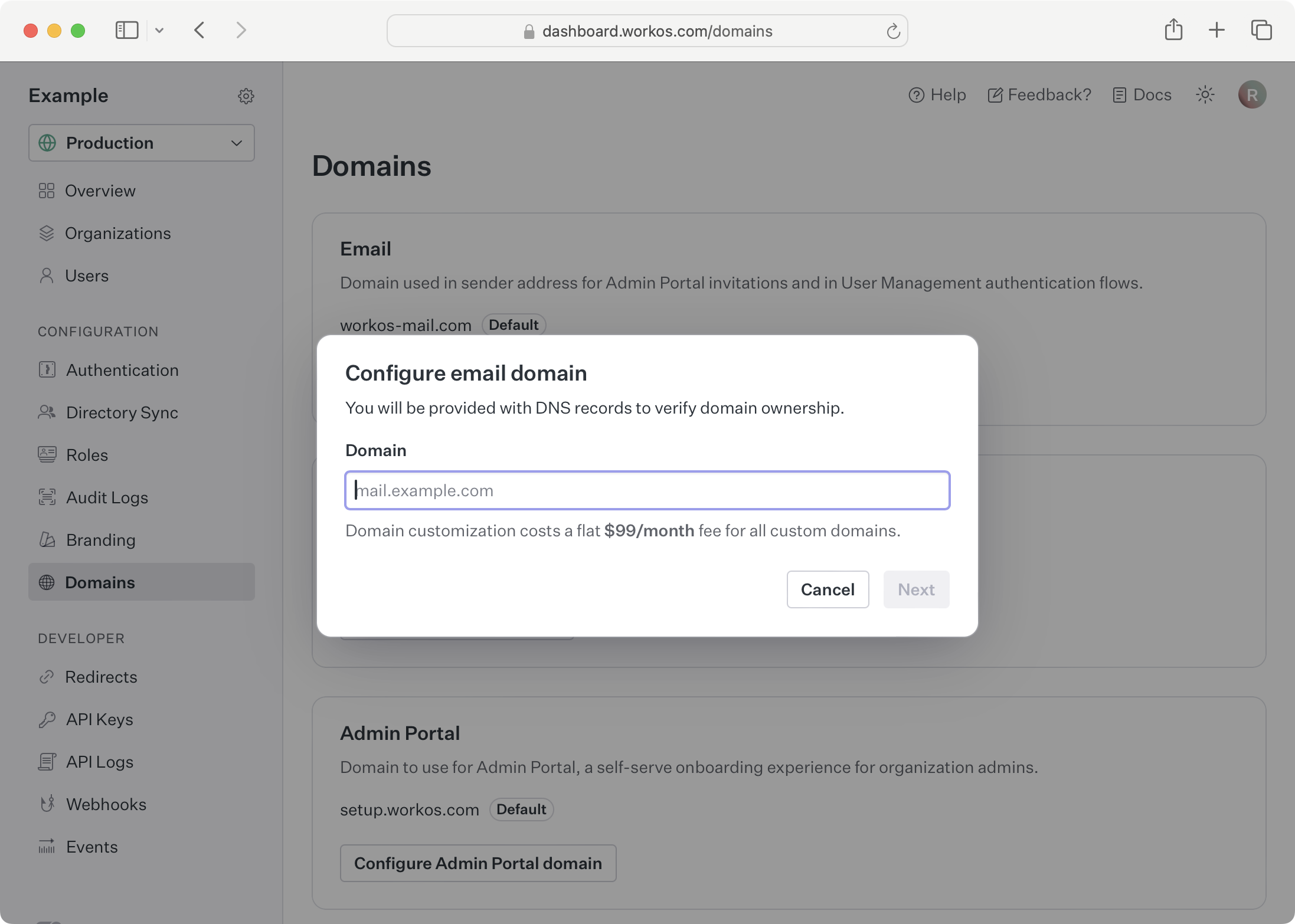
In addition to not sending unsolicited emails and using appropriate team and organization names, when using your own email domain there are a few additional steps you can take to ensure email is delivered promptly.
When using your own domain, email will be sent from no-reply@<your domain>. Email providers check if there is an inbox associated with the sender address, so setting up an inbox for the no-reply email address on your domain can help ensure your emails reach users.
WorkOS recommends that you set up DMARC (Domain-based Message Authentication, Reporting & Conformance) with your domain provider. Google has released guidelines for email senders and the guidelines include DMARC requirements. Apple and Yahoo have released similar best practice guides.
A DMARC policy tells a receiving mail server what to do when a message from your domain doesn’t pass DMARC authentication. Configuring DMARC requires setting up a DNS TXT record with your domain provider.
Here is an example DMARC record that will reject all emails not legitimately sent by an email provider on your behalf:
More details about DMARC can be found at dmarc.org.
By connecting your own email provider to WorkOS, you get control over deliverability, reputation, and compliance, while still offloading the heavy lifting of email handling. This option also allows you to easily utilize an existing email service provider configuration.
Because email sent through your own provider uses that provider’s reputation instead of WorkOS’s shared infrastructure, it’s also the most effective way to avoid the email deliverability rate limits that protect the shared pool. Configuring a custom email provider is a standard step when productionizing your environment.
For complete instructions on configuring a custom email provider, see the custom email providers section.
There are a number of reasons why you may want to send email using your own email provider. Perhaps you already send a welcome email to new users and want to include an invitation link instead of sending a second email. Perhaps you already track sent email status with your own email provider and want a unified view into the status of all emails associated with your app. Regardless, when you send your own email, you have complete control over email deliverability.
For complete instructions on sending your own email, see the section on custom emails in the AuthKit documentation.
When sending your own email, you will want to follow the all of the recommendations in Google’s email sender guidelines. This includes setting up SPF, DKIM and DMARC email authentication.
You will also need to be conscious of your sender reputation. It’s based on the quality of emails, their frequency, and user interaction. A good sender reputation can increase the chances of your emails reaching inboxes. SendGrid provides some useful tips for improving sender reputation.
If you author your own email content, you may want to test your emails against various email providers’ spam filters. There are a number of spam testing services available such as Litmus and Warmly.
Email providers maintain suppression lists: addresses that previously bounced, were marked as spam, or were flagged as invalid. The email provider, not WorkOS, enforces suppression. WorkOS still submits the email, and the provider either rejects it outright, accepts it and later reports a bounce, or accepts it and drops it without reporting anything.
WorkOS normalizes each email provider’s own suppression categories into four types, so the exact meaning of a type depends on the provider.
- Bounce: The provider could not deliver to the address, usually because it does not exist.
- Spam complaint: The recipient marked the email as spam.
- Block: The provider is blocking the address, or someone suppressed it manually.
- Invalid: The address is malformed or its domain does not exist.
In the WorkOS Dashboard, navigate to the Users → [User] → Emails tab. The suppression status is shown for the user’s email address, along with the recorded reason. If suppressed, you can click “Re-enable email” to remove the suppression.
Before removing a suppression, confirm:
- The recipient wants to receive emails.
- The mailbox is not full and can receive mail.
- The email address is valid and not malformed.
Removing a suppression for an address that continues to bounce will harm your domain’s sender reputation.
Suppression management is available in production environments that send email through a verified custom email domain or an active custom email provider. It is not available in sandbox environments.
Resend is not currently supported for suppression management. If you use Resend as your custom email provider, manage suppressions directly in the Resend dashboard.
The Emails tab also lists the emails WorkOS sent to the user’s address over the last 30 days. Delivery history is available in every environment, including sandbox environments, and does not require a custom email domain or provider. Each entry shows one of four delivery statuses, the email subject, any User events, and when the status was last updated.
When sending from the WorkOS email domain, delivery history lists only the emails the email provider accepted, starting at Submitted. An attempt the provider rejects outright has no entry. When you use a custom email domain or a custom email provider, WorkOS records every attempt, including rejected ones. With a custom email provider, a rejected attempt appears as Failed. With a custom email domain, it stays at Submitted, because the provider never accepted the message and so never reports a result for it.
- Submitted: WorkOS submitted the email to the email provider. The status updates when the provider reports a delivery result. WorkOS does not receive delivery results from a custom email provider, so an email your own provider accepts stays in this state even after it is delivered or bounces.
- Delivered: The email provider delivered the email.
- Bounced: The email provider could not deliver the email.
- Failed: WorkOS did not get a successful response when it submitted the email. This is recorded at submission rather than from a later delivery result, and appears only when you use a custom email provider.
Hover over a Bounced or Failed status to see the reason recorded for that attempt, for example a full mailbox, an inactive mailbox, invalid email provider credentials, or rate limiting by the email provider. Some attempts show “unknown error” when the provider did not send a reason WorkOS can display. The User events column shows the most significant action the recipient took: opened, clicked, marked as spam, or unsubscribed.
To review the same delivery events across every user in an environment instead of one user at a time, use the Emails → Events page, which supports filtering by recipient, status, and date.
Email providers such as Gmail support plus addressing, where text after a + identifies an alias of the same inbox, for example user+test@example.com. AuthKit keeps the complete address and treats the root address and each alias as separate users. There is no global setting to reject every plus-addressed email.
Radar custom restrictions can apply a rule for a root address to its aliases. Radar can also report suspicious alias patterns as Email pattern detected. If SMS challenges are enabled, a suspicious sign-up may receive an SMS challenge; a plus-addressed email alone is not a hard block.
WorkOS reserves the RFC 2606 example domains and the special-use .test top-level domain (RFC 6761) for test users. Emails addressed to example.com, example.net, or example.org, any of their subdomains such as e2e.example.com, or any domain ending in .test such as myapp.test, are accepted by the API, but the email itself is silently dropped and never dispatched to the email provider. Provided the send is otherwise allowed – sending restrictions and quotas still apply – the API call succeeds as if the email were sent, and no entry appears in the delivery history for these addresses.
These domains can never be registered or gain mail servers, so sending to them would only hard-bounce and harm sender reputation. Because WorkOS drops these sends before they reach the email provider, addresses like user@example.com are the recommended choice for test users in automated tests, CI pipelines, and end-to-end suites. They also pass email deliverability checks that reject addresses whose domains cannot receive mail, so test flows like Magic Auth, invitations, and AuthKit sign-up keep working even when those checks are enforced.
Only the reserved domains and the .test top-level domain listed above are
exempt. Lookalike domains such as notexample.com are treated like any
other domain.
If a password reset, verification, invitation, or sign-in email does not arrive:
- In the WorkOS Dashboard, open Emails → Configuration and confirm that WorkOS is configured to send that email type. WorkOS enables these email types for new environments, but an existing environment may have them disabled. If you send your own email, confirm that your application handled the corresponding event instead.
- Open Users → [User] → Emails and check the address for a suppression. Fix the cause of the bounce or block before re-enabling the address.
- Retry the relevant flow or resend through the create password reset, send verification email, resend invitation, or create Magic Auth code API.
- Review the user’s delivery history. If the email type is enabled, the recipient is not using a reserved test domain, and no delivery attempt appears, contact support with the environment ID, email type, recipient, and approximate time of the attempt.
Even when following industry best practices, an email may get filtered as spam and not reach a user’s inbox. Other times an email might be delayed, for example, when Enhanced Pre-delivery Message Scanning is enabled on a Google workspace or when a similar feature is enabled with other email providers. Email providers do not explain the heuristics used by their spam filters and security mechanisms, and they are often changing, making it especially frustrating to troubleshoot problems.
The first step in troubleshooting is to determine if the problem exists for all users or only a subset of users. Generally, this will provide insight into the nature of the issue and how best to resolve it. If the issue exists for all users, it is most likely a matter of poor domain reputation. If the issue only exists for a subset of users, it may be because of specific settings used by an email provider or the IT department at a given organization.
Both Google and Microsoft have been noted as being especially aggressive when identifying spam. However, both companies provide some tooling to help you debug email deliverability problems. Google offers Postmaster Tools to help with email deliverability related to Gmail and Google Workspaces. Microsoft offers similar tools with Sender Support. Lastly, more general spam testing services such as Litmus and Warmly are available.
If you continue to have issues regarding email deliverability despite following all of the above suggestions, please contact support.