<!-- llms.txt: https://workos.com/llms.txt -->

# SDK Integration

## Choose your integration approach

There are two ways to use feature flags in your application:

### (A) Using the `feature_flags` access token claim

Use the [quick start guide](https://workos.com/docs/feature-flags) when you want to gate authenticated application behavior based on the user's session. This is a good fit when feature flag updates can take effect the next time the user's session is refreshed.

If you're using [`@workos-inc/authkit-nextjs`](https://workos.com/docs/sdks/authkit-nextjs), you can read the claim from the current session with `withAuth()`. This is convenient for small flag sets, but the claim is stored in the access token. If your application has many feature flags, removing the `feature_flags` claim and using the runtime client can help keep AuthKit session cookies smaller.

### (B) Using the Node runtime client

Use the runtime client when you need server-side evaluation that stays in sync independently of user authentication, such as in backend services, jobs, webhooks, or other long-lived server processes. This is also the recommended approach for applications with many feature flags because it avoids storing every active flag in the user's access token and session cookie.

## Overview

The WorkOS Node SDK includes a runtime client for evaluating feature flags in server-side applications. The client maintains internal flag state, allowing it to serve feature flags without remote requests. Flag configurations stay in sync with the dashboard automatically.

Before the first successful sync, evaluations use bootstrap data if provided. Otherwise, they fall back to the flag's `default_value`, or `false` for unknown flags.

Create a single, shared runtime client instance when your application starts. Do not create a new client per request — the client handles synchronization and evaluation for the lifetime of the process.

***

## (1) Install the SDK

Install the WorkOS Node SDK using your preferred package manager.

```bash
npm install @workos-inc/node
```

***

## (2) Set secrets

To make calls to WorkOS, provide your API key. Store it as a managed secret, such as `WORKOS_API_KEY`, and pass it to the SDK through your application's environment.

```plain title="Environment variables"
WORKOS_API_KEY='sk_example_123456789'
```

> This runtime client is for trusted server-side environments only. Never expose your WorkOS API key in client-side code.

***

## (3) Basic setup

Initialize the WorkOS client, create a runtime client, and evaluate flags once the client is ready.

```js
import { WorkOS } from '@workos-inc/node';

const workos = new WorkOS(process.env.WORKOS_API_KEY);

const client = workos.featureFlags.createRuntimeClient();

try {
  await client.waitUntilReady({ timeoutMs: 5000 });

  const isEnabled = client.isEnabled('advanced-analytics', {
    organizationId: 'org_01EHQMYV6MBK39QC5PZXHY59C3',
  });

  console.log('Feature enabled:', isEnabled);
} catch (error) {
  console.error('Runtime client failed to initialize:', error);
}
```

The `isEnabled` method returns `true` or `false` based on the flag's configuration and any targeting rules that match the provided context.

If you're using `@workos-inc/authkit-nextjs`, use `getFeatureFlagsRuntimeClient()` instead of creating the runtime client directly. The helper returns one shared runtime client for the server process, so repeated calls across routes or server components do not create extra polling clients.

```tsx
import {
  getFeatureFlagsRuntimeClient,
  withAuth,
} from '@workos-inc/authkit-nextjs';

const featureFlags = getFeatureFlagsRuntimeClient();

export default async function DashboardPage() {
  const { user, organizationId } = await withAuth({ ensureSignedIn: true });

  try {
    await featureFlags.waitUntilReady({ timeoutMs: 5000 });
  } catch (error) {
    console.error('Feature flags client failed to initialize:', error);
  }

  const isEnabled = featureFlags.isEnabled('advanced-analytics', {
    userId: user.id,
    organizationId,
  });

  return isEnabled ? <AdvancedAnalytics /> : <BasicAnalytics />;
}
```

You can also listen for the `ready` event instead of using `waitUntilReady()`:

#### JavaScript

***

## (4) Context-based evaluation

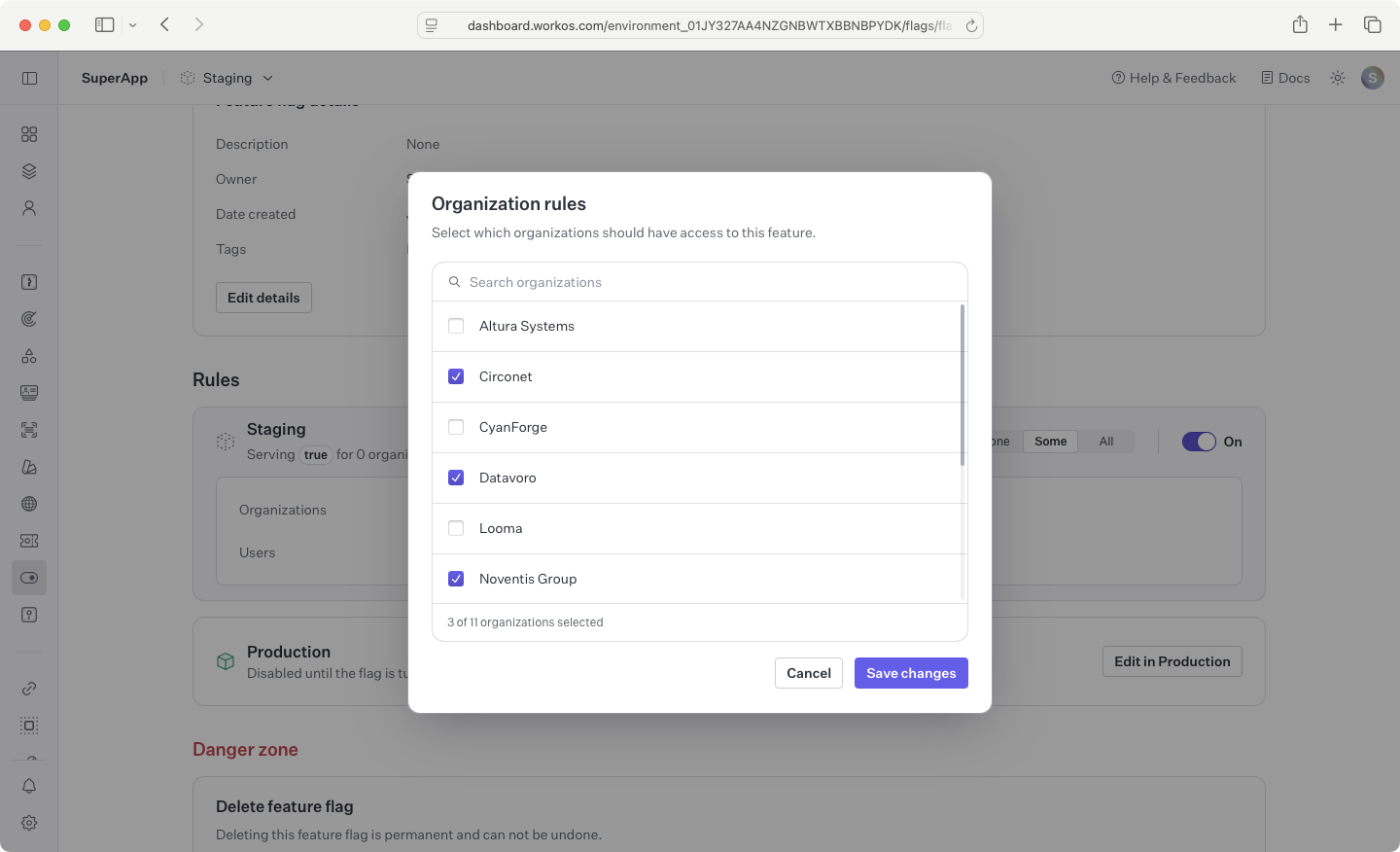
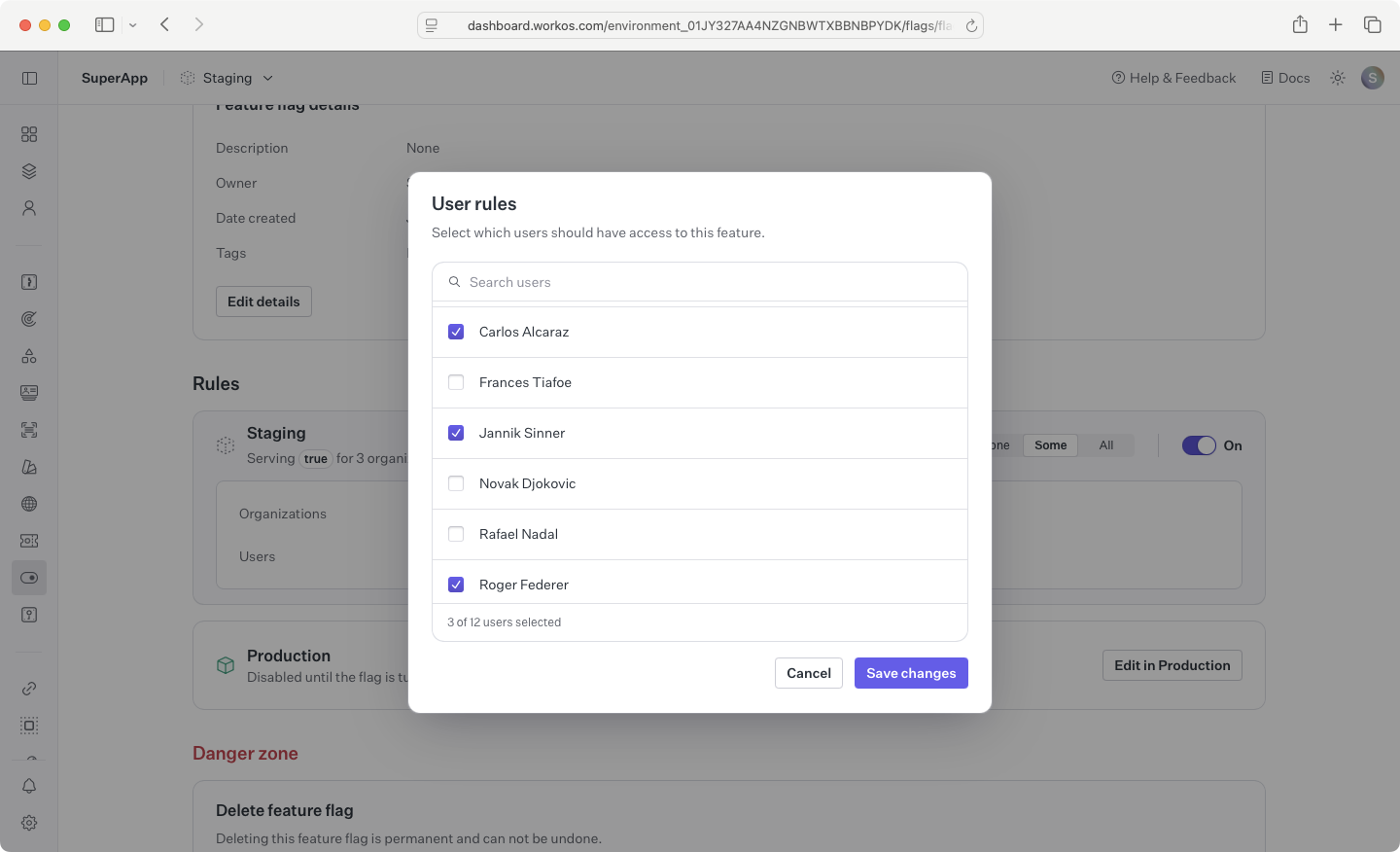
Pass an `organizationId`, `userId`, or both to evaluate flags against the targeting rules configured in the dashboard.

#### JavaScript

If no context is provided, `isEnabled` returns the flag's `default_value`. If the flag does not exist, it returns `false` — you can override this by passing a third argument as the default return value.

When both `userId` and `organizationId` are provided, user targeting takes precedence over organization targeting.

***

## (5) Graceful shutdown

Call `close()` to stop background synchronization and clean up resources when your server shuts down.

#### JavaScript

***

## Event handling

The runtime client emits events to signal state changes during its lifecycle.

#### JavaScript

| Event    | Description                                                                                            |
| -------- | ------------------------------------------------------------------------------------------------------ |
| `ready`  | Fires once when flag data is first available, either from bootstrap or the first successful sync.      |
| `change` | Fires when a flag's configuration changes after initialization. Receives `{ key, previous, current }`. |
| `error`  | Fires when a sync request fails. The client retries automatically with exponential backoff.            |
| `failed` | Fires on 401 Unauthorized. The client stops syncing automatically.                                     |

***

## Common issues

- If all flags return their default values, the client may not be ready yet, the flag key may be incorrect, or no targeting rules may match the evaluation context.
- If the client emits `failed`, your API key is invalid or unauthorized and synchronization stops until the client is recreated with valid credentials.
- If the client emits `error`, a sync request failed temporarily. The client continues retrying automatically in the background.
- If dashboard changes do not appear immediately, remember that the runtime client refreshes on the configured polling interval.

***

## Bootstrap configuration

Pre-populate the client with flag data so evaluations are available immediately, before the first sync completes.

#### JavaScript

Bootstrap data is replaced with live data after the first successful sync.

***

## Configuration options

Pass options to `createRuntimeClient()` to customize client behavior.

| Option              | Type                            | Default     | Description                                                          |
| ------------------- | ------------------------------- | ----------- | -------------------------------------------------------------------- |
| `pollingIntervalMs` | `number`                        | `30000`     | How often to sync flag changes, in milliseconds. Minimum `5000`      |
| `requestTimeoutMs`  | `number`                        | `10000`     | Timeout for each sync request, in milliseconds                       |
| `bootstrapFlags`    | `Record<string, FlagPollEntry>` | `undefined` | Pre-populated flag data for instant evaluation before the first sync |
| `logger`            | `RuntimeClientLogger`           | `undefined` | Custom logger with `debug`, `info`, `warn`, and `error` methods      |

***

## TypeScript types

If you're using TypeScript, the `@workos-inc/node` package includes built-in type definitions. To learn more about the specific configuration options and types available for the runtime client, read the [`@workos-inc/node` package docs](https://www.npmjs.com/package/@workos-inc/node). Key exports include `RuntimeClientOptions`, `EvaluationContext`, `FeatureFlagsRuntimeClient`, and `RuntimeClientStats`.