Intuit OAuth
Learn how to set up OAuth with Intuit
The Intuit OAuth integration allows your users to authenticate using their Intuit credentials.
The configuration process involves creating an OAuth application in the Intuit Developer Portal and configuring the client credentials in your WorkOS Dashboard.
When setting up Intuit OAuth, WorkOS provides one key piece of information that needs to be configured in your Intuit OAuth application:
- Redirect URI: The endpoint where Intuit will send authentication responses after successful login
The Redirect URI is available in the WorkOS Dashboard. In the left navigation menu, select the Authentication tab and the Providers sub-tab. Locate the Intuit section.
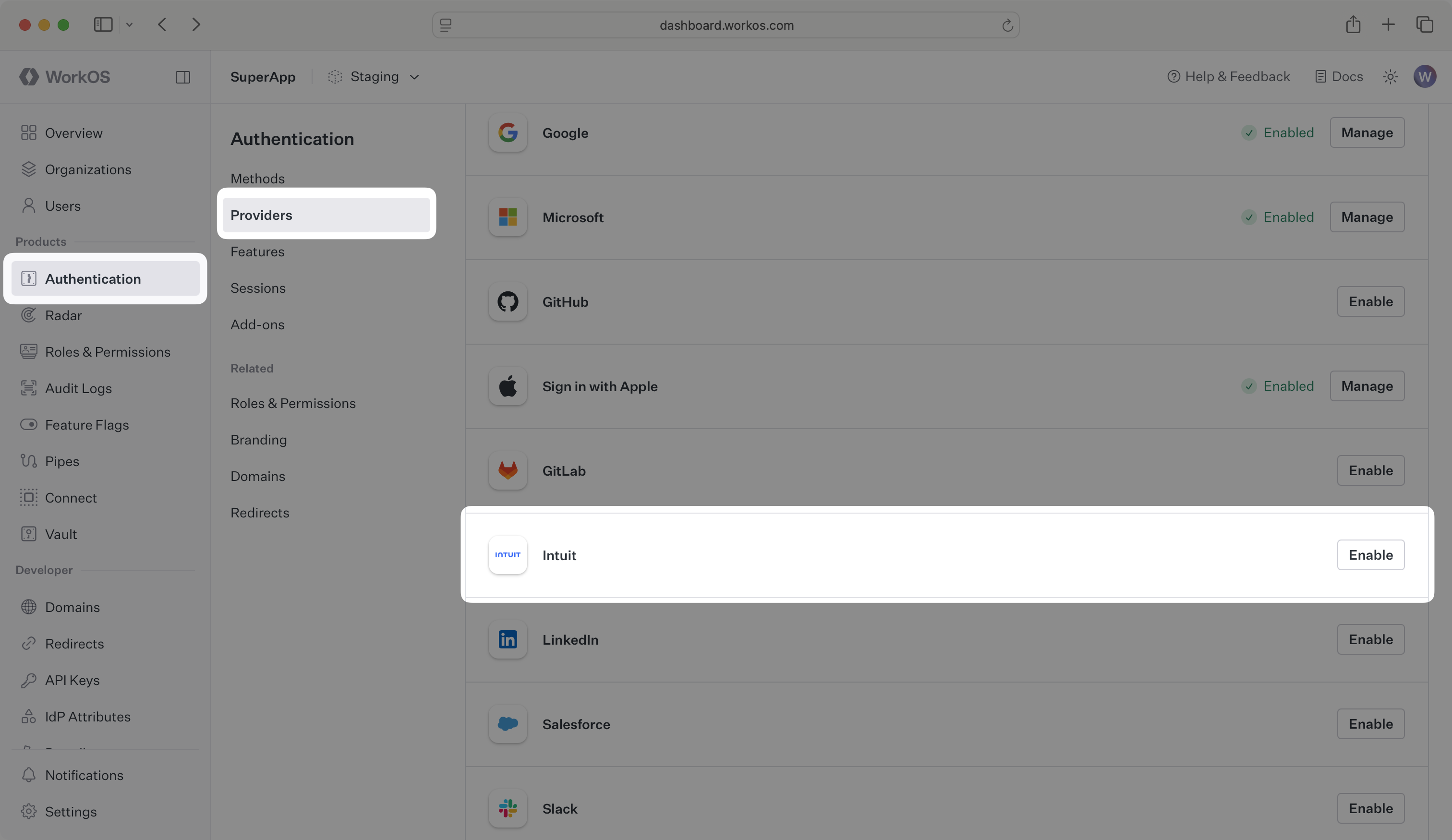
Click Enable. The Intuit OAuth configuration dialog will open. Locate the Redirect URI.
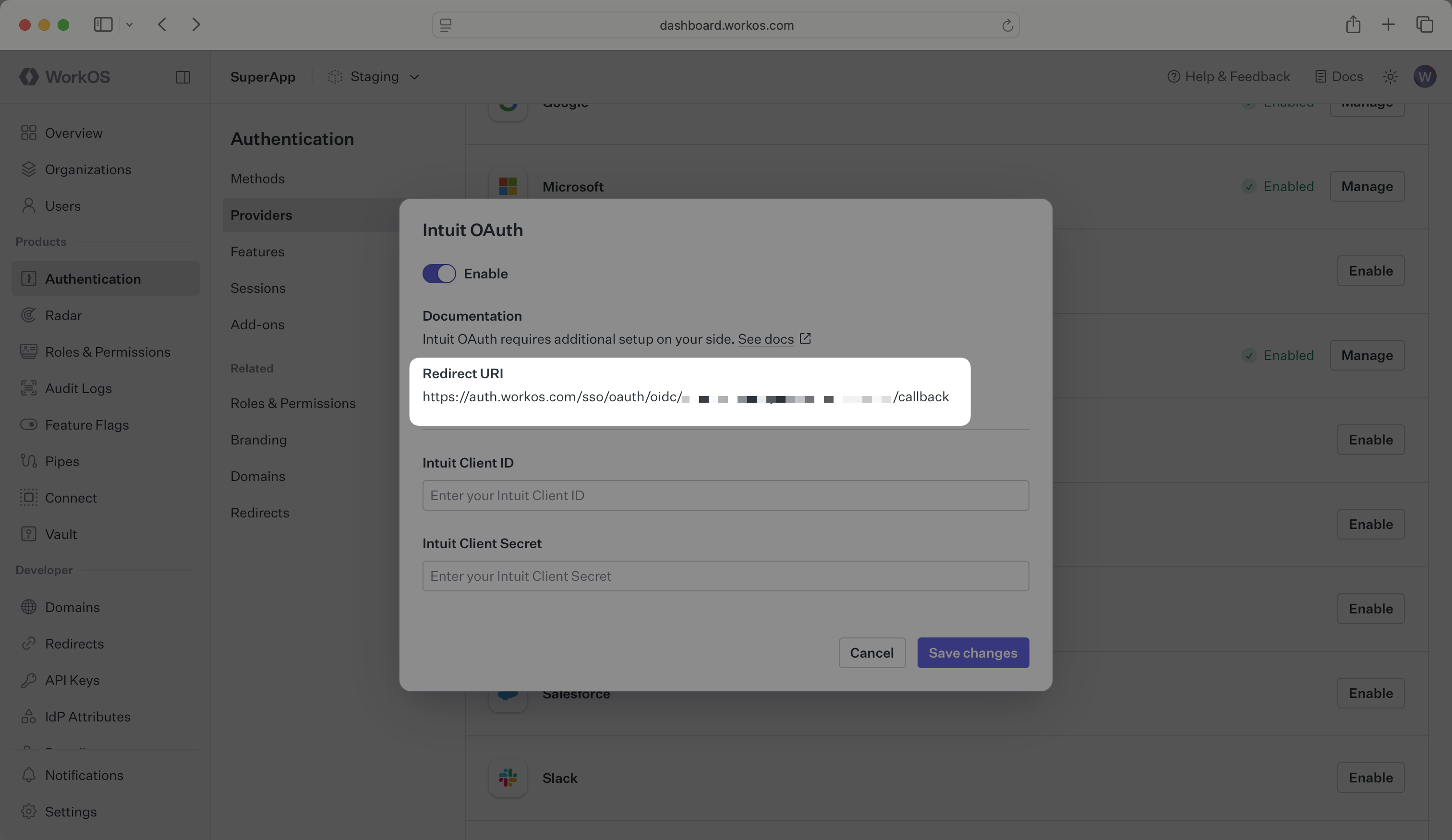
The Redirect URI serves as the destination for authentication responses and must be configured in your Intuit OAuth application.
You will need to obtain two pieces of information from an Intuit OAuth application:
- Intuit Client ID: Application identifier from Intuit
- Intuit Client Secret: Authentication secret for the application
The following sections will guide you through creating an OAuth application in the Intuit Developer Portal and generating these credentials.
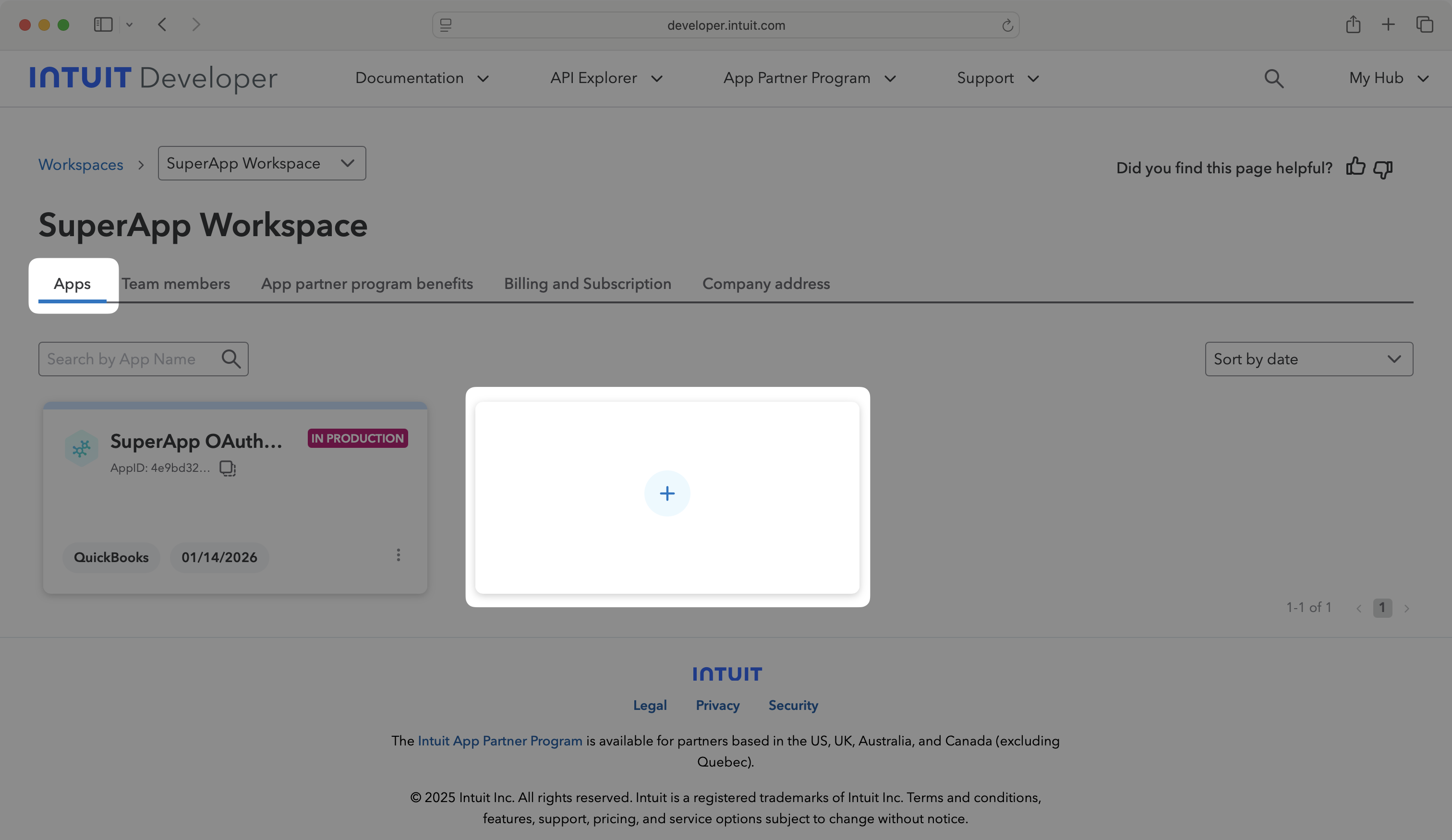
Log in to your Intuit Developer account and navigate to the Apps tab in your Workspace.
Click on the plus sign tile to create a new application.
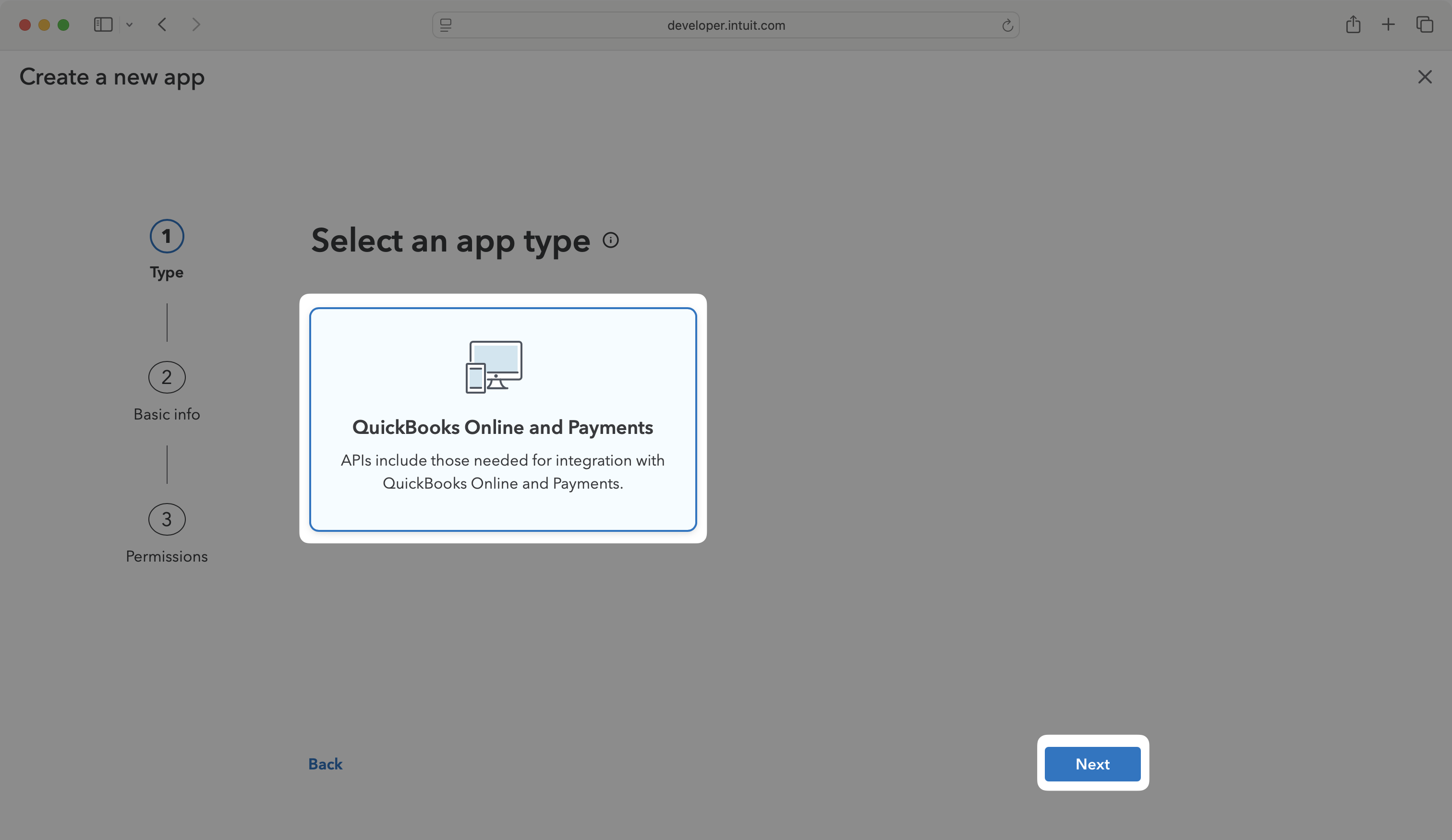
You will be prompted to select an app type. Select Quickbooks Online and Payments and click Next to continue.
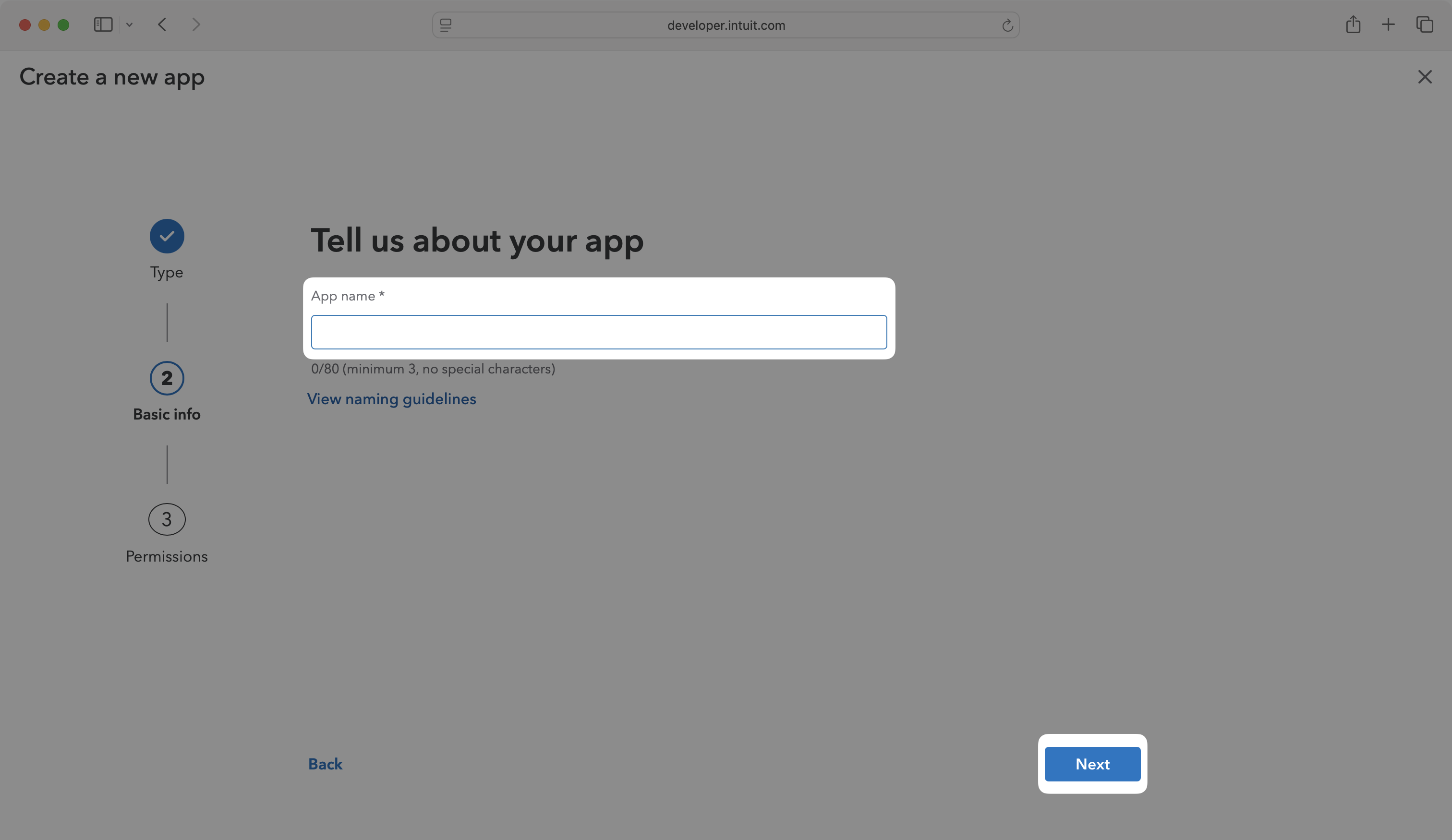
Choose a name for your application and click Next to continue.
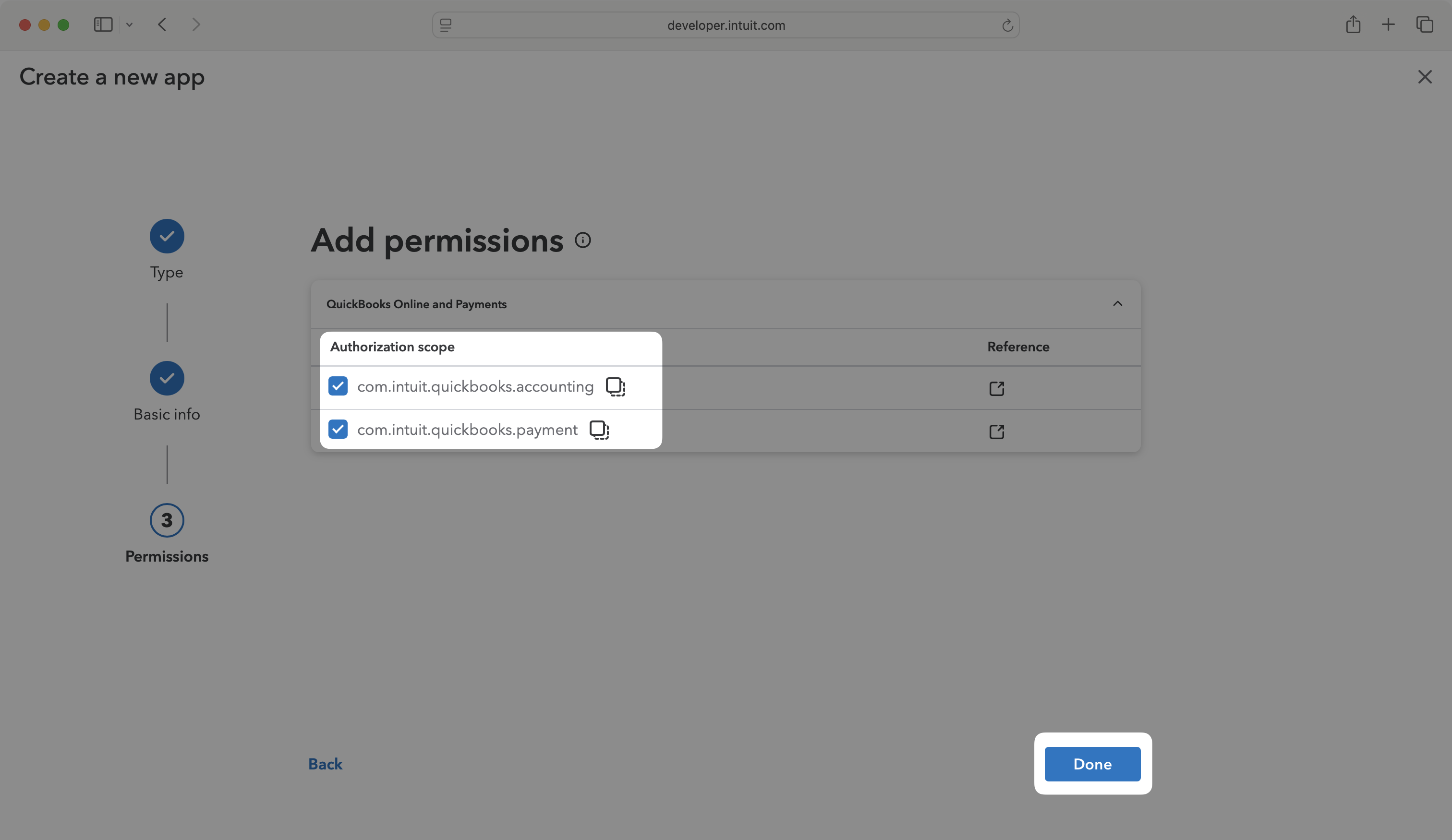
You will be prompted to add permissions. Intuit will require you to add at least one of the listed Authorization scopes. This determines the full set of scopes your application is allowed to request. The WorkOS integration will only request the openid, email, and profile scopes as part of the authentication flow and will not actually request any of the API authorization scopes specified on this screen. Click Done after adding permissions to complete the initial app setup.
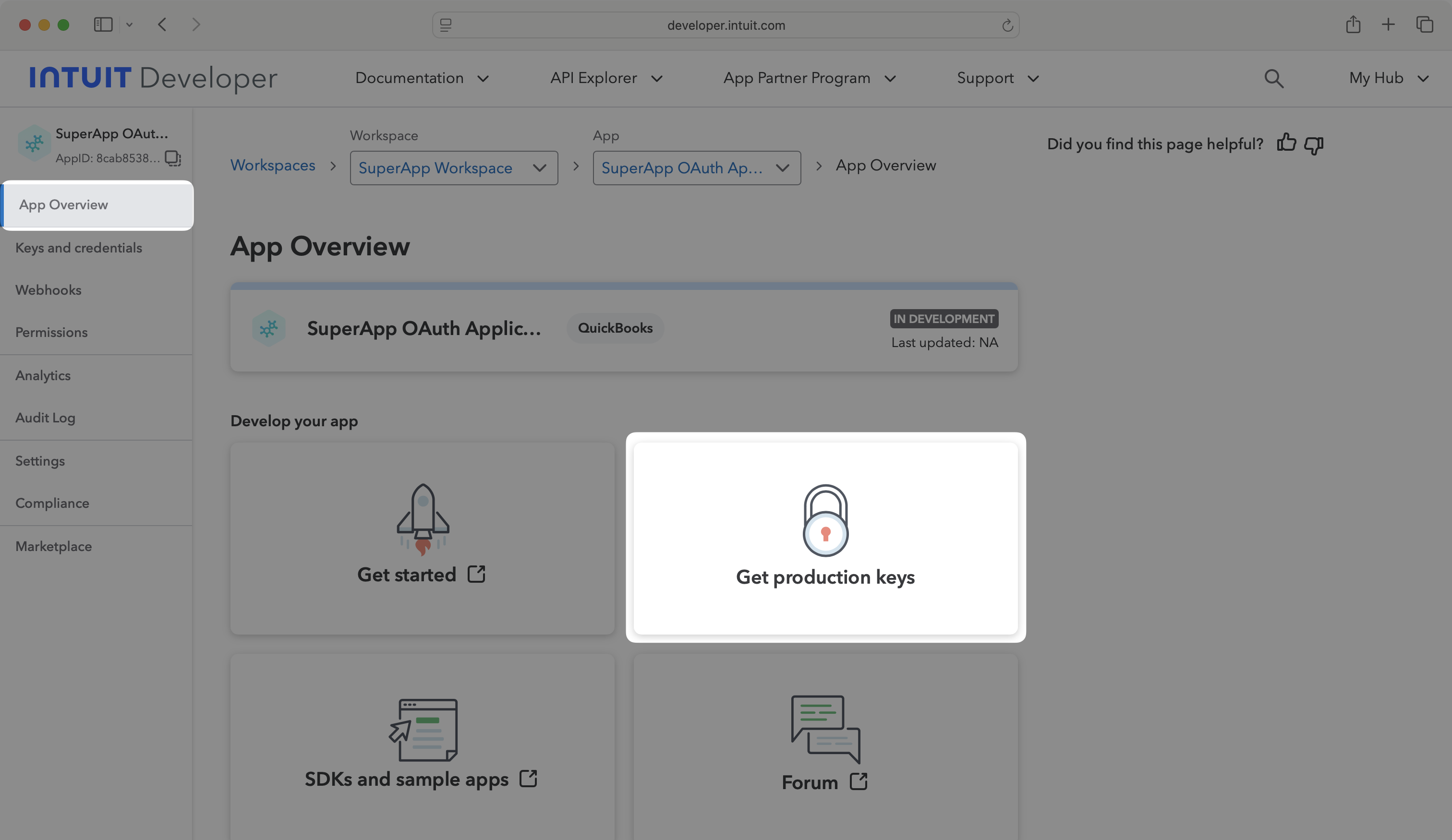
Your app will be created as a sandbox application with development keys only. You will need production keys for your application to configure the WorkOS integration.
In the left navigation menu, select the App Overview tab and click on the Get production keys tile.
Complete the App details and Compliance questionnaires.
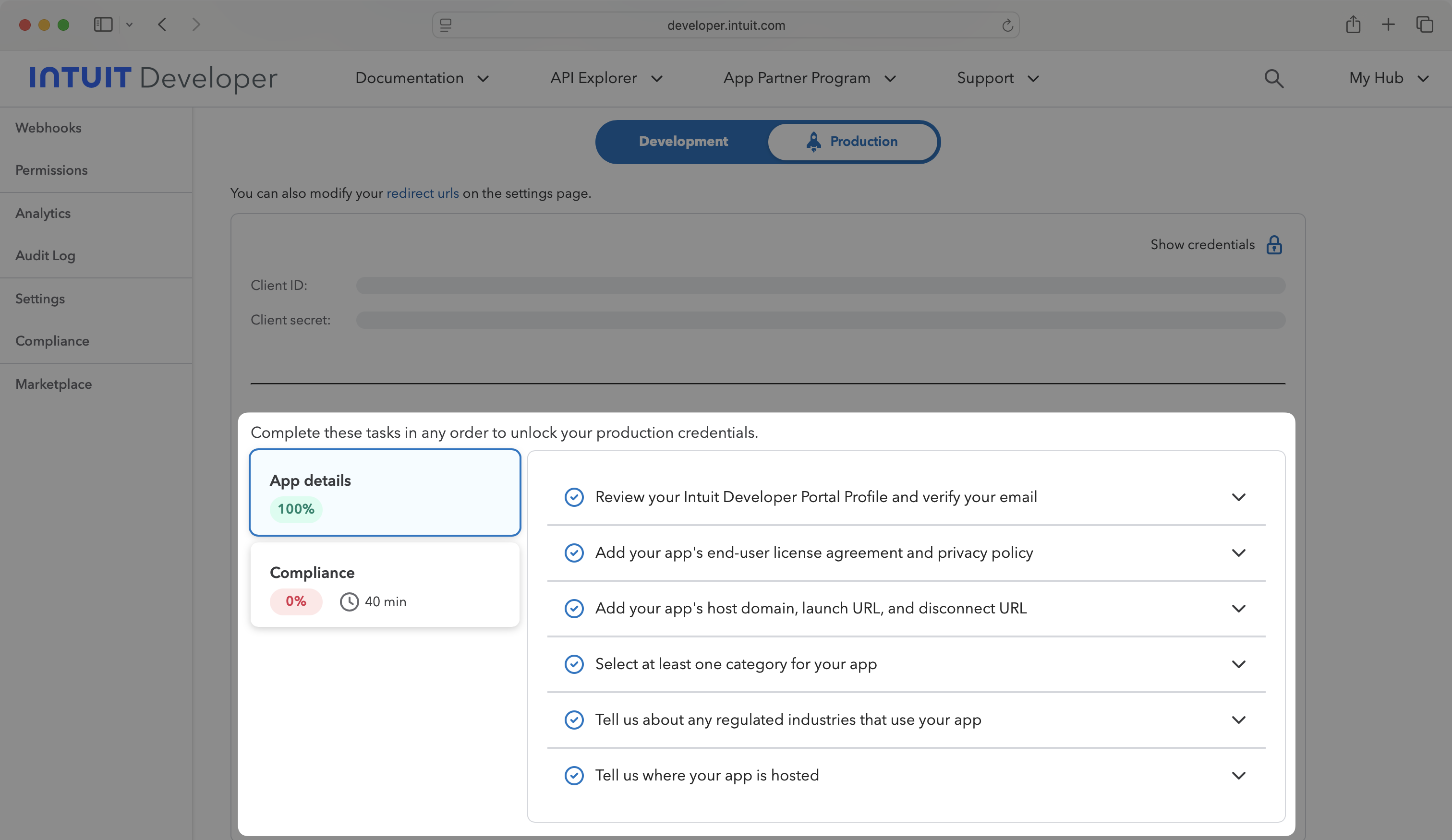
After answering all required questions, you should be able to view your production Client ID and Client Secret.
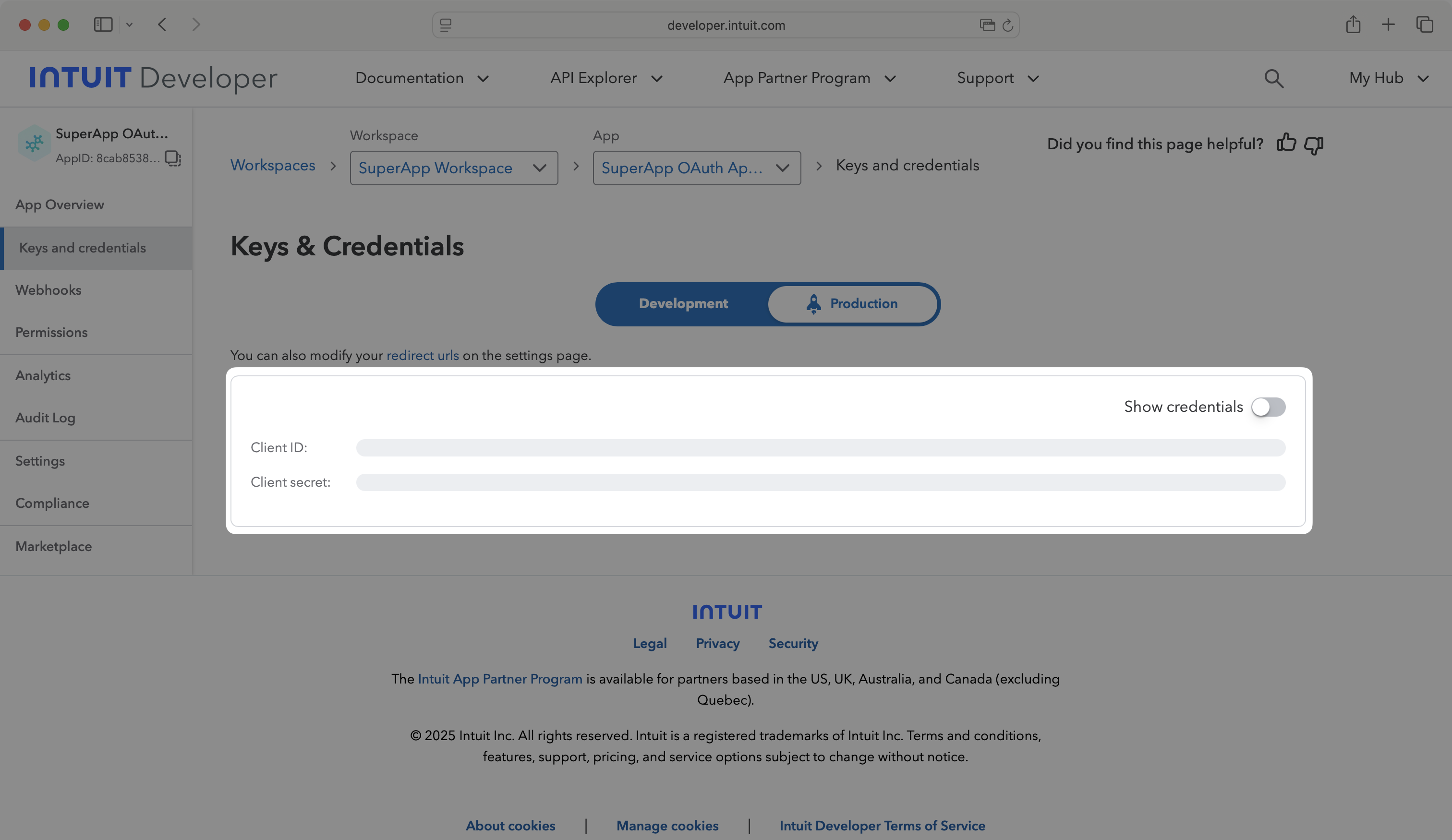
In the left navigation menu, select the Settings tab. On the Settings page, click on the Redirect URIs tab. Make sure you’re editing your Production application, and click Add URI.
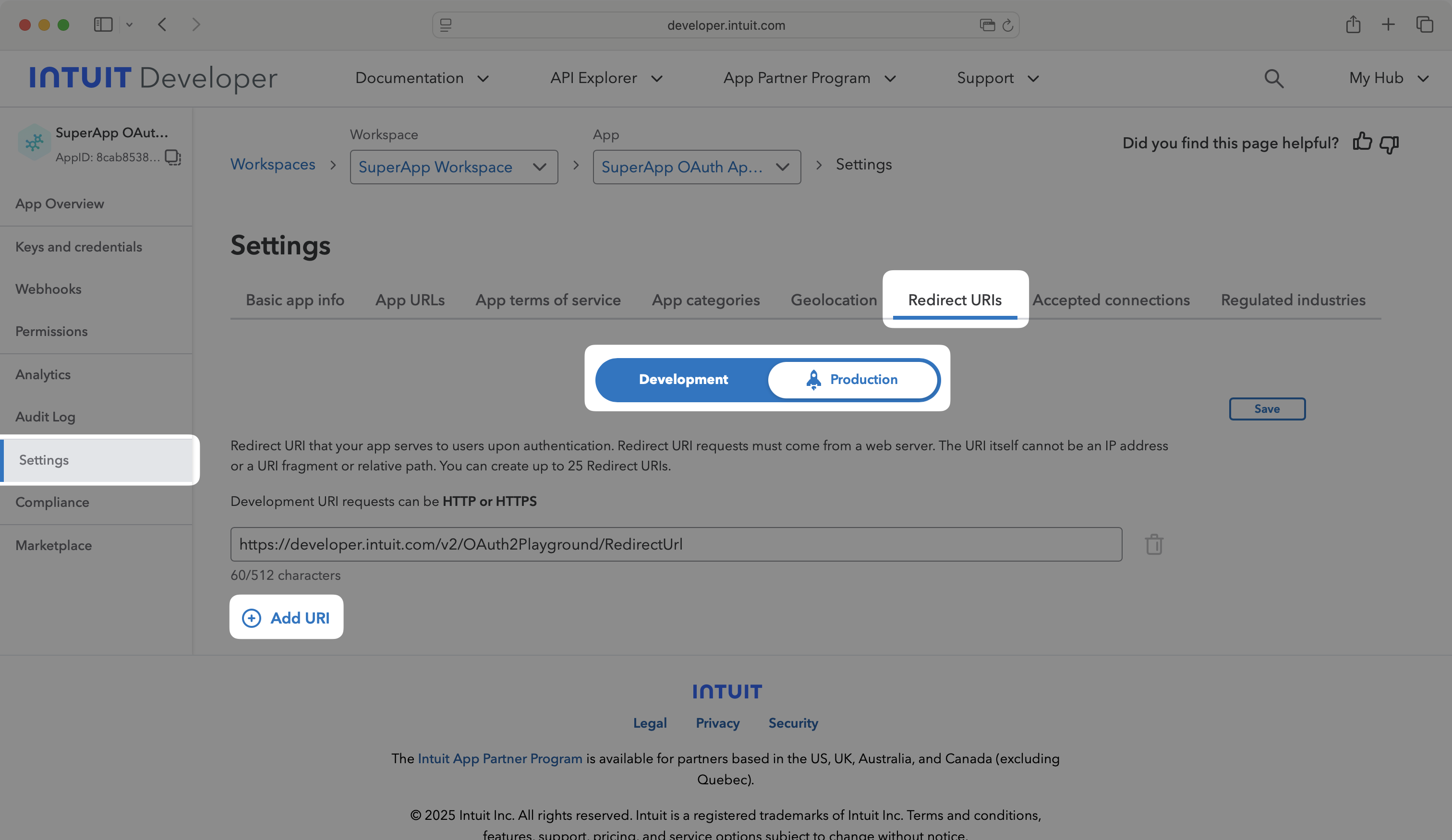
Enter the Redirect URI from the Intuit OAuth configuration in the WorkOS Dashboard. Click Save.
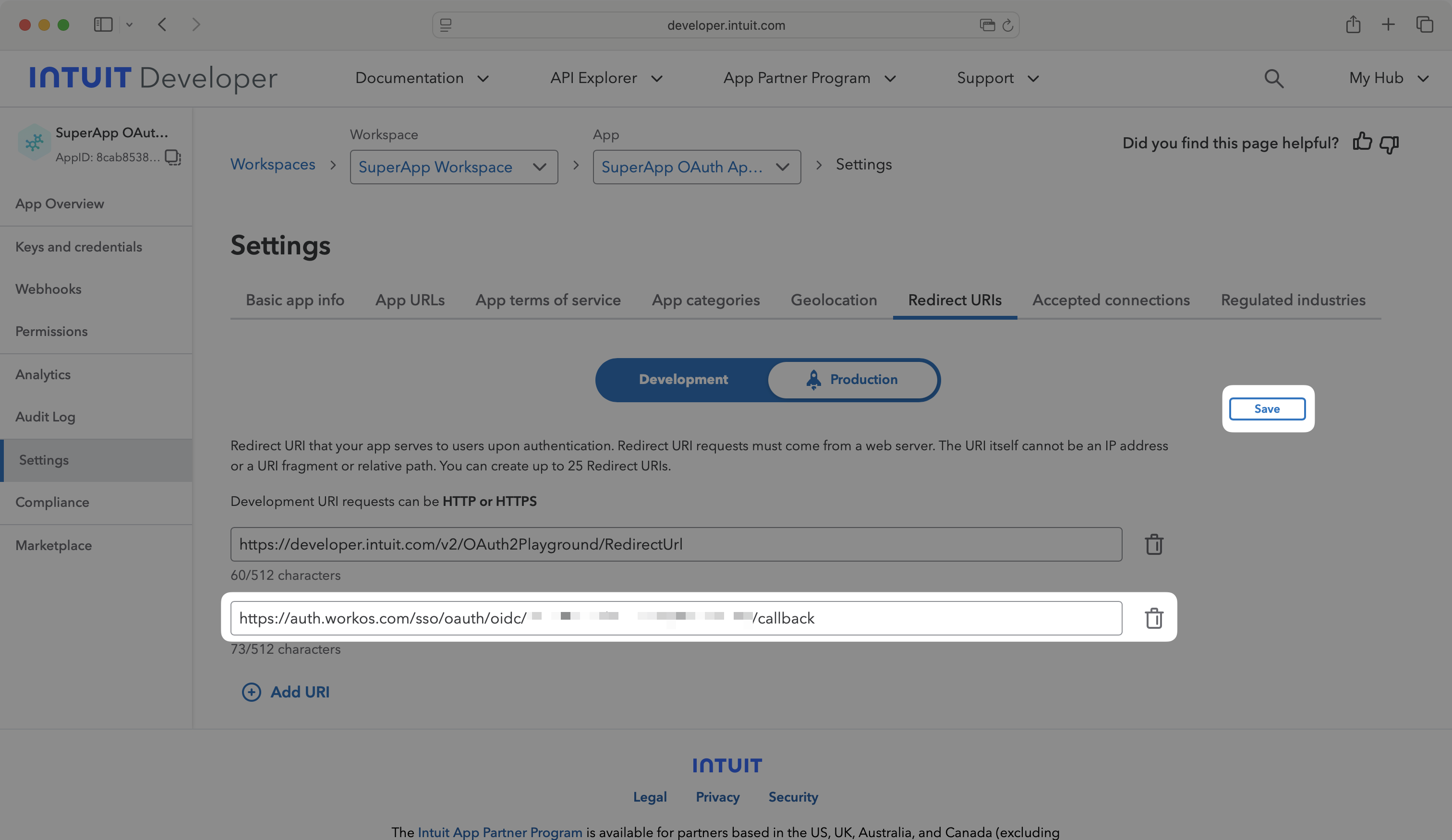
Now that you have the Intuit Client ID and Intuit Client Secret from a previous step, return to the WorkOS Dashboard.
In the Intuit OAuth configuration dialog, enable the integration. Paste the credentials from Intuit into their respective fields in the WorkOS Dashboard.
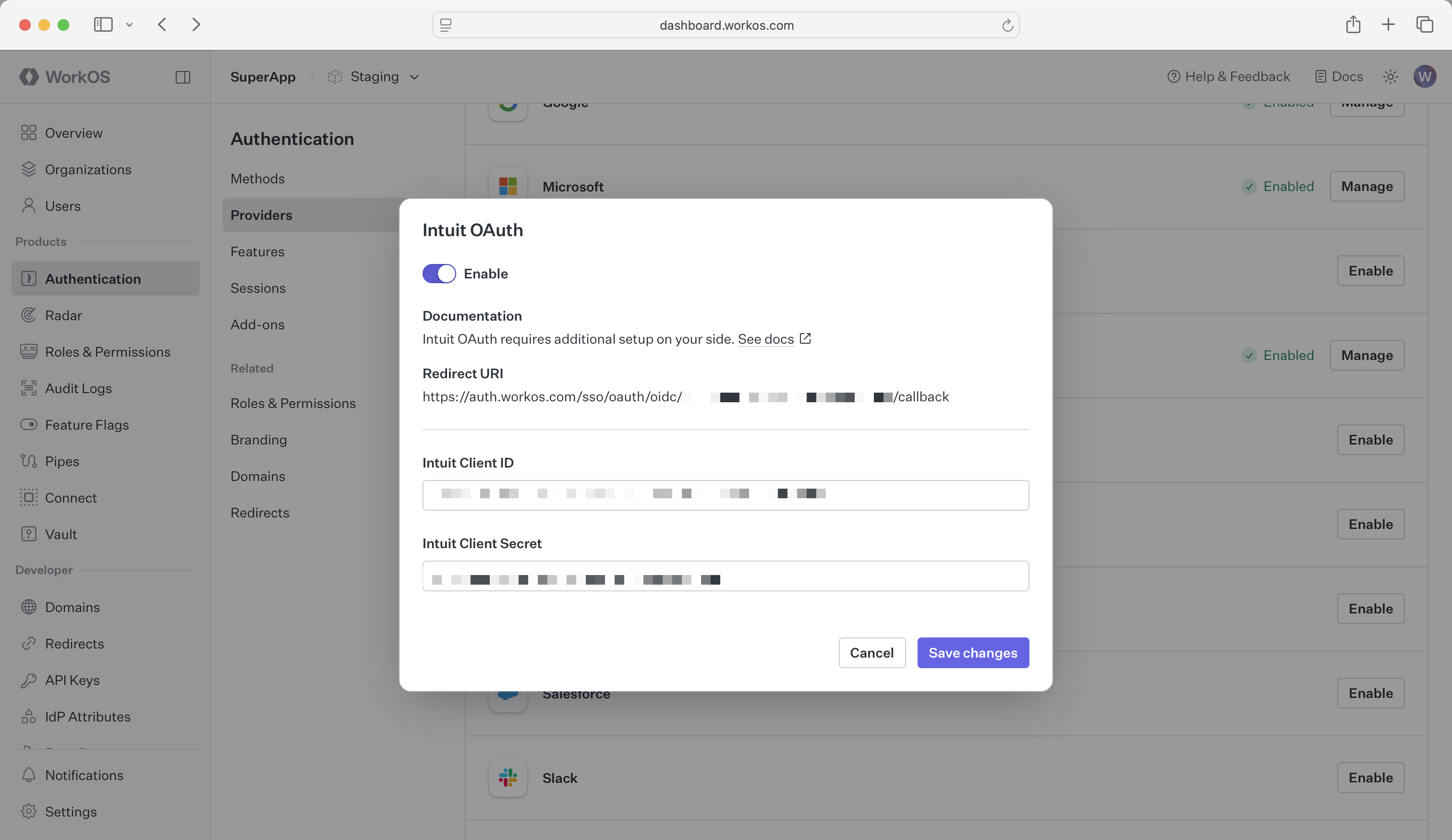
Click Save changes to complete the configuration.
You are now ready to start authenticating with Intuit OAuth. If you are using AuthKit’s Hosted UI, a Continue with Intuit button will be added to your login page.
If you are building your own authentication flows outside of AuthKit’s hosted UI, you can use the provider query parameter in the Get Authorization URL API endpoint to support global Intuit OAuth for any domain. The provider query parameter should be set to IntuitOAuth.
How is the WorkOS Intuit OAuth integration different from implementing regular Intuit OAuth flow?
It’s the same Intuit OAuth flow as you could build yourself, but it’s encapsulated within WorkOS SSO. This means you don’t need to build it yourself. In addition to Intuit OAuth, you can use WorkOS SSO to support other identity providers, all with a single integration.
What is the provider query parameter and how is it used in the Intuit OAuth integration?
If you are building your own authentication flows outside of AuthKit’s hosted UI, you can use the provider query parameter in the Get Authorization URL API endpoint to support global Intuit OAuth for any domain. The provider query parameter should be set to IntuitOAuth.
What scopes are required for Intuit OAuth?
The openid, profile, and email scopes are required to allow the application to read user profile information necessary for authentication. These scopes provide access to the user’s basic profile data and email address.