Custom Targets
Target a feature flag at resources in your own application, such as workspaces, accounts, or environments, instead of only WorkOS users and organizations.
Feature flags can target WorkOS organizations and users. Many rollouts need a boundary that WorkOS does not model, such as a workspace inside a customer’s company, a billing account, or one of your own deployment environments. Custom targets let a flag name those resources directly, without modeling them as placeholder users or organizations.
A custom target has two parts:
- A target type, a lowercase slug that names a class of resource in your application, such as
workspace,account, ortenant. The dashboard calls this the rule type. - A target ID, the identifier of one resource of that type, such as
ws_123. WorkOS stores and matches the ID exactly as you enter it. It does not resolve the ID to a name or check that the resource exists.
Custom targets are exact matches only. A flag is on for the workspace with ID ws_123 when the evaluation context names exactly that type and ID. Custom targets do not add segments or percentage rollouts.
Custom targets are evaluated by the Node runtime client. The feature_flags claim in an AuthKit access token reflects organization and user targeting only, because AuthKit has no knowledge of your application’s resources. A flag enabled only for a custom target never appears in the claim.
Custom targets are managed in the WorkOS Dashboard. The targeting API currently accepts organization and user targets only.
A target type should name a class of resource in your application, such as workspace, account, tenant, project, or environment.
When choosing target IDs:
- Use the identifier your system already emits. Target IDs are case-sensitive, so pass the canonical machine identifier, such as
ws_01J9..., rather than a display name typed by hand. - Keep sensitive personal data out of types and IDs. Both are visible in the dashboard, delivered to every runtime client polling the environment, and recorded in audit logs.
To follow this guide, you’ll need:
- A feature flag in your WorkOS Dashboard. The quick start walks through creating one.
- The Node runtime client in your application, from
@workos-inc/nodeversion10.11.0or later. Earlier versions ignore custom targets and evaluate organization and user targeting only.
Like organization and user targets, custom targets are configured per environment. Open the flag in your WorkOS Dashboard and find the card for the environment you want to configure. To configure a different environment, click Edit in X to switch your active environment.
- Set the environment’s rule to Some. The Organizations and Users targeting rows appear.
- Click Add custom targeting rule.
- Choose a rule type. The list shows every type already saved in the project. To add a new type, enter its slug and choose Create new rule type. The built-in
organizationandusertypes cannot be created as custom types.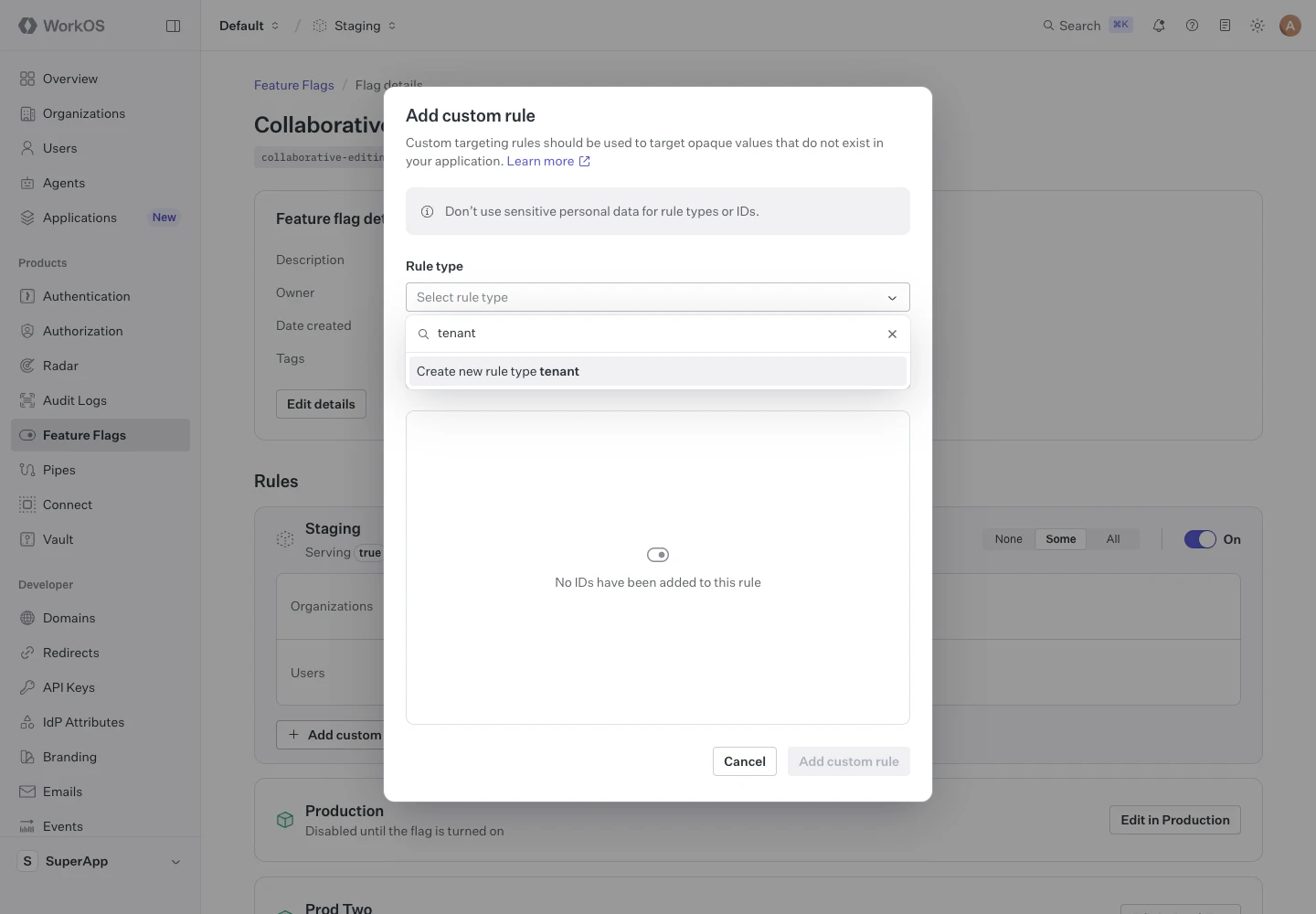
- Enter one or more rule IDs, separated by commas, then press Enter or click Add. Each ID is added to the rule, where it can be removed before saving.
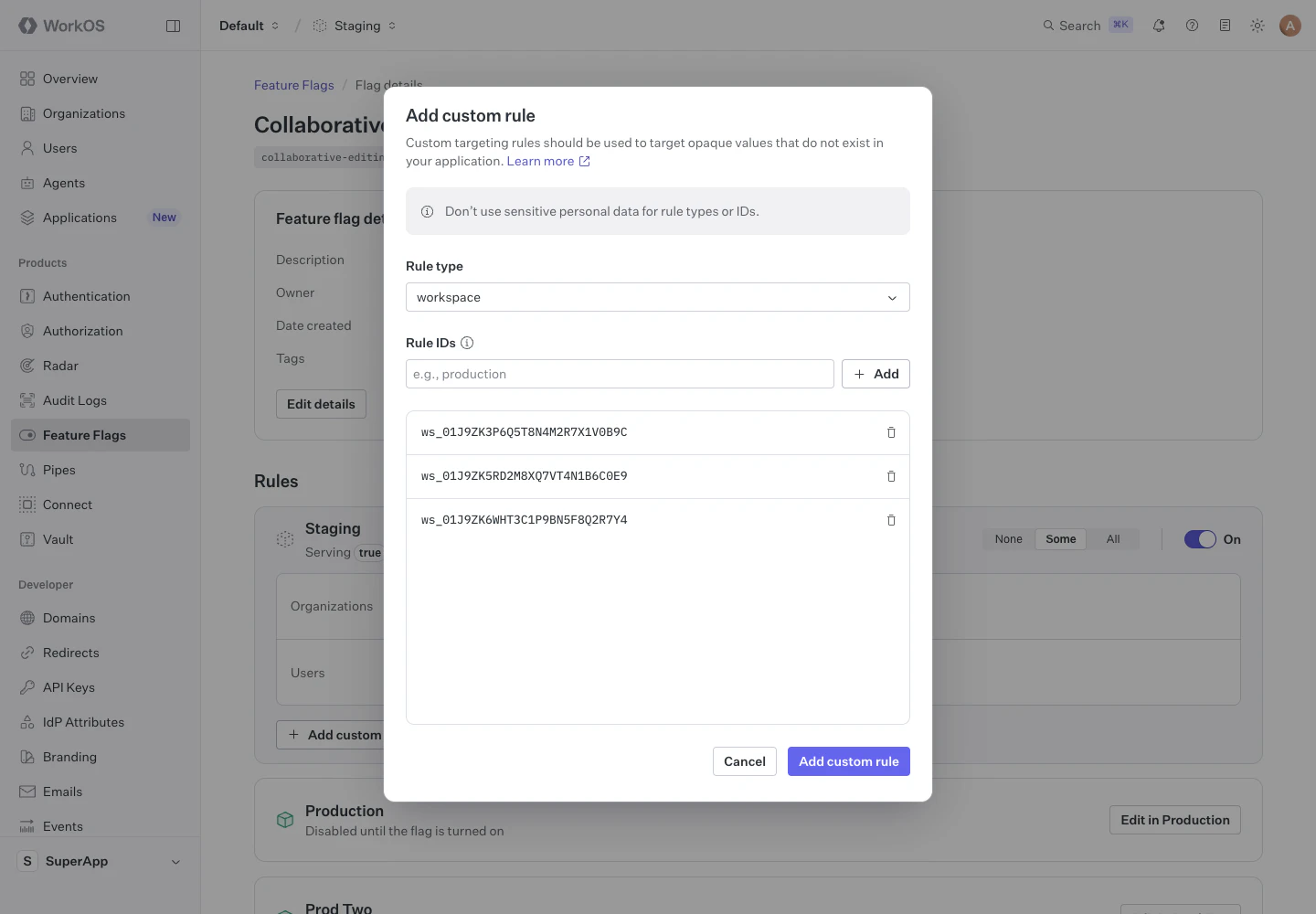
- Click Add custom rule.
The rule appears as a new row labeled with its type, listing each ID.
A rule type is saved once for the whole project, so a type created while configuring your staging environment is already available when you configure production. Rule IDs are scoped to a single environment. Add them separately in each environment where the flag should target those resources. The type stays available after its last target is removed, and its slug cannot be changed.
Toggle the flag on for the environment, as you would for a flag targeted at organizations or users. Once the flag is on, the environment’s status line shows the value being served and counts the custom targets alongside its organizations and users.
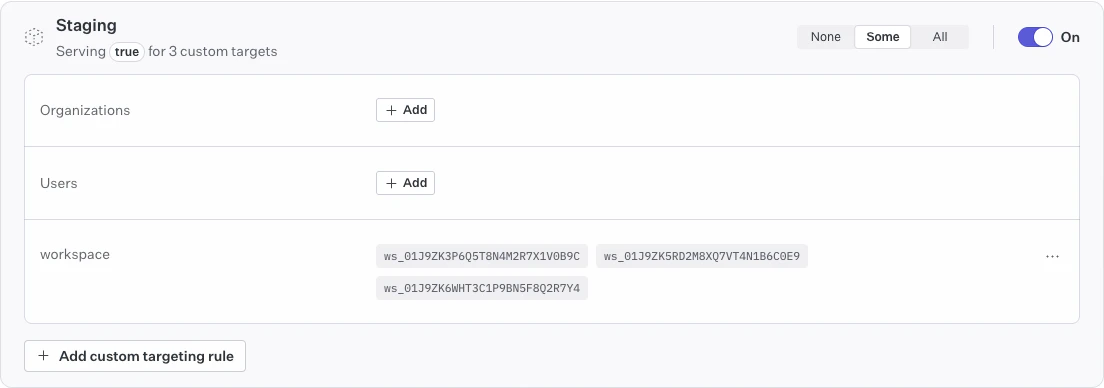
A flag that is off evaluates to false for every context, no matter which targets are configured, so turning the flag off works as a kill switch without changing the targeting you have set up.
Pass the resource being evaluated to the runtime client, keyed by its target type. Each value is an object with the resource’s id.
In this form, user and organization are target types like any other. The userId and organizationId fields shown in the runtime client guide continue to work, but the two forms cannot be mixed in one call. A context with userId alongside workspace matches no targets, logs a warning, and returns the flag’s default value.
A context holds at most one resource of each type. To make a decision per workspace, evaluate once per workspace:
Targeting changes reach the runtime client on its next poll, within the polling interval. They are not instant across long-lived server processes.
For each evaluation, the runtime client checks the flag’s configuration in order:
- If the flag is off in the environment, the result is
false. - If any resource in the context matches a target on the flag, whether an organization, a user, or a custom target, the result is
true. - Otherwise, the result is the flag’s default value.
Every target turns the flag on, so there is no precedence between target types. A flag cannot be turned off for one resource while it stays on for the rest.
Invalid context never throws. A type key or ID that fails validation is ignored with a logged warning, so the flag falls back to its default value rather than failing the request.
Open the menu at the end of a rule’s row to change it:
- Edit rule adds or removes IDs. The rule type cannot be changed after the rule is created. To target a different type, create another rule.
- Delete rule removes every ID of that type from the environment. The type remains available in the project for other flags and environments.
Removing a target returns that resource to the flag’s default value on the next poll.
| Value | Requirements |
|---|---|
| Rule type | Starts with a lowercase letter, followed by lowercase letters, numbers, hyphens, or underscores, up to 64 characters. organization and user are reserved. |
| Rule ID | Letters, numbers, periods, underscores, colons, and hyphens, from 1 to 255 characters. . and .. are not allowed. IDs are case-sensitive. Each ID can appear once per rule. |
| IDs per rule | Up to 1,000 IDs per rule type in an environment. |
Values are validated as entered and are never normalized. A rule type of Workspace is rejected rather than converted to workspace, so a differently cased spelling can never split your targeting across two near-identical types.
- If a flag targeted only at custom targets is missing from the access token, this is expected. The
feature_flagsclaim carries organization and user targeting only. Evaluate custom targets with the runtime client. - If a rule type is missing from the selector, it may already have a rule in this environment. Edit that rule from its row instead. Otherwise, enter the slug and choose Create new rule type.