Role Assignments
Grant users access to specific resources through role assignments.
Assignments are where authorization becomes concrete. An assignment connects a user (through their organization membership) to a role on a specific resource. This determines what actions the user can take on that resource and, through inheritance, its children.
Assign a role to a user on a resource:
The assignment takes effect immediately – the next access check will include it.
When you assign a role to a user on a resource:
- The user gains all permissions included in that role on that resource
- If the role includes child-type permissions, those propagate down to child resources
- The assignment takes effect immediately
For example, a workspace-admin role might include workspace:edit, proj:read, proj:edit, app:read, and app:edit. If you assign Alice this role on Workspace: Engineering, she can edit the workspace, view and edit all projects within it, and read and edit all apps in those projects. One assignment, broad access.
Users can gain access through two paths: direct assignment on a resource, or inheritance from a parent.
Direct assignment means the role is assigned specifically on that resource. Alice has project-editor on Project: API Backend – she can edit that project because you explicitly granted it.
Inherited access comes from a role on a parent resource that includes child-type permissions. Alice has workspace-admin on Workspace: Engineering, which includes project:edit. That means she can edit Project: API Backend (which is in the Engineering workspace) even without a direct assignment on the project.
When deciding where to assign roles, consider the scope of access needed. If someone needs access to everything in a workspace, assign a workspace role. If they need access to just one project, assign a project role directly. Both approaches are valid – the right choice depends on what access you’re trying to grant.
Users can always have multiple resource-scoped roles – there’s no setting to control this. A user can be a workspace-admin on one workspace and a project-viewer on a project in a different workspace simultaneously.
For organization-level roles, multiple roles must be explicitly enabled. When enabled, the permissions from all organization-level roles combine additively.
A user might have project-editor and project-reviewer on the same project, giving them permissions from both roles. Or they might have workspace-admin on one workspace and project-viewer on a project in a different workspace – each assignment grants access to its respective resource tree.
In this example, Alice has baseline org access, full control of the Engineering workspace and everything in it, plus read-only access to a sensitive project in another part of the organization.
List assignments for a user:
Remove an assignment:
Access is revoked immediately. Removing an assignment also removes any permissions that were inherited by child resources through that assignment. However, any direct assignments on child resources remain intact.
You can view assignments in the WorkOS Dashboard. Navigate to an organization membership to see all role assignments for that user.
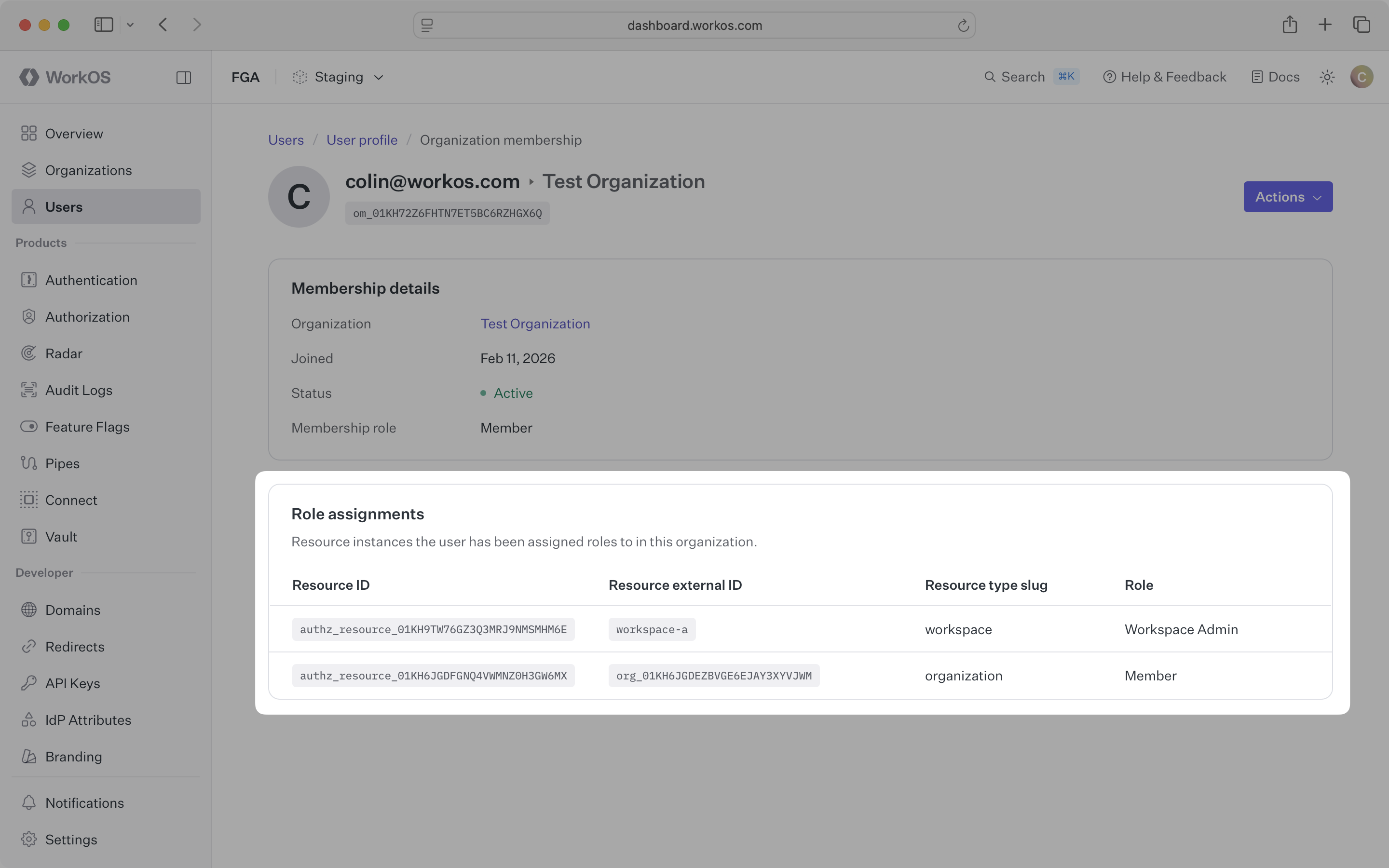
Several operations affect assignments automatically:
When a resource is deleted, all role assignments on that resource and its children are removed. Users lose access without any manual cleanup.
When an organization membership is removed, all of that user’s role assignments within the organization are removed. They can no longer access any resources in that organization.
When a role’s permissions change, everyone with that role immediately sees the updated permissions. You don’t need to re-assign roles – existing assignments use the new permission set.
For enterprise customers using identity providers, you can use IdP role assignment for organization-level roles while managing resource-scoped roles through the API.
This gives IT admins control over who belongs to the organization and what baseline access they get, while your application manages the specifics of who can do what on which resources.