How to brand AuthKit per application when products share users
Give each product its own AuthKit sign-in pages and emails while users keep one account. How inheritance works, and what stays environment-wide.

Per-application branding lets each application in a WorkOS environment have its own AuthKit pages and email branding: logo, colors, font, display name and copy. Users still sign in with one account across every application, because the user base belongs to the environment, not to the application.
Two products that share a login can still look like one product at the worst possible moment. A user clicks "Sign in" on your newer product, lands on a hosted page with the older product's logo and colors, and wonders whether they ended up somewhere else. The shared account is deliberate. The shared look was a side effect of branding living at the environment level.
Since October 26, 2026, environments with more than one application can customize AuthKit and email branding per application. It's built for teams running several products that need distinct branding while sharing one set of users, so people sign in with the same account everywhere.
How does an application inherit branding?
Every application starts out using the environment's branding. Customizing an application gives it a copy of that branding to change on its own, and restoring it puts the environment's branding back. Nothing diverges until you save: the first save creates the application's own branding, and every application you haven't touched keeps using the environment's.
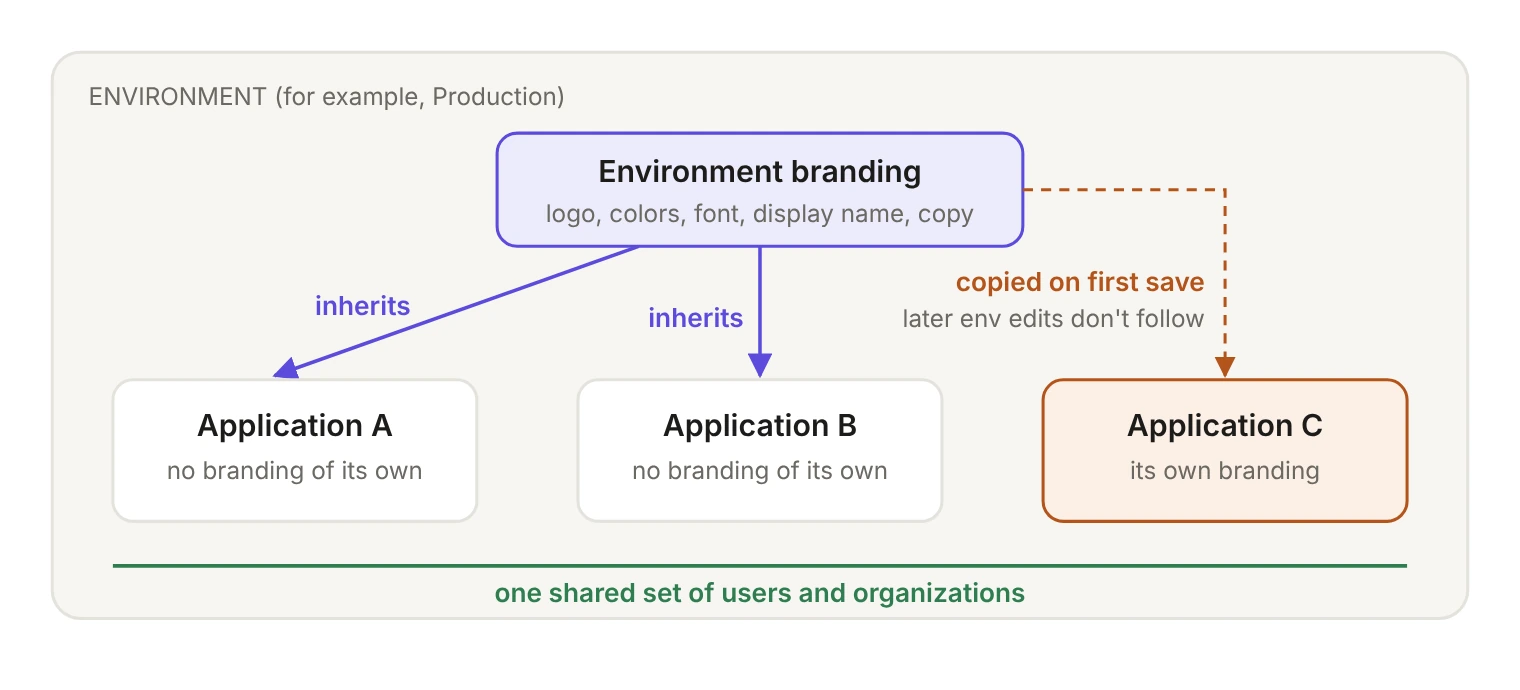
The word that matters is copy. Once an application has its own branding, it changes independently of the environment. During a rebrand, an environment-level change updates the applications that still inherit, but not the ones you customized, so plan to update each customized application too.
Should the second product be an application, an environment or a project?
Branding per application only makes sense if the two products should share users. The applications guide puts the choice like this:
If your second product needs its own users, an application is the wrong layer: per-application branding changes how the sign-in looks, not who can sign in. If the products should share accounts, put both in one environment as separate applications and brand each one.
What can you customize for one application?
Open the brand editor from the application's details page under Applications, or pick the environment and application on the Branding page. Per the branding docs, you can set:
- Display name: the product name users see. It defaults to your team name and appears on the hosted AuthKit pages and in the application's authentication emails, such as invitations, Magic Auth and email verification. For a second product, this is usually the first field to change.
- Logo, logo icon and favicon: logo and logo icon at least 160x160 px (the icon square), JPG, PNG or SVG; favicon at least 32x32 px and square. Each file can be up to 100 KB.
- Colors: four values for light mode and four for dark mode (page background, button background, button text, link). Focus outlines, hover states and borders are generated from those.
- Font: any Google Font.
- Page layout: a centered single column or a two-column split for sign-in and sign-up. The split layout adds a content panel you write in HTML and CSS, on either side and optionally hidden on mobile. The panel's HTML is sanitized (scripts, iframes, forms and inline event handlers are removed) and its CSS is scoped to the panel.
- Copy: custom copy you write in English is translated into every supported language, and users see the closest match to their locale. Text in the content panel isn't translated, so keep localized headings and links in the copy fields.
How does AuthKit know which brand to show?
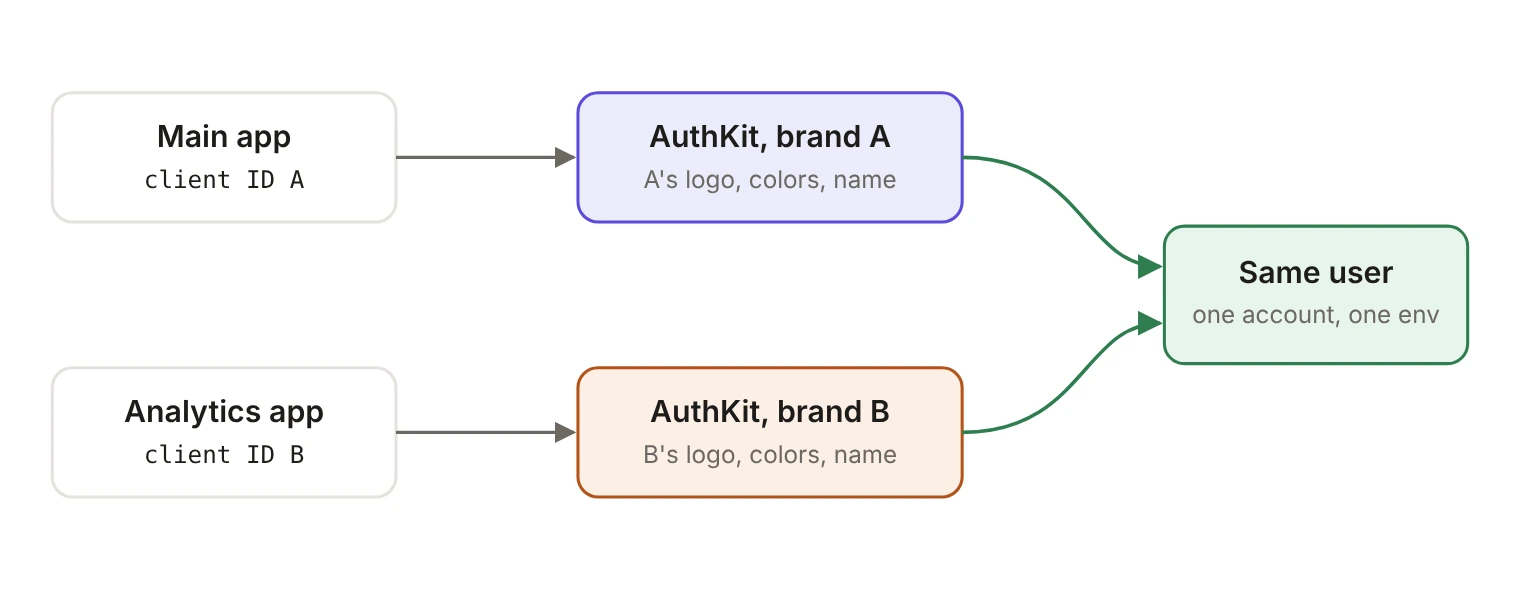
Through the client ID. Each application has its own client ID, and the authorization request you start with it tells AuthKit which application the user is signing in to. That's what selects the branding. Give each product its own client ID and configuration rather than sharing one value and branching later.
Setting provider to authkit sends the user to your hosted AuthKit domain. The redirect URI must match one configured for that application, so add the second product's callback under its own application in the dashboard. Each application's redirect URIs also decide where password resets, sign-in flows and invitation links send users back.
What still uses the environment's branding?
A few surfaces don't follow the application. These are where a careful setup can still show the wrong brand:
The default application is created automatically with the environment and is listed first under Applications. One related detail for your backend: the iss claim in access tokens is the same for every application in the environment and references the default application's client ID. The client_id claim reflects the application the user signed in through, so branch on client_id if your code needs to know which product a session belongs to.
How do you copy or restore an application's branding?
You don't have to rebuild a brand by hand in each environment. The editor's Copy from environment action copies branding from another environment, and once any application there has its own branding, it lists those applications too. The copied settings load into the editor before you save, so you can build a look in staging, check it on a real sign-in page, then copy it into production. Before you save the copy, check that the terms of service and privacy policy links are set.
Copying a whole environment's branding into another environment doesn't overwrite applications there that already have their own branding. They keep it.
Restoring is just as reversible. You can restore the environment's branding from the application's details page, after a confirmation, or from the editor's actions menu, where it previews the environment's branding until you select Save changes. Restoring removes the application's own branding and puts the environment's back, so customizing an application is an experiment you can undo, not a migration.
Where does this fit with the rest of AuthKit?
Per-application branding builds on the applications model: each application already has its own client ID, redirect URIs and session settings, and now its own look. For how far the hosted pages go before you need a custom UI, see A practical guide to customizing AuthKit. The full list of branding settings is in the AuthKit branding docs.