Your users signed in with Google. That doesn't mean you can call their Google Calendar.
Why authentication and API access are two different things in Google OAuth, and what to do about it.

A lot of developers run into this wall at roughly the same moment: they've built Google login, users are signing in, everything works. Then someone asks for a feature that reads the user's calendar, or searches their Gmail, or lists their Drive files. The developer looks at the token they already have from sign-in and thinks: "I have a Google token. I'll just use that."
Then comes a 403, or an empty response, or a scope error that is genuinely confusing to read.
This isn't a bug. It's a conceptual gap that Google's documentation doesn't do a great job of bridging. This article explains what's actually happening, walks through the scenarios where the problem shows up, and shows a pattern that avoids the problem entirely.
The two things a Google token can do
When a user signs in with Google, your application receives a token. But there are actually two different tokens involved in an OAuth flow, and they serve completely different purposes.
The ID token is a signed JWT that tells you who the user is: their name, email address, and a stable Google account ID. You verify it, extract the user's identity, and create a session. That's it. You cannot use an ID token to call Google APIs.
The access token is what authorizes API calls. It grants access to specific Google services, but only the ones covered by the scopes you requested when the user authorized your app. A standard "Sign in with Google" flow requests the openid, email, and profile scopes. Those scopes let you read identity information. They do not include https://www.googleapis.com/auth/calendar, https://www.googleapis.com/auth/gmail.readonly, or any other Workspace API scope.
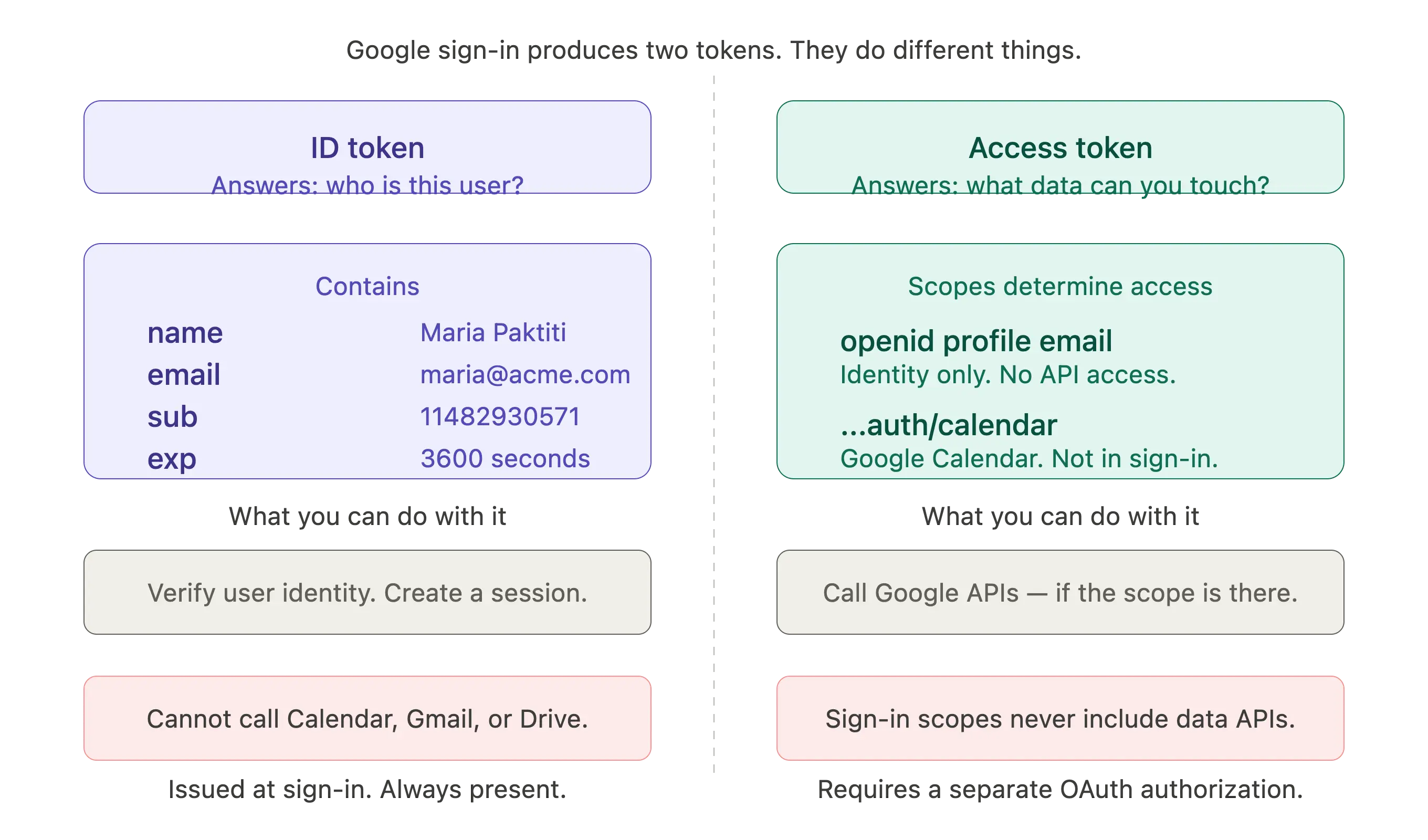
So if a user signed in through your standard login button and you try to call the Calendar API with that access token, Google returns a 403. Not because the token is invalid or expired, but because it was never authorized to touch Calendar data in the first place.
Why doesn't adding more scopes to sign-in fix it?
The natural instinct is to add Calendar scopes to the sign-in flow. Some teams do this, and it technically works, but it creates a bad experience and a fragile integration.
First, Google will show the user a permissions screen listing everything your app wants access to, including full calendar access, before they've even seen your product. Asking for sensitive permissions up front without clear context reduces consent rates and makes users suspicious.
Second, there's a well-documented quirk in how Google issues refresh tokens. A refresh token is only returned the first time a user authorizes your app. If they've signed in before without the calendar scope, and you later add it, they won't necessarily see the new consent screen again unless you force it with prompt=consent. Many developers discover this only after wondering why their refresh token doesn't let them refresh, or why users who signed up months ago don't have calendar access even after you added the scope. A common Stack Overflow answer to the missing-refresh-token problem is to add prompt=consent&access_type=offline to the authorization URL, which re-prompts users every time (not a good production pattern).
Third, and most importantly: this approach completely breaks for a large portion of your users, for a reason that has nothing to do with your code.
The SSO problem
Here's the scenario that breaks the approach entirely.
Your user doesn't sign in with Google directly. They sign in through their company's identity provider: Okta, Microsoft Entra ID (formerly Azure AD), Google Workspace with a custom domain, or any SAML-based SSO provider. When they click "Sign in with Google" and enter their work email, they might be redirected to their company's login page. What comes back to your app is a token that proves who they are, but it was issued by the SSO provider, not by Google's authorization server for Workspace API access.
Even if the user is logging in through Google Workspace SSO directly, the token they receive has the scopes your OAuth client requested. It does not automatically inherit any Workspace data access because your company uses Google as their identity provider.
This is a fundamental constraint of how SSO works. Authentication (who are you?) and authorization (what data can my app access?) are separate concerns, even when both involve Google. A token that answers "this is Alex from Acme Corp" does not automatically grant your app permission to read Alex's calendar.
The result is that any approach that piggybacks data access onto the sign-in flow will silently fail for a subset of users; often the enterprise users you most want to serve.
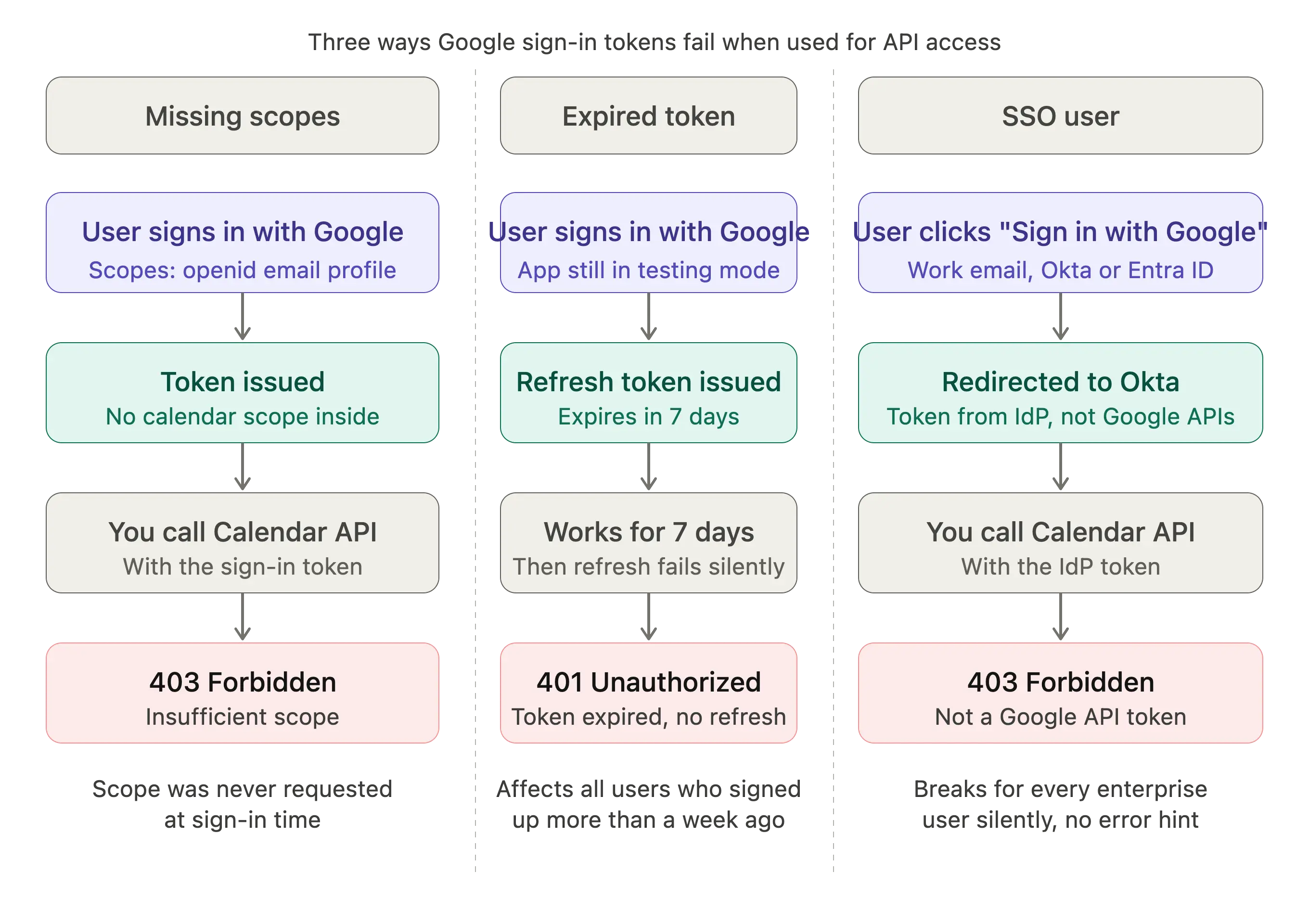
The three scenarios where this breaks
Scenario 1: The user signed in with Google, but without the right scopes.
Your login flow requests openid email profile. Later you want to call Calendar. The access token you have doesn't include Calendar scopes, and you might not even have a refresh token to request new scopes with, because refresh tokens are only issued once per user per app unless re-consent is forced.
Scenario 2: The user signed in with Google, but the app is in testing mode.
Google only issues refresh tokens that last more than 7 days for apps that have been moved to production status in Google Cloud Console and have passed OAuth verification for sensitive scopes. Calendar and Gmail are sensitive scopes. In testing mode, refresh tokens expire after 7 days, which means your integration works fine during development and breaks shortly after users start using it. This is a common source of confused bug reports: "it worked last week."
Scenario 3: The user signed in through SSO.
As described above: the token from an SSO flow authenticates the user but doesn't grant data access to Workspace APIs, regardless of what scopes your app requests.
The pattern that actually works: decouple login from data access
The right model is to treat authentication and data authorization as two separate connections. Your user logs in however they normally log in: email/password, Google, SSO, whatever. That's authentication. Separately, when your app wants to access their Google data, you ask for that permission explicitly, on its own, in its own connection flow.
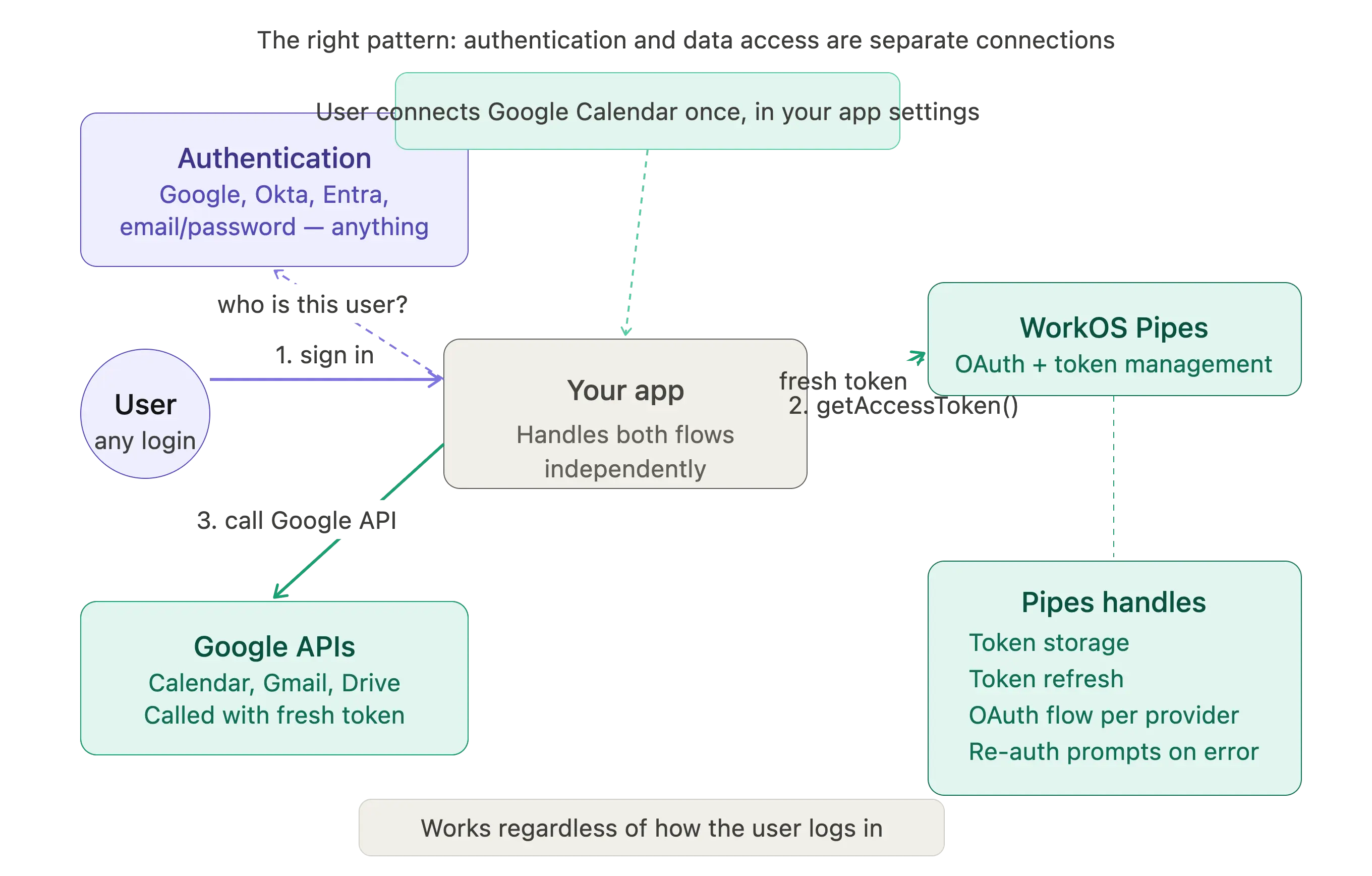
This is what WorkOS Pipes is built for.
With Pipes, you configure Google Calendar (or Gmail, or Drive, or any other provider) as a separate connector in your application. When a user wants to enable the calendar feature, they click a button that kicks off a dedicated OAuth flow just for calendar access, completely independent of how they signed in. Pipes handles the OAuth exchange, stores the resulting tokens securely, and takes care of refreshing them automatically.
When your backend wants to call the Calendar API, you make a single call to Pipes to get a fresh, valid access token:
!!For more details, see Sync Google Calendar events without OAuth using WorkOS Pipes.!!
That's the entire backend. You don't write the OAuth flow, you don't manage refresh tokens, you don't handle the 7-day expiry edge case for apps still in testing, and you don't need to think about what happens when the user signed in via Okta. The connection to Calendar is separate from authentication, so it works regardless of how the user is signed in.
The Pipes widget, which you embed in your app's settings or integrations page, shows the user which services they've connected and gives them a clear, context-appropriate place to authorize new ones. Because the connection happens at a defined, intentional moment (the user is already in your settings, they understand what they're enabling), consent rates are higher and the user experience is cleaner than bundling calendar permissions into a login screen.
What happens when the user's token expires or is revoked?
With a self-managed integration, you write code to handle this: catch the error, figure out whether it's a token expiry or a revocation, decide whether to try refreshing, and if refresh fails, figure out how to prompt the user to reconnect. Each provider handles errors slightly differently.
With Pipes, the token management is handled for you. If there's a problem with the token, the getAccessToken call returns an error object that tells you what went wrong and what to do about it, so you can direct the user to reconnect through the Pipes widget if needed. You don't write the refresh logic or the error classification logic yourself.
A note on scopes and sensitive API access
Google's Calendar, Gmail, and Drive APIs are classified as sensitive or restricted scopes. Applications that request them need to go through Google's OAuth verification process before they can be used by arbitrary users in production. This involves a security assessment, privacy policy review, and in some cases a third-party audit.
This is another reason to separate data access from login: the OAuth app you use for signing users in is a different client than the one you use for accessing their calendar data. Keeping them separate means the consent screen for login stays simple, and the OAuth verification process for sensitive API access only applies to the integration-specific client.
Pipes uses WorkOS-managed OAuth credentials during development, so you can prototype calendar or Gmail integrations without going through the Google verification process immediately. When you're ready for production, you configure your own OAuth application for each provider.
Summary
Sign-in tokens and data access tokens are different things, even when both come from Google. Adding more scopes to your sign-in flow is a workaround that breaks for SSO users, creates friction at login, and runs into the refresh token issuance quirk that trips up many teams. The correct pattern is to decouple authentication from third-party data authorization: let users sign in however they prefer, and separately ask for access to their Google data when that feature is relevant.
WorkOS Pipes implements that pattern. You configure the providers you need, embed the Pipes widget in your app, and call one endpoint to get a fresh access token whenever you need to make a Google API call. The OAuth complexity is handled for you.
If you want to try it, the Pipes documentation covers setup, and the shared credentials option lets you prototype without registering a Google OAuth app first.