Quick Start
Build a complete authorization model from resource types to access checks in minutes.
This guide walks you through the entire FGA workflow using a real-world example: a project management application where organizations contain workspaces, and workspaces contain projects. By the end, you’ll have:
- A resource type hierarchy modeled in the Dashboard
- Roles and permissions scoped to each resource type
- Resources registered via the API
- Role assignments granting users access
- Access checks verifying permissions
- Discovery queries listing accessible resources
The guide follows the same order you’d use when integrating FGA into your product.
Resource types define the schema of your authorization model. Start by mapping your product’s entity hierarchy in the WorkOS Dashboard.
For our project management app, the hierarchy looks like:
Navigate to Authorization > Resource Types and click Model resource types.
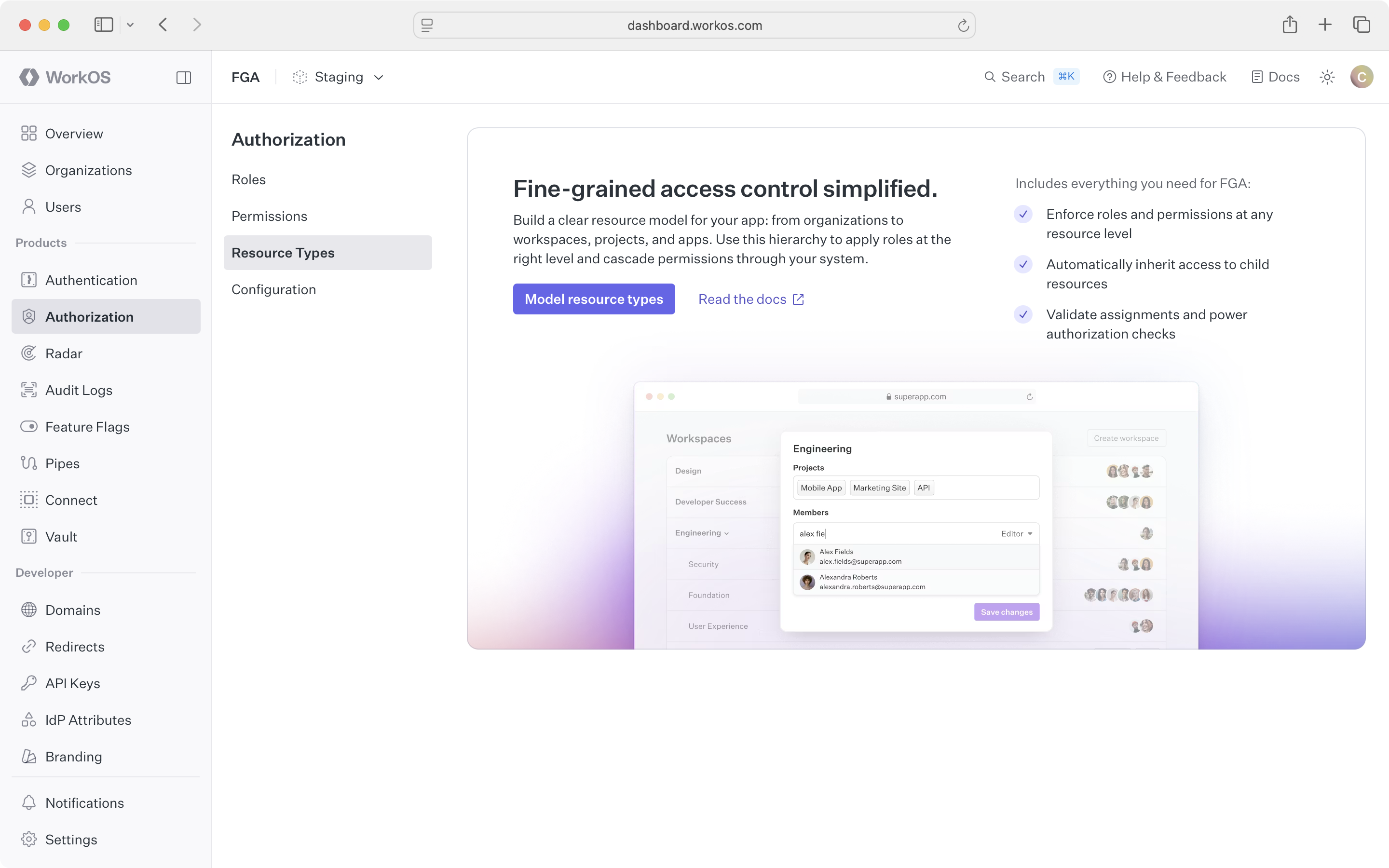
Create the workspace resource type first. Give it a name, a slug, and set its parent to organization. Then create project with its parent set to workspace.
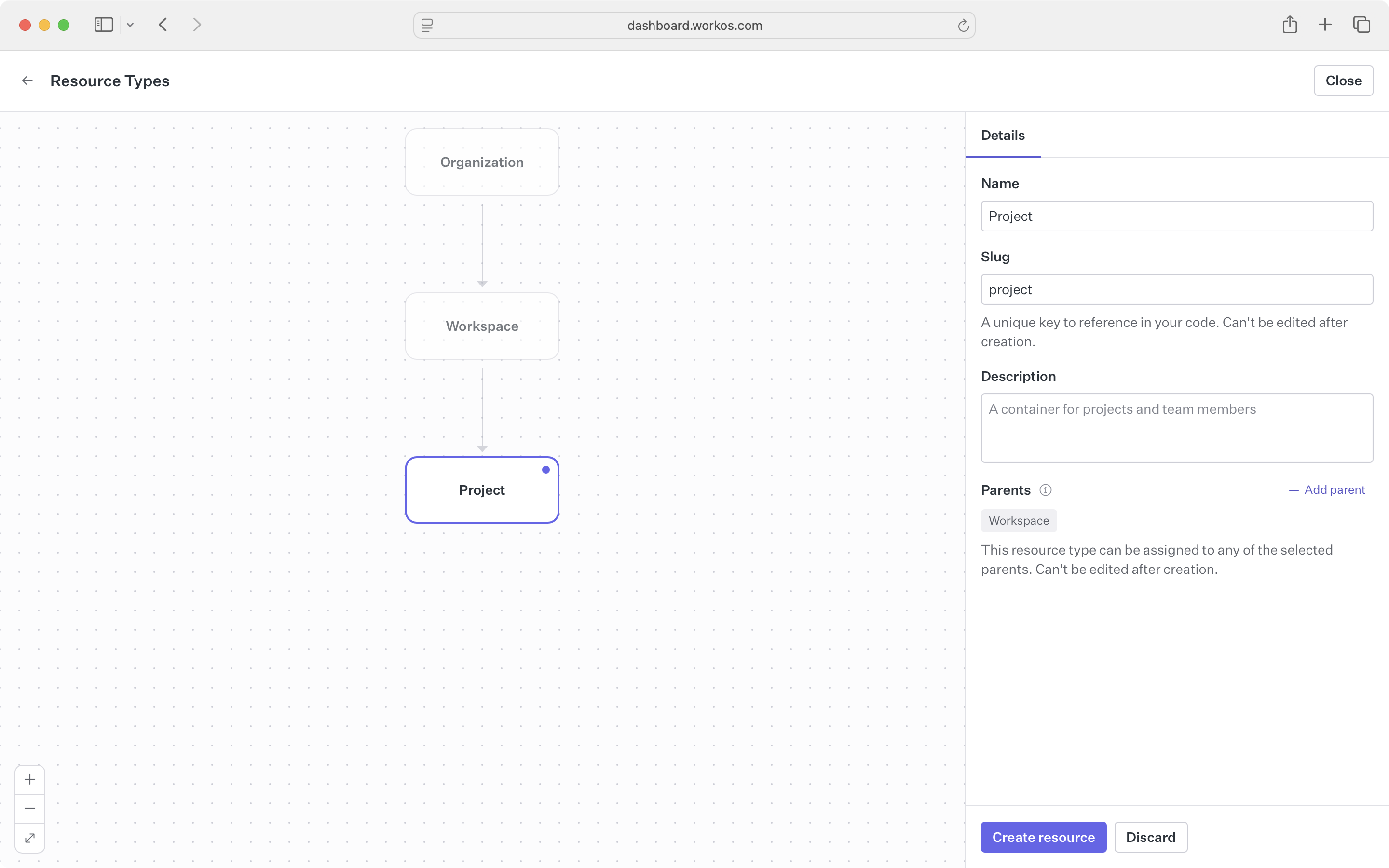
The Dashboard validates your hierarchy as you build it, ensuring constraints like single-parent relationships and maximum depth are respected.
With resource types defined, create the roles and permissions that describe what users can do. Navigate to Authorization > Permissions in the Dashboard.
Permissions represent specific actions on a resource type. We recommend a {resource_type}:{action} naming pattern.
Navigate to Authorization > Permissions and click Create permission. Select the resource type the permission applies to, give it a name and slug, and save.
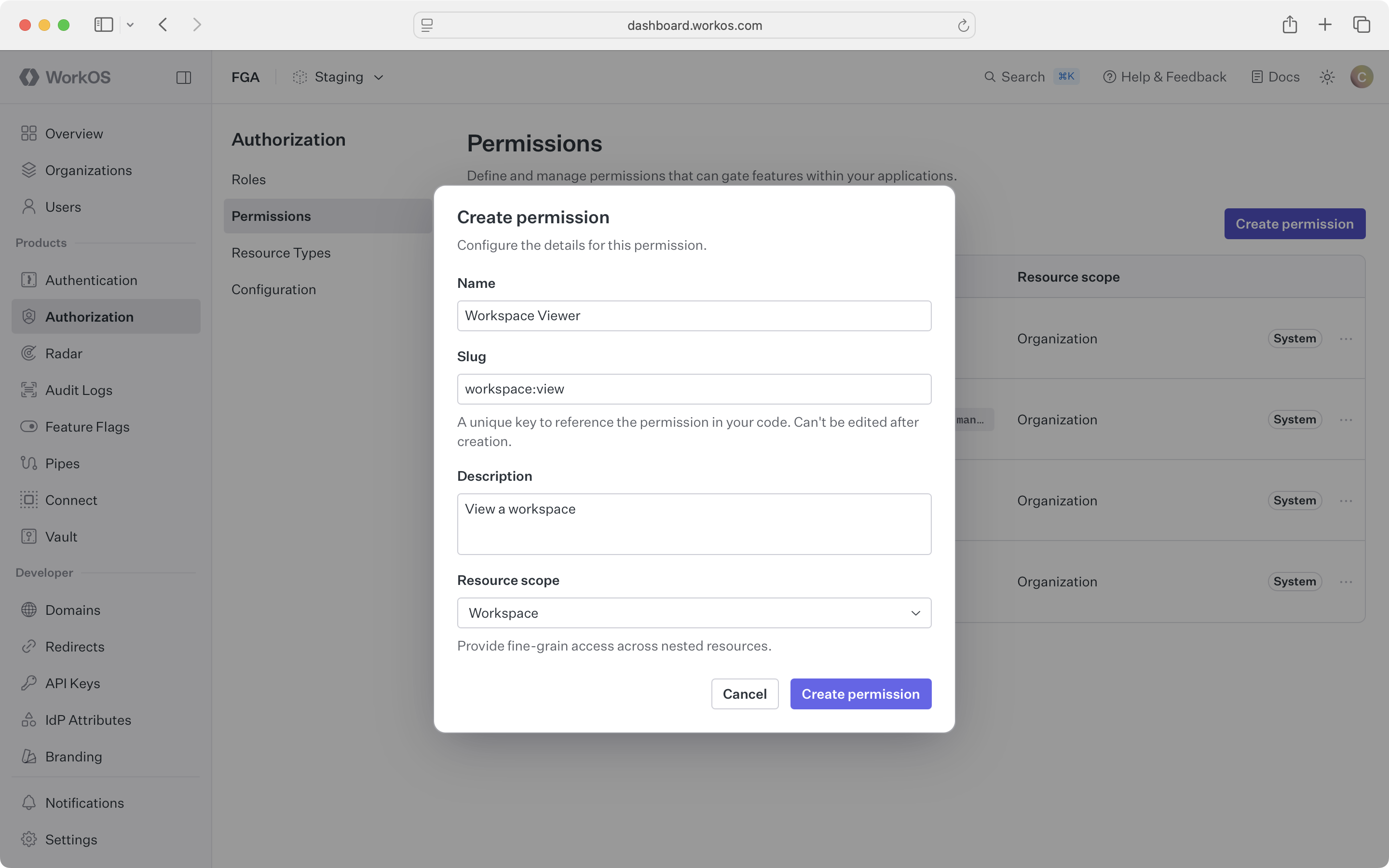
Create the following permissions for our example:
Roles bundle permissions and are scoped to a resource type. The key feature is that roles can include permissions for child types, enabling inheritance.
Create a workspace-admin role scoped to the workspace resource type. Include permissions for the workspace itself and its child types:
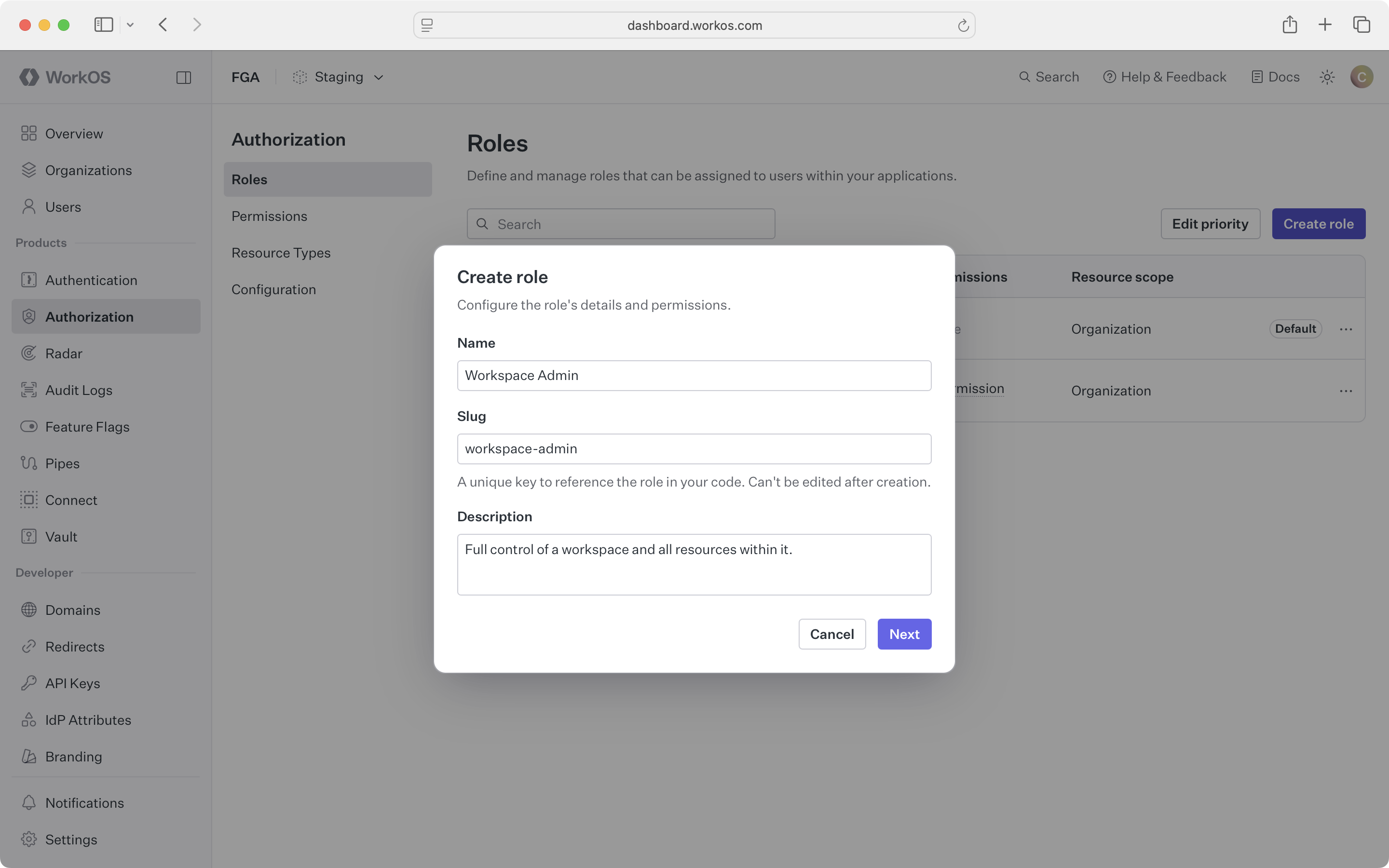
Select which permissions to include – both same-type and child-type permissions:
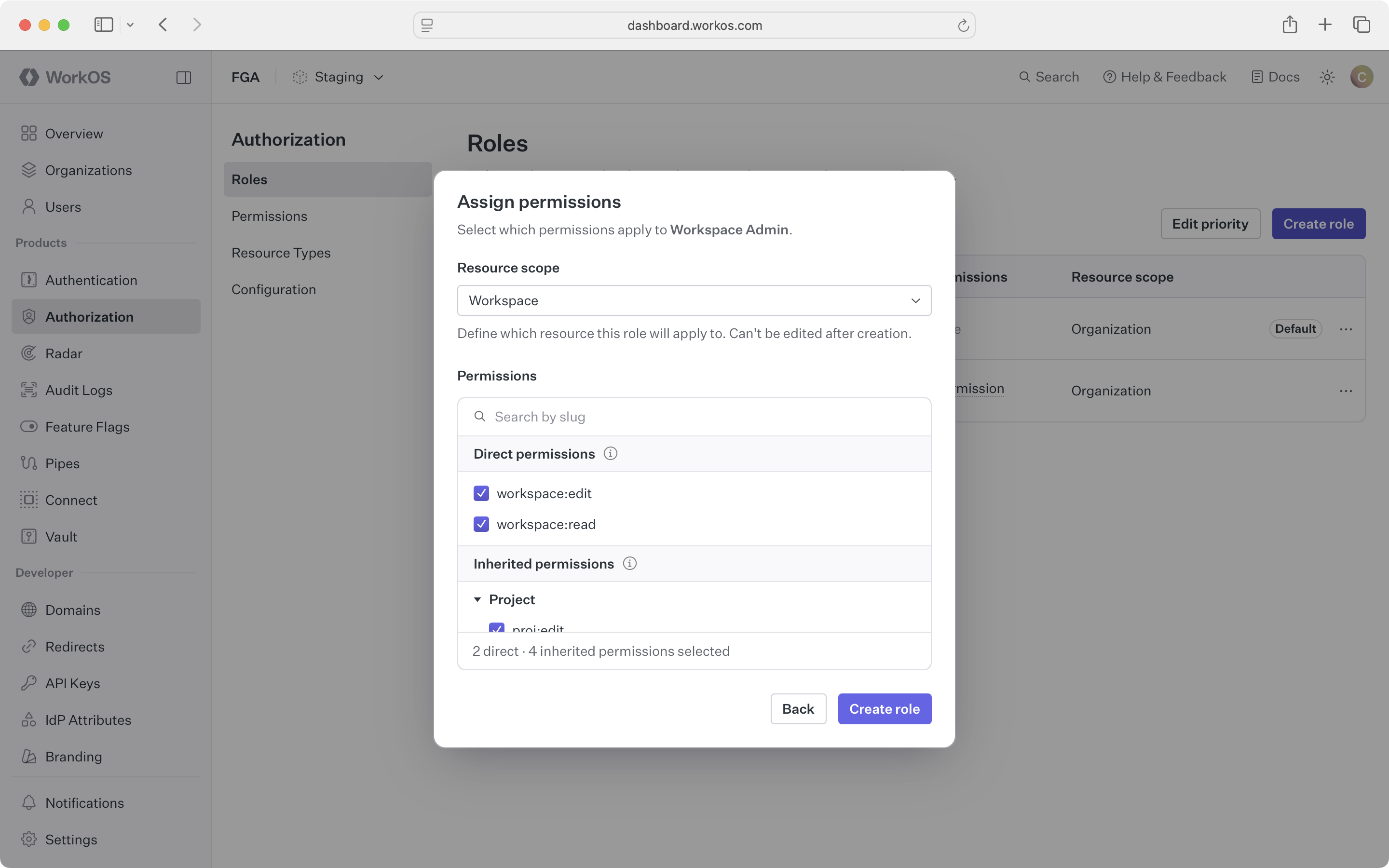
Here’s a useful set of roles for our example:
A workspace-admin assignment on a single workspace grants access to all projects within it. A project-editor assignment grants access to only that specific project. This layered approach minimizes the number of assignments you need to manage.
Resources are runtime instances of your resource types. Register them via the API as users create entities in your application.
When a user creates a workspace, register it as a resource. Top-level resources default to the organization as their parent:
Response:
The external_id is your application’s identifier for this entity – typically the primary key from your database. Use it to reference this resource in future API calls without needing to store the WorkOS resource ID.
When a user creates a project inside a workspace, register it with a parent reference. You can reference the parent by its external ID and type:
Or reference the parent by its internal WorkOS ID:
Register resources immediately after saving the entity to your database. The resource needs to exist in WorkOS before you can assign roles or check permissions on it.
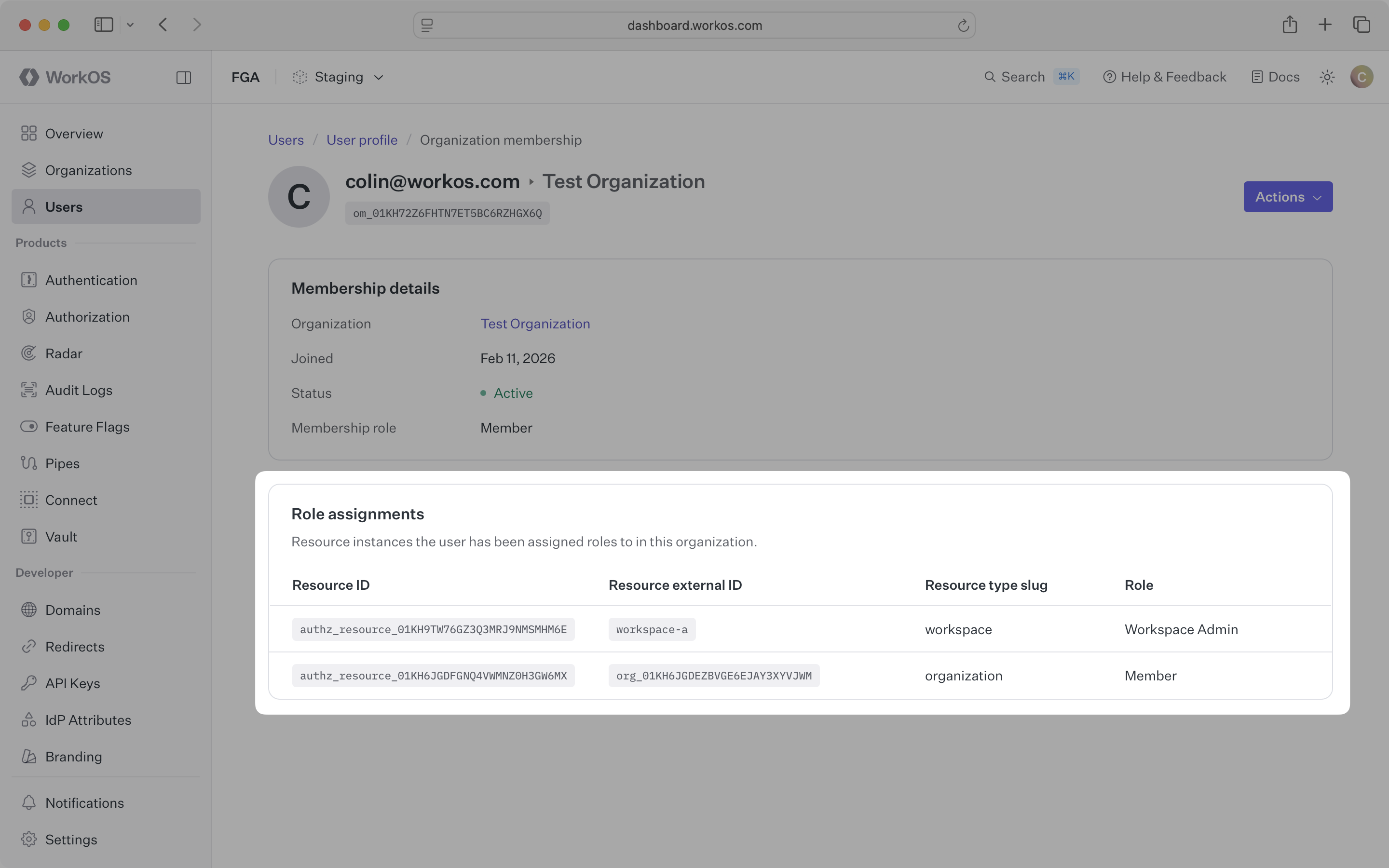
Assignments connect a user (through their organization membership) to a role on a specific resource. This is what actually grants access.
Give Alice (om_01HXYZ) the workspace-admin role on the Engineering workspace:
Because workspace-admin includes child-type permissions like project:view and project:edit, Alice now has access to all projects within the Engineering workspace – without needing separate assignments on each project.
Give Bob the project-editor role on just the API Backend project:
Bob can view and edit the API Backend project, but has no access to other projects in the workspace unless separately assigned.
Navigate to an organization membership in the Dashboard to see all role assignments for that user:
Access checks answer: “Can this user perform this action on this resource?” FGA evaluates all possible sources of access – direct assignments, inherited permissions from parent resources, and organization-level roles.
Check whether Alice (om_01HXYZ) can edit the API Backend project:
Response:
Alice is authorized because her workspace-admin role on the Engineering workspace includes project:edit, which flows down to all projects in that workspace.
Here’s how an access check looks in practice, protecting an API endpoint:
Access checks are designed to be low-latency and reflect role changes immediately – without requiring cache invalidation or waiting for propagation delays.
FGA provides discovery endpoints that power common product features like filtered navigation, member lists, and sharing dialogs.
Find all projects Alice (om_01HXYZ) can edit within the Engineering workspace:
This powers features like a sidebar that shows only the projects a user has access to, or a project picker filtered to resources the user can modify.
Find all users who can edit a specific project:
By default, this returns users with direct role assignments on the resource. To include users with inherited access (from workspace or organization roles), use the assignment parameter:
This powers sharing dialogs, member lists, and compliance audits.
Here’s the complete flow for our project management app:
The hierarchy does the heavy lifting. A single workspace-admin assignment grants access to every project in that workspace. When new projects are created, the admin automatically has access – no additional assignments needed.
- Resource Types – Design your hierarchy for different product patterns
- Roles and Permissions – Understand permission inheritance in depth
- Resources – Learn about external IDs, sync strategies, and modeling guidance
- Access Checks – JWT vs. API checks and integration patterns
- AuthKit Integration – Embed permissions in access tokens