Roles and Permissions
Define what users can do within specific resource types.
Once you’ve defined your resource types, the next step is deciding what users can actually do. Roles and permissions in FGA are always scoped to a specific resource type – a workspace role applies only to workspaces, a project role applies only to projects.
This scoping makes permissions predictable. When you see workspace-admin, you know it grants workspace access. When a role includes permissions for child types, those permissions flow down automatically – a workspace admin can access all projects in that workspace without separate assignments.
A permission represents a specific action a user can perform on a resource type. Each permission has a name (like “Edit Workspace”), a slug used in code (workspace:edit), and the resource type it applies to.
We recommend following a {resource_type}:{action} pattern for permission slugs. This makes permissions self-documenting – project:delete clearly means the ability to delete a project.
Common patterns include:
{type}:viewfor read access{type}:editfor modifying a resource{type}:createfor creating child resources{type}:deletefor removing a resource{type}:managefor full administrative control{type}:invitefor adding collaborators
Keep permissions granular. Instead of a broad project:access permission, create specific ones like project:view, project:edit, and project:delete. This gives you flexibility as your product’s access requirements evolve.
Roles are collections of permissions that describe what someone can do. Like permissions, each role is scoped to a resource type – you create a role for workspaces, another for projects, and so on.
We recommend naming roles to indicate both the scope and the capability level. Following a {resource-type}-{capability} pattern makes roles self-explanatory:
workspace-admin– full control of a workspaceworkspace-member– basic workspace accessproject-editor– can modify a projectproject-viewer– read-only project access
When you assign workspace-admin to a user on a specific workspace, they get all the permissions bundled in that role for that workspace.
The key feature of FGA roles is that they can include permissions for child resource types. This is where the power of hierarchical authorization comes in.
A workspace-admin role might include:
workspace:viewandworkspace:edit(same type)project:viewandproject:edit(child type)app:viewandapp:deploy(grandchild type)
When you assign this role to someone on a workspace, they can view and edit that workspace, plus view, edit, and deploy all projects and apps within it. One assignment grants access across the entire sub-tree.
This reduces “role explosion” – instead of creating separate roles for every resource combination, you define roles at appropriate levels and let inheritance handle the rest. A workspace admin naturally has access to everything in the workspace, which matches how people think about access.
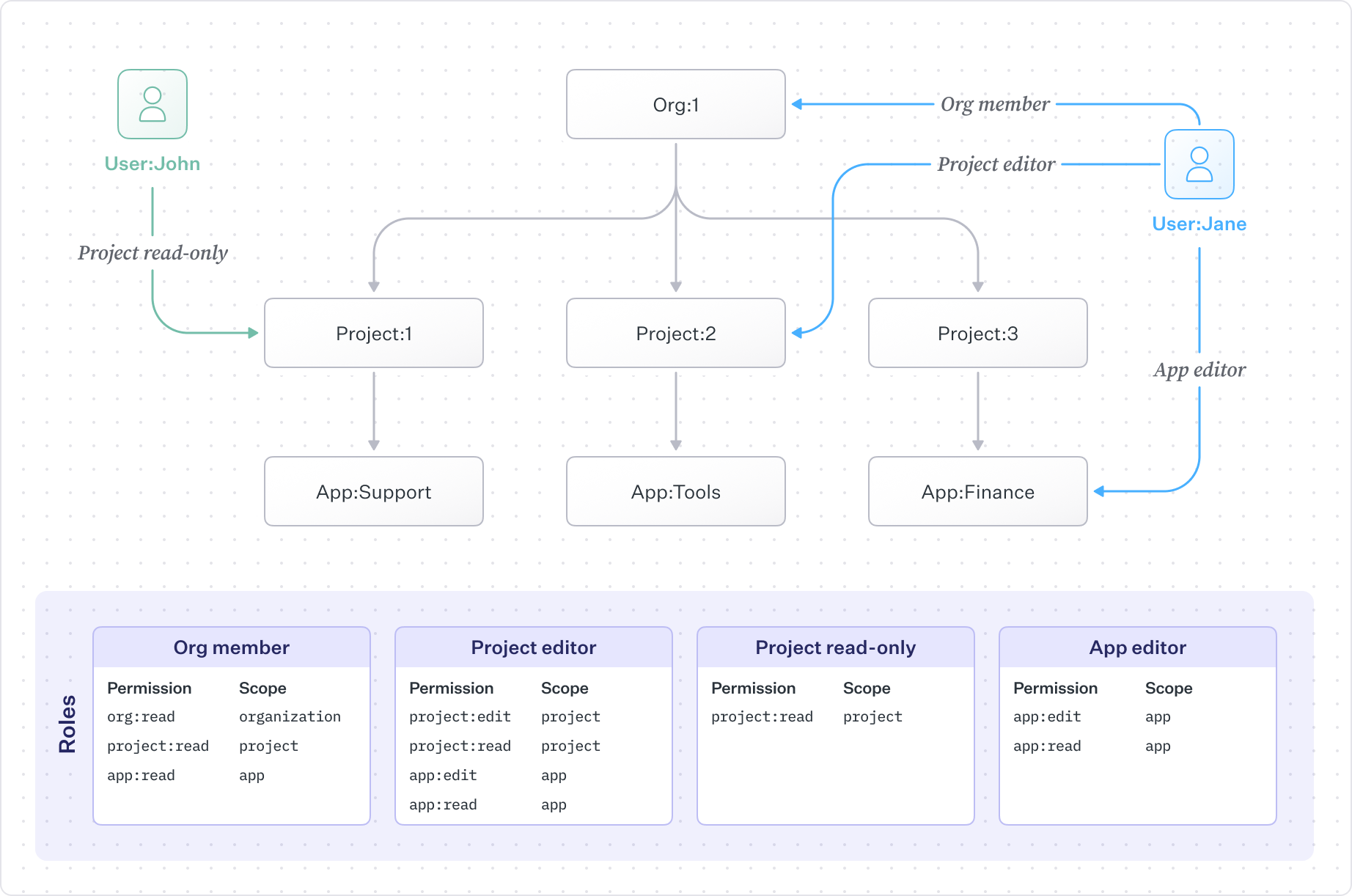
To understand how permission inheritance works in practice, consider a hierarchy where an organization contains projects, and projects contain apps:
Different users can have roles at different levels, and the access they receive depends on where their role is assigned and what permissions that role includes.
-
User John has
Project read-onlyonProject:1and can view only that project, not its apps -
User Jane is
Org memberofOrg:1withorg:read,project:read, andapp:readpermissions. They can view the organization, all of its projects, and all apps under those projects. -
Jane is also
Project editorforProject:2and can read and editProject:2and all of its apps. -
Jane has
App editorforApp:Financeand can view and edit only that app instance.
This pattern is powerful because it lets you express nuanced access with minimal assignments. A single organization-level membership provides baseline visibility, while targeted assignments grant elevated access where needed. The hierarchy does the work of propagating permissions, so you don’t have to create individual assignments for every resource.
When your application checks whether a user can perform an action on a resource, FGA looks at all possible sources of access:
- Direct assignments on the resource itself
- Inherited assignments from parent resources
- Organization-level roles that include the permission
If any of these grant the permission, the user is authorized.
For example, if Alice wants to deploy App:Frontend, FGA checks whether she has app:deploy directly on that app, or on its parent project, or on its parent workspace, or through an organization role. Her workspace-admin role on Workspace: Engineering includes app:deploy, so she’s authorized – even without any direct assignment on the app.
Permissions are additive. If a user has multiple roles, they get the union of all permissions from all their roles. There’s no way for one role to remove permissions granted by another.
Configure roles and permissions in the WorkOS Dashboard under Authorization. You’ll need to have resource types defined before you can create scoped roles and permissions.
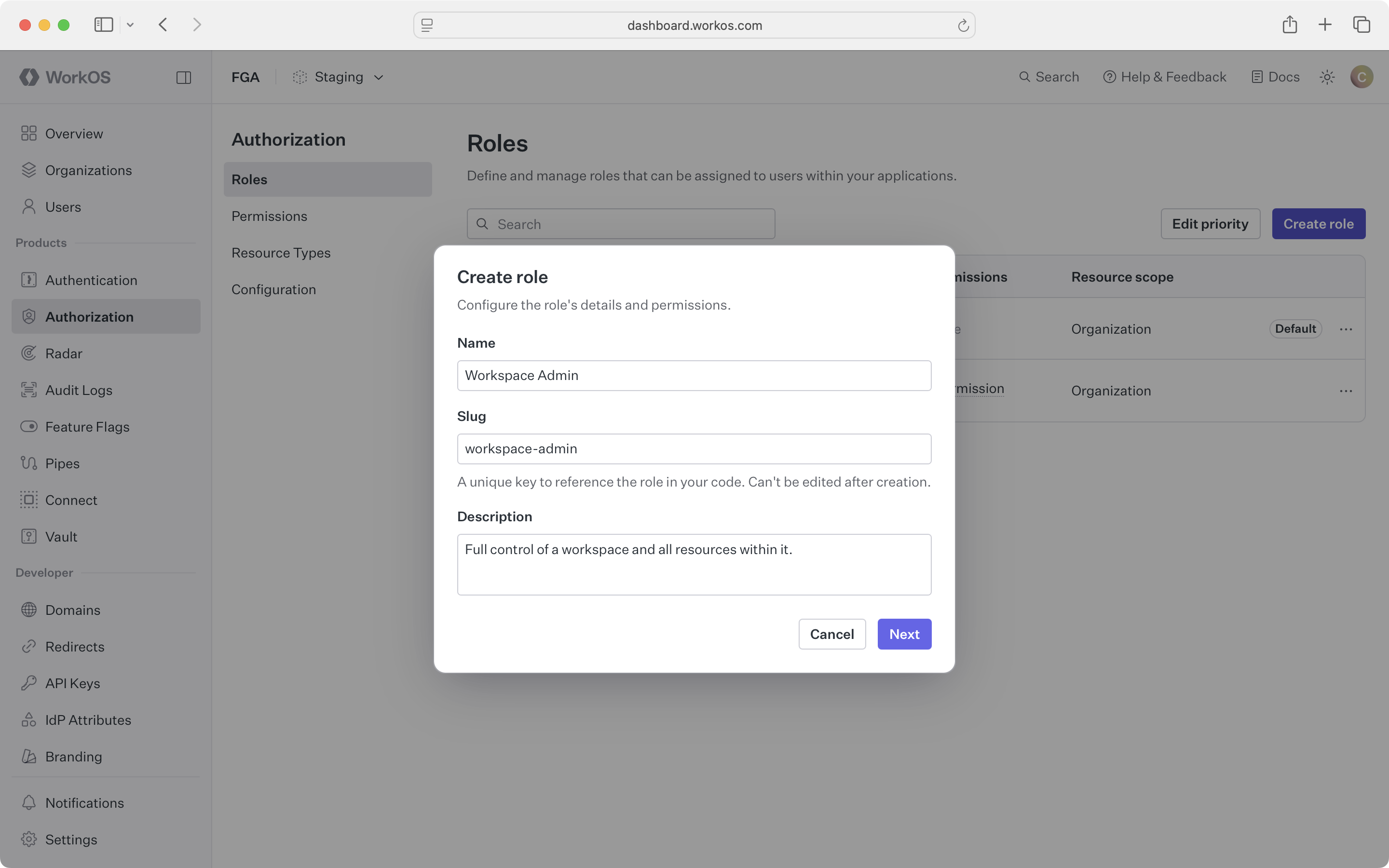
To create a new role, select the resource type it applies to and give it a descriptive name and slug.
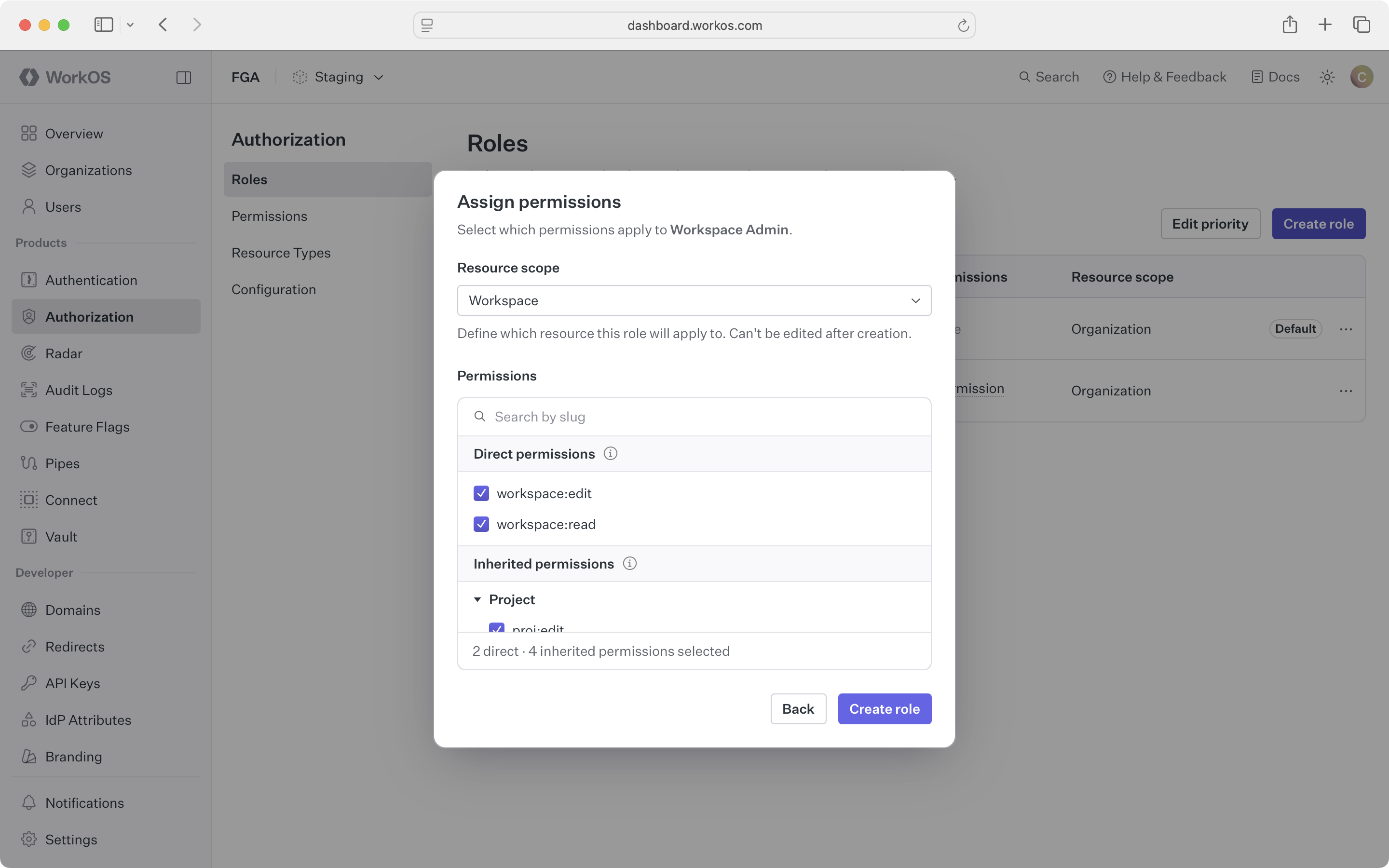
Then choose which permissions to include from the same type and child types.
When you modify a role’s permissions, changes apply immediately to everyone with that role. No re-assignment is needed – existing users automatically get the updated permissions.
For organizations using multiple roles, users receive all permissions from all their assigned roles. Priority order only matters for IdP role assignment when running in single-role mode.