Flip a feature flag from your own workflow with the WorkOS API
Use the WorkOS Feature Flags targeting endpoints to add and remove organizations and users from your own systems, and learn what removing a target really does.

The WorkOS Feature Flags targeting endpoints let your own code decide who has a feature. One POST adds an organization or a user to a flag's target list, one DELETE takes it off, and the result reaches people through the AuthKit session they already have. A closed deal in your CRM, a plan upgrade in billing, or a support escalation can change access without anyone opening the dashboard.
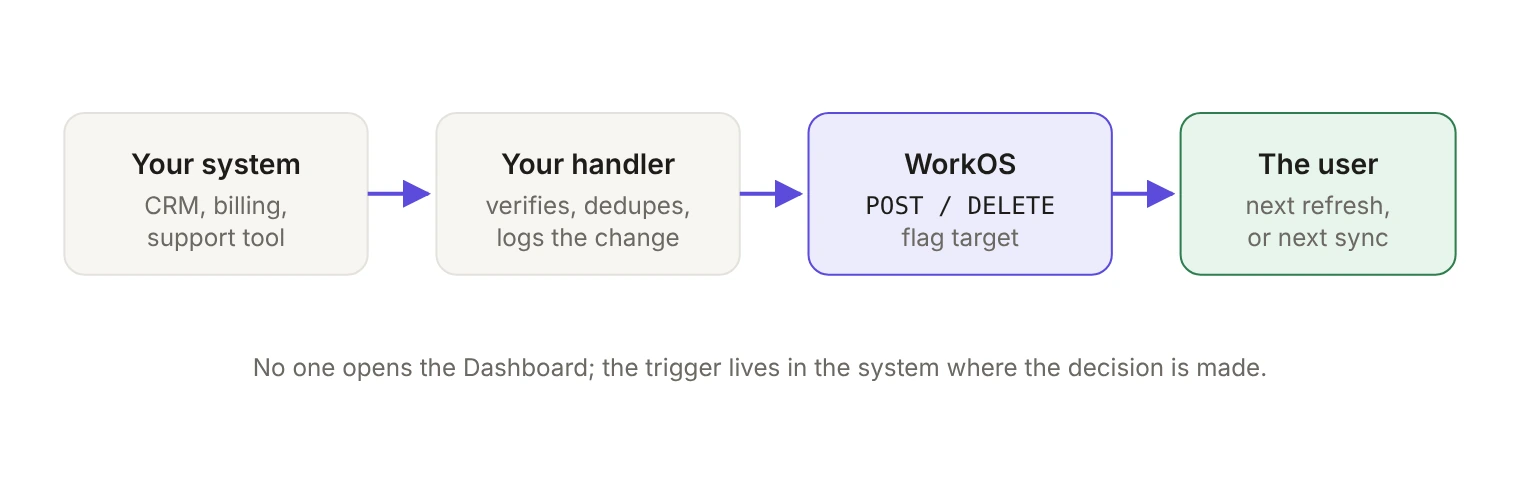
When is it worth automating flag targeting?
The Dashboard is the right tool for a one-off. You're turning something on for one customer, you know which one, and you're already logged in.
Automation earns its keep the moment the trigger lives somewhere else. A deal closes on a Friday afternoon and the customer expects the feature on Monday morning; if the only path to that is someone remembering to log into the Dashboard, it will eventually be remembered late. WorkOS documents the common shapes of this: enabling a feature for a single customer's organization, unlocking plan perks after an upgrade, enabling a feature for a prospect during a sales demo, and temporarily switching something on for support or debugging. All four start as an event in a system that isn't the Dashboard, which is why WorkOS recommends tying flags to your CRM or billing system so toggles follow upgrades, downgrades and beta enrollment automatically.
The same goes for self-serve beta sign-ups and support escalations, where the person who should make the call is a support engineer rather than someone with Dashboard access. Flags can target organizations or individual users, so both the account-level and the person-level version of that workflow are available.
How do you add a target?
Adding a target is a single call with no request body:
slug is the flag's unique slug identifier and the resource ID is in the format user_<id> or org_<id>, so the same endpoint covers both target types. A successful call returns an empty response.
In the Node SDK:
The call applies to the environment of the API key you used. Flags themselves are created across every environment in a project, so the same slug exists in staging and in production, which means you can rehearse the whole automation in a sandbox first.
Why doesn't removing a target turn the flag off?
This is the detail that catches people. DELETE /feature-flags/{slug}/targets/{resourceId} removes the target from the flag's target list in the current environment and returns an empty response on success:
Removing a target takes that organization or user off the list. It doesn't force the feature off for them. Being a target is what gives a target the flag's enabled value in place of the default value, so once the target is gone, what that organization or user gets is the flag's default value.
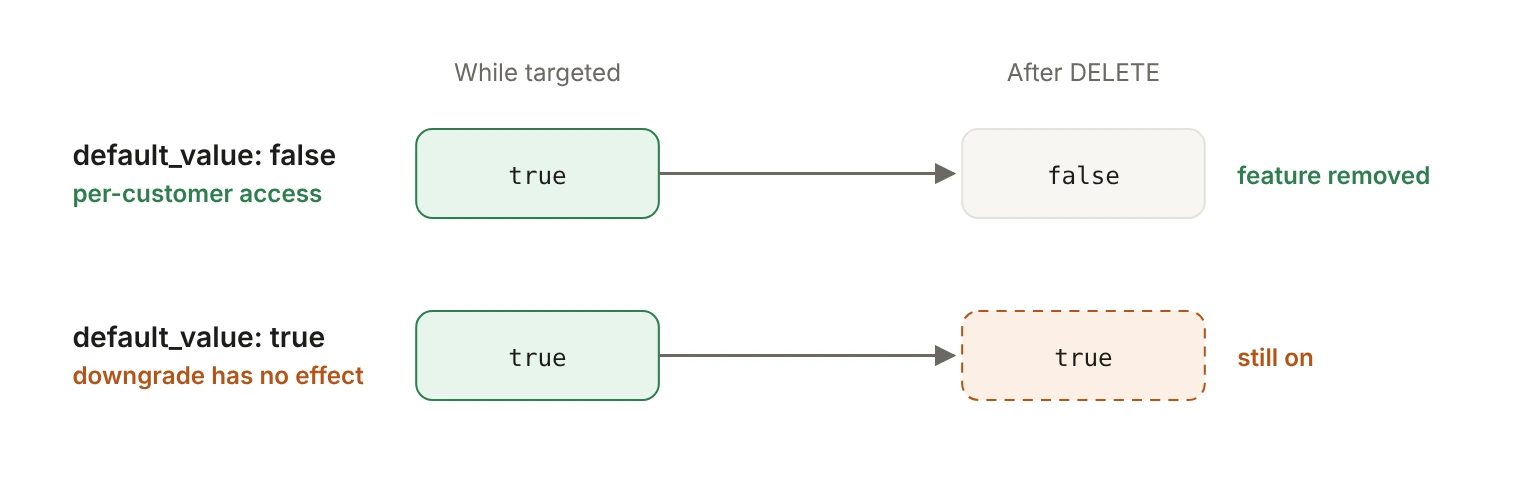
The practical consequence is a setup rule. For per-customer access, use flags whose default value is false. Then adding a target grants the feature and removing it takes the feature away, which is the behavior your downgrade workflow assumes. If the default value is true, removing the target leaves that organization or user on true, and your automation will look like it silently failed.
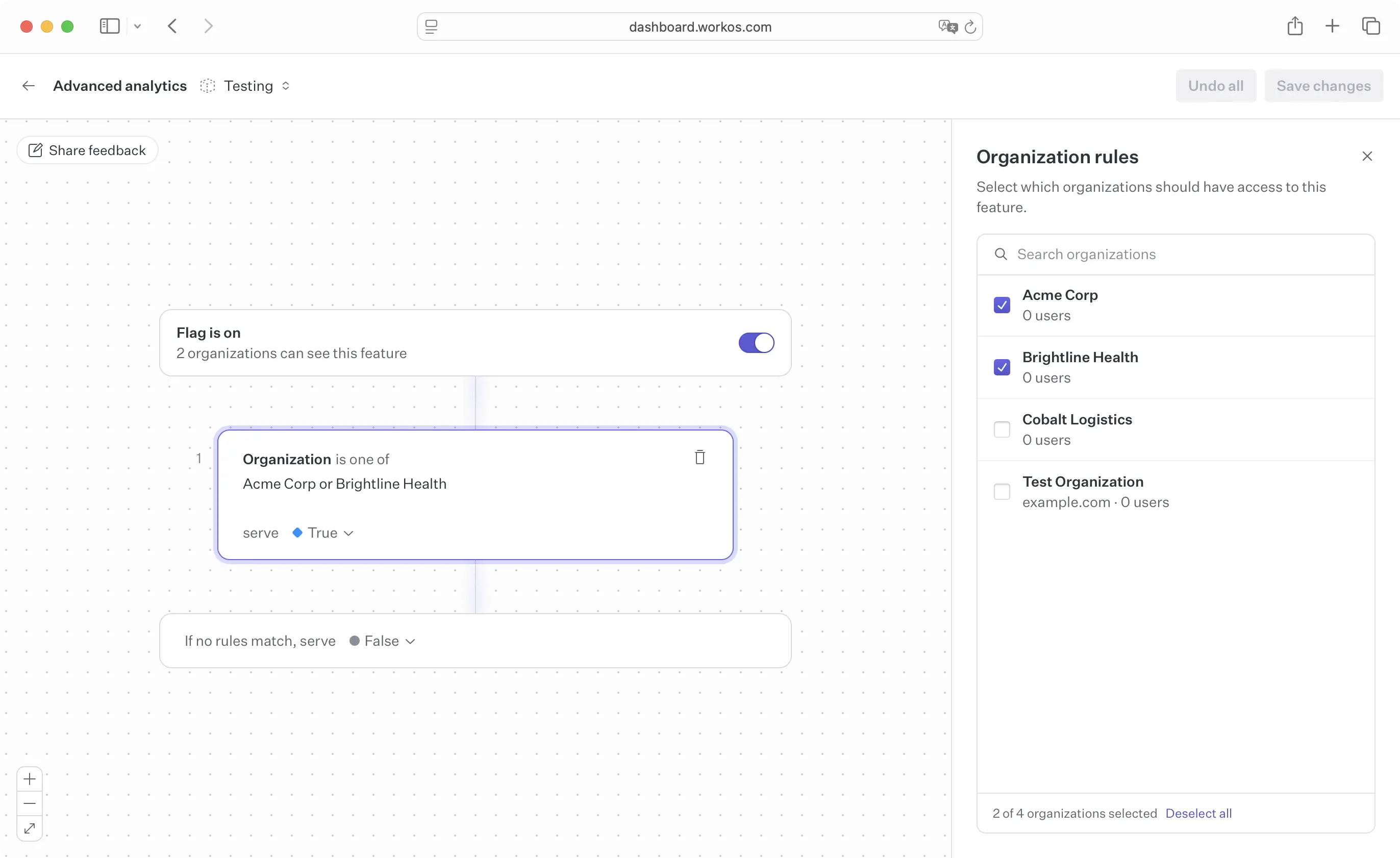
You can see both settings on the flag’s page in the WorkOS Dashboard: the organizations the flag targets, and the value everyone else gets under “If no rules match, serve”. For step-by-step instructions on creating a flag and choosing who gets it, see the Feature Flags docs.
How do you wire it to a CRM or billing webhook?
The shape is a small endpoint in your app that your CRM or billing provider calls, which translates their event into one targeting call. This is the plan-gated case WorkOS describes, where a capability is restricted to organizations on higher-tier plans, driven by the moment your billing system says the upgrade went through:
Keep the key server-side. The WorkOS API key belongs in a trusted server-side environment and must never be exposed in client-side code, which also rules out calling the endpoint straight from an internal admin page in the browser.
Make retries safe. Webhook providers redeliver, so key the work on the provider's event ID and skip anything you've already applied. Don't swallow a failed targeting call either: return a non-200 so the provider tries again, and let the event ID check stop a double application once it succeeds. The targeting calls return an empty response on success, so there's no response body to reconcile against later. Your own record is the thing that tells you what happened.
Write that record yourself. Log who or what triggered the change, the flag slug, the target ID, the originating event and the timestamp. When someone asks in three months why a customer has a feature, the answer lives in your system, next to the deal or the ticket that caused it. WorkOS already recommends auditing active flags regularly and checking that entitlement flags still match current customer agreements, and that review goes a lot faster when every change has a reason attached.
How fast does the change reach the user?
It depends on how your app reads flags.
If you read the feature_flags claim, the claim holds the slugs of the flags enabled for that user and arrives with the session they already have, so reading it costs no extra request. The trade is freshness: a change reaches the user the next time they sign in or their session refreshes, and you can force it sooner by refreshing the session. Worth knowing for large flag sets: every flag in the claim takes up room in the access token stored in the AuthKit session cookie, which is shared with your other claims under a 3,072-byte limit.
If you use the Node runtime client, flags are evaluated server-side and never enter the token. The client keeps flag state in memory and syncs with WorkOS in the background, every 30 seconds by default, so a change you make through the API lands in a running process within about 30 seconds. Use @workos-inc/node 12 or later if you confirm changes this way. If you want to watch a change arrive, the client emits a change event with { key, previous, current } after the first successful sync. Setting the client up properly (one shared instance, an error listener, readiness at startup) is covered in Evaluate feature flags locally in Node with the WorkOS runtime client.
What does the full path look like?
Start with one event you already handle: a plan upgrade webhook that adds a target, a downgrade that removes one, and a line in your own log for each change. Check the flag's default value before you wire any of it up. Get that wrong and your downgrade path will look healthy in your logs while every customer you removed keeps the feature.