Localizing AuthKit end to end: Sign-in pages, emails and widgets
AuthKit translates its hosted pages, emails and Widgets into 90 locales. How each one picks the language, what you pass, and which strings stay yours.

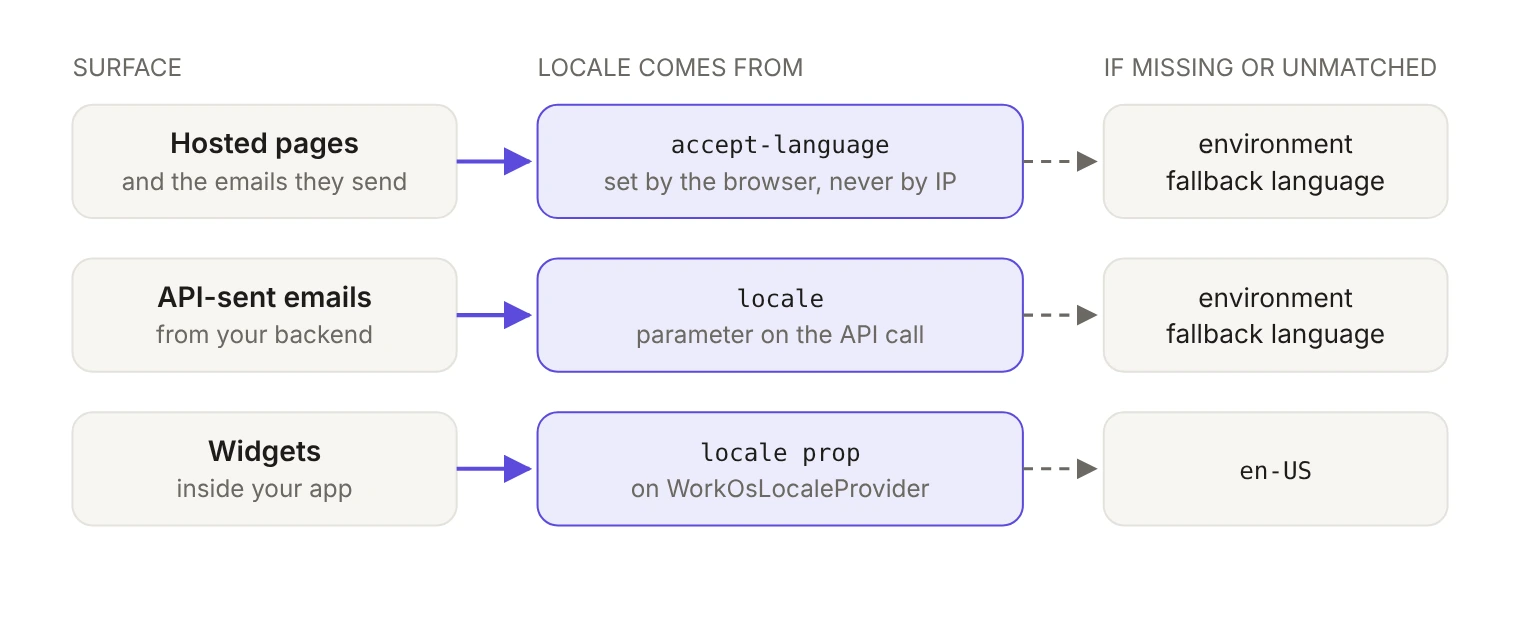
Localizing AuthKit means serving its sign-in pages, emails and Widgets in each user's locale. WorkOS translates all three into 90 locales. What differs is how each surface learns the locale: the hosted pages read it from the browser, emails your backend sends take a locale parameter, and Widgets take a locale prop. The strings you write yourself stay yours to translate.
A locale is narrower than a language: it also decides spelling, date formats and number formats. AuthKit's supported list treats regional variants as separate entries, so en-US and en-GB are two locales, as are pt-BR and pt-PT, es-419 and es-ES, and zh-CN and zh-TW.
The usual way teams discover their localization gaps is a prospect in a non-English market sending a screenshot: a translated sign-in page next to an English "Something went wrong" toast from the app behind it. The auth surfaces are handled. The seams are in how the locale travels between them and into your own code. This post walks each surface (hosted pages, emails, Widgets, your app) and covers what's translated, how the locale is chosen and what you have to pass or own.
How do AuthKit's hosted pages choose a language?
AuthKit's hosted UI is localized by default, and users are served the locale that most closely matches their device's OS preference. That covers all user-facing text in the flow, including error messages and the emails the flow sends.
The mechanism is deliberately plain. AuthKit reads the browser's accept-language header and renders the text on the server. The translations are precomputed, so there's no extra latency or network call. IP address is never a factor: a Berlin engineer on vacation in Lisbon still gets German, which is the behavior you want and the one geo-based detection gets wrong.
When the browser doesn't send a preference, or no supported locale matches, the user gets the environment's fallback language, set in the dashboard under Authentication → Features → Localization. Every environment starts at en-US.
If you need one language for everyone, such as a regulated single-market product or a QA environment you want to be deterministic, turn localization off and set the fallback to the language you want.
Branding copy you add yourself is translated too. You write custom headings and link text in English, and the branding editor generates translations into every other language when you save. The language picker in the branding editor lets you preview each one before you ship.
What is the locale on the User object for?
When a user signs in, WorkOS records their preferred locale in the locale property of the User object, as a plain code such as "en-US".
Read it; don't expect it to do anything on its own. The stored locale doesn't drive the hosted pages, which decide per request from accept-language. It's useful everywhere downstream: the language your app renders on first load, the locale you pass when your backend sends an email, and the locale you hand to Widgets.
How do AuthKit emails pick a language?
It depends on what triggered the email.
Emails a hosted flow sends render in the language of the browser that started the flow. A user who clicks "forgot password" in a Japanese browser gets a Japanese reset email, matching the page they came from.
Emails your backend sends have no browser in the request, so you pass the language. Every AuthKit API call that sends an email takes an optional locale: creating a Magic Auth code, creating a password reset, sending a verification email, sending an email change code, and sending or resending an invitation. The value must be one of the supported locale codes. Leave it out and the email goes out in the environment's fallback language, so an admin onboarding a Brazilian team from a US-configured environment sends the whole batch in English.
Pull that value from the same places every time: a language the user picked in your app, the locale stored on their User object, or, for invitations, the inviting organization's language. If you have none of those, the environment fallback is the honest answer.
If you'd rather own the email templates entirely, Custom Emails lets you turn off the default invitation, Magic Auth, email verification and password reset emails and send your own from the corresponding events. You don't need it for localization anymore, but it's there when you want your own templates and sending domain.
How do you localize AuthKit Widgets?
Widgets translate their text into the user's preferred language with 90 languages supported out of the box, and format dates for the user's locale. Unlike the hosted pages, Widgets don't detect the locale themselves. You pass it.
Localization ships as a separate, opt-in package, @workos-inc/widgets-i18n, so apps that don't need multiple languages keep the core Widgets package lightweight. Dictionaries load on demand: only the bundle for the end user's locale is downloaded at runtime.
Setup is a provider that wraps your app, with the locale as a prop:
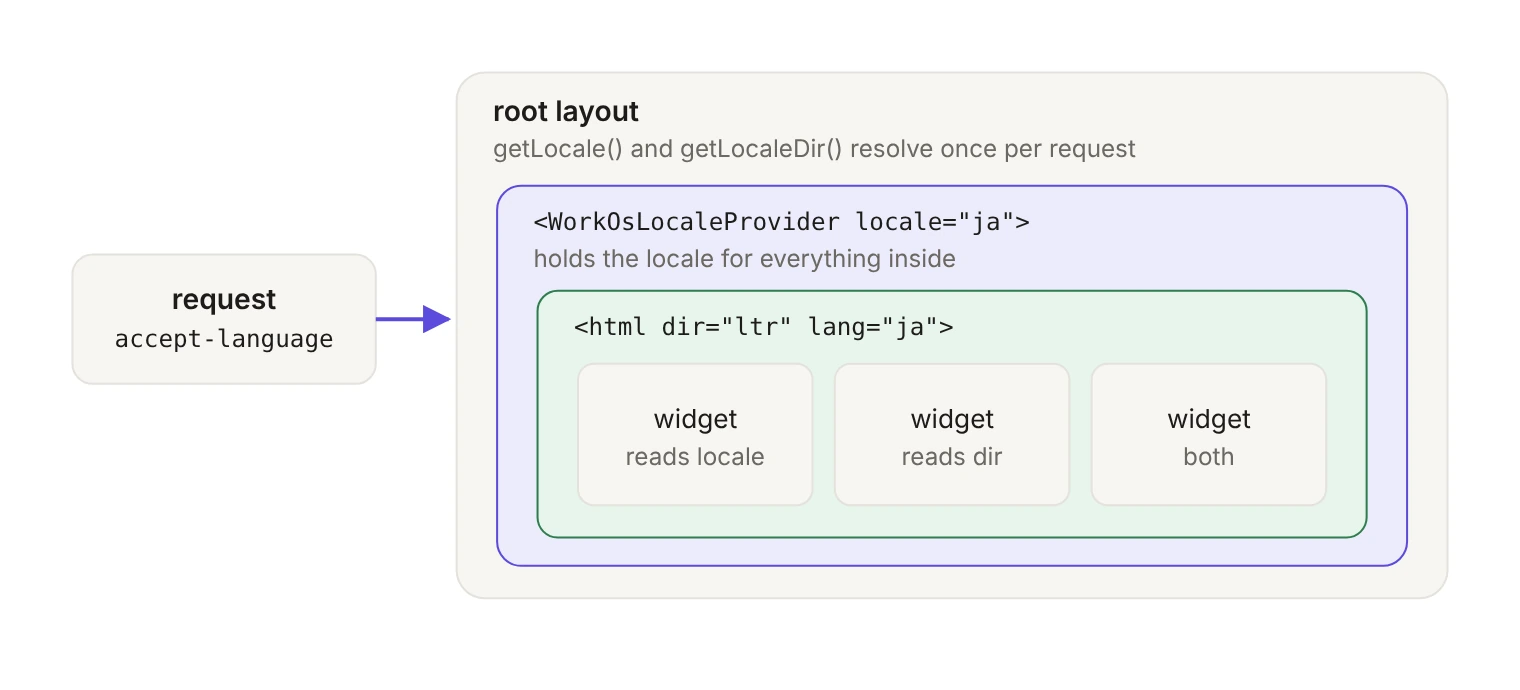
Hardcoding en-US defeats the point, so the package ships utilities to resolve a real one. getLocaleCodes() returns the supported codes, isValidLocale() checks a string against them, and getDir() returns the text direction. This helper, from the package docs, negotiates against accept-language on the server:
Then wire the resolved locale and direction into the root layout. Right-to-left is a layout concern that lives outside the translation: getDir() returns rtl for Arabic, Farsi, Hebrew and Urdu, you set dir on the html element, and Widgets take their direction from the nearest ancestor that has it.
Three things are worth knowing before you ship this:
- A bad locale fails quietly. An invalid or missing value logs a console warning and falls back to
en-USrather than throwing, so a typo'd code degrades to English. Validate withisValidLocale()before you pass it, not after a customer reports it. - Data you define isn't translated. Role names, organization names and your own metadata render exactly as you stored them, so a widget in Japanese showing a role called "Billing Admin" is working as designed.
- Keep the
React.cachewrapper. Without it, every server component that callsgetLocale()during a request negotiatesaccept-languageagain. Each call is cheap, but there's no reason to repeat it.
On React 19, you can skip the dictionary fetch on the client: getDictionary(locale) loads the dictionary on the server, and WorkOsLocaleProvider accepts it as initialMessages.
Which locale signal should win?
accept-language reflects the device's OS preference, which makes it a good default and a poor only signal. A corporate laptop imaged in English and handed to a team in Osaka is the common case; a shared kiosk is another. Use a precedence order instead, and apply it everywhere you control the locale:
- A preference the user set explicitly in your app.
- The
localestored on the User object at their last sign-in. accept-languagefrom the current request.- The environment fallback.
The hosted pages follow steps 3 and 4. Widgets and every email your backend sends follow all four, because the locale is an argument you pass. The inconsistency to avoid is a user who set Japanese in your app's settings, gets Japanese Widgets, and then gets an English password reset email because that code path never read the preference.
Who owns which string?
The pattern across the table: WorkOS translates the strings it writes, and the locale travels through whatever channel each surface has. Everything you write stays yours, including the error toast your app shows after AuthKit hands the user back.
Where should you start?
Translating the strings got cheap: WorkOS localized AuthKit into 90 languages in five weeks and wrote up how. Knowing where the boundary sits is the part that still takes work.
Before your next enterprise review, set a browser to a language you don't read and run the full flow: sign up, verify, reset a password, accept an invitation, open a widget. Then trigger the same emails from your backend. Screenshot every string that comes back in English. That list is your actual localization backlog.