WorkOS MCP: Manage your WorkOS account from any AI agent
We are launching a remote MCP server that gives AI agents the same access to WorkOS as your dashboard login.



Most configuration tasks in WorkOS have always required a trip to the dashboard. Setting up a domain, adjusting auth policies, managing users and roles, debugging a sign-in issue for a customer: all of it has lived behind a UI that only a human can drive.
Dashboards were built with a human on the other end. Someone with a mouse, a browser tab, and the patience to click through nested menus. That assumption made sense for a long time. It makes less sense now that agents are increasingly the ones doing the setup work, wiring up integrations, configuring services, debugging issues. An agent can write code at the speed of thought, but when it hits a dashboard, it stops.
Today that changes. The WorkOS MCP server exposes the full management surface of your WorkOS account as tools your agent can use, and it works from anywhere you can run an agent.
What is the WorkOS Management MCP Server
The WorkOS MCP server is a remote, hosted server your agent connects to over OAuth. Once connected, it authenticates as you and inherits exactly the roles and permissions your dashboard login has. If your account is read-only in production, the agent is too. If you have full admin access, the agent does. There is nothing extra to configure and no separate permission model to maintain.
This is not a narrow slice of the API. The server exposes hundreds of operations across the full WorkOS product surface: organizations, SSO connections, Directory Sync, AuthKit users and sessions, roles and permissions, audit logs, webhooks, API keys, feature flags, environments, branding, and more.
What the server does not expose is equally deliberate. Credential-minting operations, user impersonation, billing flows, and account-level administration are excluded entirely. Secret fields like API keys, client secrets, and webhook signing secrets are stripped from responses before they reach the agent's context. Nine irreversible deletes require a two-call confirmation before they execute. The agent can do everything you would do in the dashboard for day-to-day management, and nothing you would not.
How agents interact with it
Rather than exposing one tool per endpoint, the server uses a discover-then-execute design with four tools: whoami, list_operations, query, and mutate. This matters because every tool gets loaded into the LLM's context window, so exposing hundreds of operations as individual tools would consume the context budget before the agent even starts working. Instead, an agent uses list_operations to find what it needs, then calls query or mutate by operation name with the relevant variables.
Here is what that looks like in practice. A support engineer gets a report that a customer cannot sign in:
Getting connected
Setup is a single command. For example, for Claude Code, run the following,then complete the OAuth consent in your browser to finish connecting:
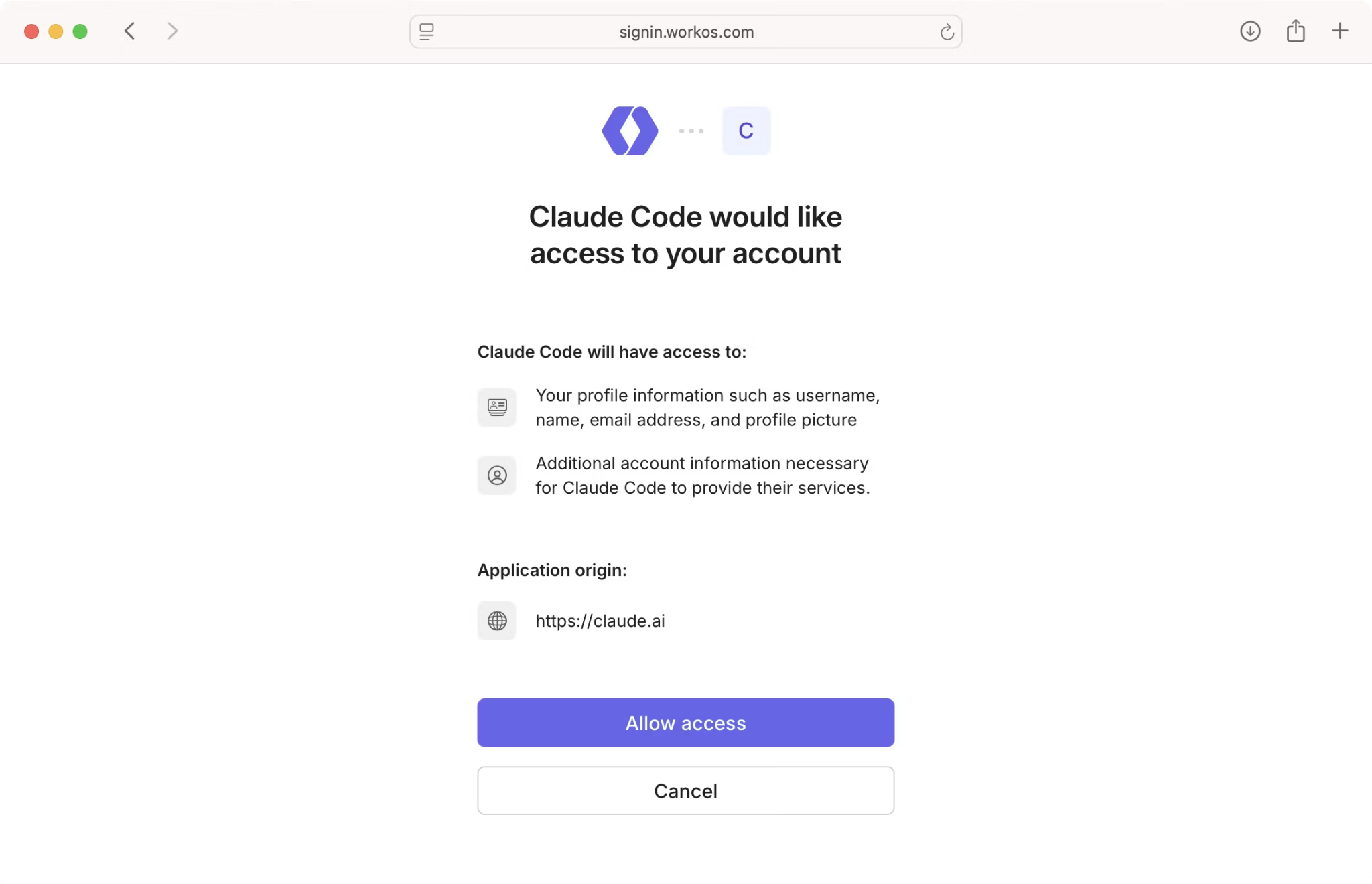
For details on how to connect other clients, check out the docs.
From there, Claude Code walks you through an OAuth flow using your existing dashboard login. No new credentials to create, nothing to provision. The same flow works for Cursor, Codex, ChatGPT, and any other agent that supports remote MCP servers.
Once connected, you can ask your agent to list your organizations, set up an SSO connection, update auth policy settings, pull audit log events for a specific user, or configure branding, all without leaving your agent conversation.
Managing Team Access to the MCP Server
Team admins can control MCP access from the team authentication settings page in the WorkOS dashboard. Three settings can be toggled independently, and all are enabled by default:
- Enable turns MCP access on or off for the entire team. Disabling this also disables the two settings below.
- Allow production access restricts agents to sandbox environments only when turned off. This never escalates anyone's permissions: agents can still only reach production for members who already have production access in the dashboard.
- Allow write access restricts the MCP to read-only operations when turned off, so agents can query but not mutate anything.
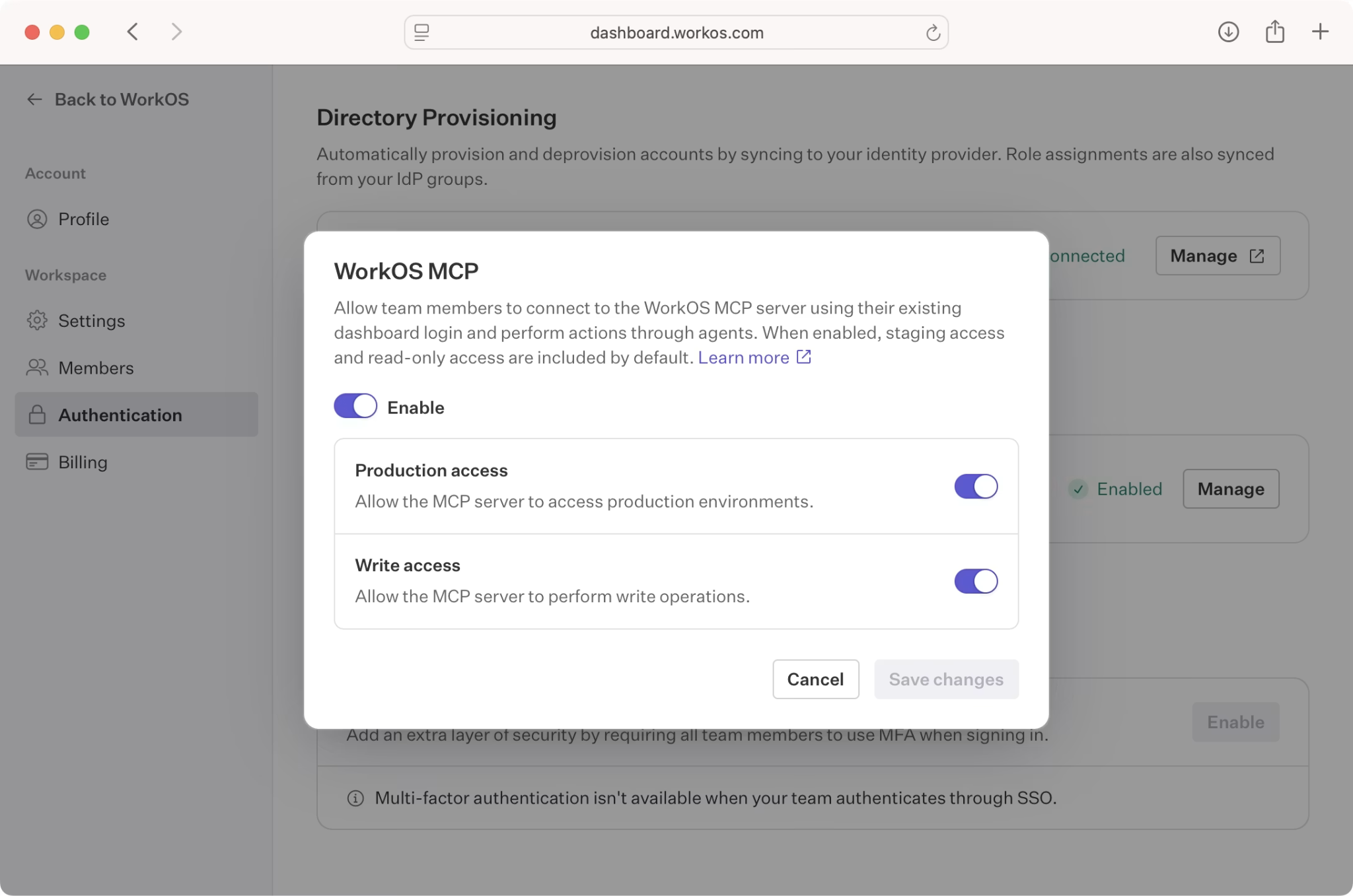
These controls let you adopt the MCP incrementally and set guardrails that match your team's risk tolerance before opening it up more broadly.
How it fits with the WorkOS CLI
The CLI and the MCP server cover a lot of the same ground, and that is by design. The CLI runs in a terminal alongside your codebase and suits developers who are already using it as part of their local setup. The MCP server is remote and requires no install, which means it works from any agent, on any device, without a local development environment. A Slack bot that diagnoses customer sign-in issues, an agent running in Claude Desktop while you are away from your desk, a workflow that reacts to support tickets: these are the cases the MCP server is built for.
What to try first
Connect an agent and describe what you want in plain language. The agent discovers the right operations and runs them for you. A few things worth trying:
- Brand your sign-in page from a screenshot: share a screenshot of your marketing site and ask the agent to make your AuthKit sign-in page match its aesthetic.
- Debug a sign-in problem: ask the agent to investigate why a specific organization is having trouble signing in with SSO.
- Onboard a new customer: set up a new organization and invite a list of users in a single conversation.
- Audit your configuration: list every organization with a draft SSO connection, or flag directories that have not synced recently.
- Manage a user: reset a password, revoke a session, or send a fresh magic link without opening the dashboard.
- Stream audit logs: configure a Datadog or Splunk audit log stream for a production environment.
Available now
The WorkOS MCP is available today. Connect it to your agent of choice and let us know what you build. Check out the docs for more information.