How to model multi-tenant B2B apps with WorkOS organizations
Map WorkOS organizations to your customers, keep workspaces in your own database, and handle org switching, cross-tenant guests and internal admins in a Next.js app.

Every B2B app starts with a simple tenancy model: one customer, one organization. Then real customers show up and the questions start:
- "Our customer has one Okta tenant, but wants separate workspaces for each department. Do we create an organization per workspace?"
- "A contractor needs access to two of our customers. Which organization do they belong to?"
- "Our support team needs to see data across every customer. How do we give them a role that works everywhere?"
- "The current organization lives in our URL. Why does sign-in still ask users to pick one?"
All four have the same root cause: using a WorkOS organization for two different jobs.
In this tutorial, a workspace means whatever your app calls the container inside a customer account: a project, a team, a department, a board. WorkOS has no workspace object. Workspaces live in your own database, and the rest of this post shows how they relate to organizations. This tutorial separates those jobs and shows the code for each case, using Next.js and @workos-inc/authkit-nextjs.
What you will build
- A Next.js app where the organization lives in the URL (
/o/[orgId]/w/[workspace]) - Workspaces stored in your database and scoped to an organization
- Org switching that respects each organization's SSO and MFA rules
- A shared route for guests from other organizations
- An internal admin check that works no matter which organization a staff member is in
Starting from scratch? Run npx workos@latest integrate in a new Next.js project. The WorkOS CLI installs @workos-inc/authkit-nextjs, adds the callback route, the proxy and the provider, and configures your redirect URI and CORS origins. Everything below builds on that setup. Building a React SPA instead? Start with Ship a React SPA with AuthKit to production.
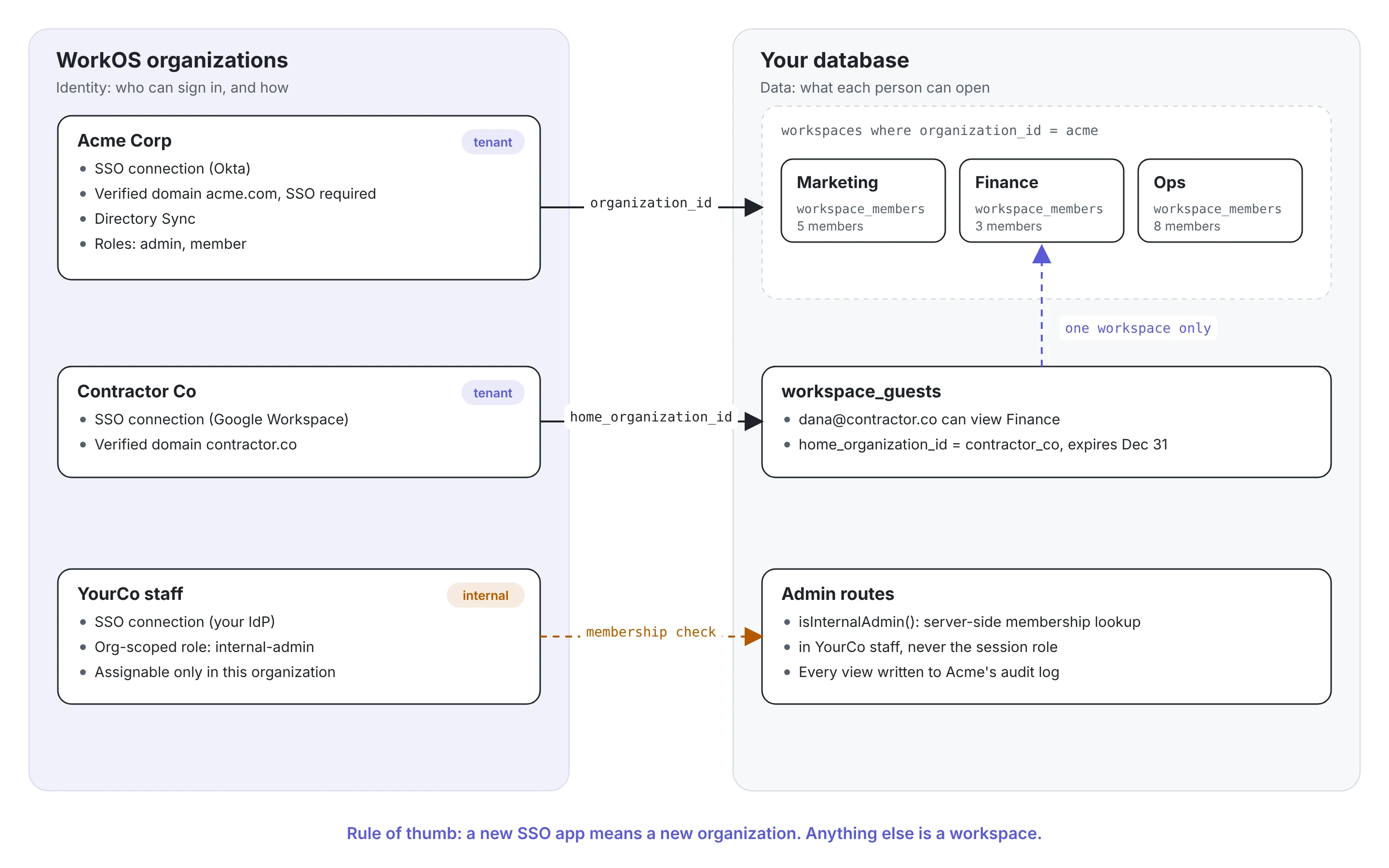
The one rule: Organizations hold identity, workspaces hold data
A WorkOS organization is where identity configuration lives:
- The SSO connection (a connection belongs to exactly one organization)
- Directory Sync
- Verified domains and the policies that apply to them
- Roles, including roles scoped to that organization
- Memberships, which decide who can sign in to it
A workspace is a container for data inside your product: a project, a team, a department, a board. It has no authentication settings of its own. It belongs in your database, with a foreign key to the organization.
So when do you create a new organization, and when do you create a workspace? Ask the customer's IT team one question: would you set up a separate SSO app for this?
- If yes, it is a separate tenant. Create an organization with its own connection.
- If that sounds silly to them, it is a workspace inside one tenant. Create a row in your database.
Most confusion goes away once you apply this. A customer with one Okta tenant and five departments is one organization with five workspaces, not five organizations that try to share a connection.
Step 1: Model workspaces in your database
Three tables cover every case in this tutorial. Users and organizations stay in WorkOS. You store only their IDs.
Two levels of roles now work together:
- Organization roles live in WorkOS and arrive in the session (
role,permissions). Use them for tenant-wide rights, such as "admins can see every workspace" or "billing managers can change the plan." - Workspace roles live in
workspace_members. Use them for access to one workspace.
You will also need a WorkOS client on the server for membership lookups:
Step 2: Put the organization in the URL
AuthKit sessions are organization-scoped: the session has one active organization, and the access token carries its org_id, role and permissions. Your URL also names an organization. The job of the org layout is to keep the two in sync.
The switch happens in a route handler, where the SDK can write the new session cookie:
Three behaviors to know about:
- Switching re-applies the target organization's rules. If Acme requires SSO and the user last signed in with a password to Globex, switching to Acme sends them through Acme's SSO first.
switchToOrganizationhandles that redirect for you. This is a feature: an organization's security policy follows its data. - Membership is a hard requirement. You cannot switch into, or sign in to, an organization the user is not a member of. That is why the layout checks membership first and returns a 404 otherwise, so the URL does not leak whether an organization exists.
- One session, one active organization. If a user opens two tabs on two organizations, each navigation switches the shared session. For most apps that is fine, because each page load checks and switches. If your users routinely work in several organizations at once, read the next section.
For the switcher UI itself, list the user's memberships on the server and render links to /o/[orgId], or drop in the Organization Switcher widget.
Org-scoped or account-scoped sessions
Some apps, like many developer dashboards, treat the session as belonging to the person, not to an organization. The URL is the only source of truth, and every request is authorized against it. You can build that on AuthKit too, but you take on more of the work.
If you are not sure, start org-scoped. It keeps each organization's security policy in force with no extra code.
Sending users straight into an organization at sign-in
Users who belong to several organizations see an organization picker after they sign in. You can skip it by passing the organization when you build the sign-in URL:
Only do this when you know the user is a member, for example from a "last used organization" cookie you set after a successful sign-in on that device. If the user is not a member, sign-in stops on the AuthKit page with an invalid_authorization_state error and never reaches your callback. When you are not sure, let AuthKit show the picker.
Step 3: Scope every workspace query to the organization
With the session and URL in sync, workspace access is a database question. Always filter by the organization from the session, never by an organization ID sent by the client.
Create workspaces:manage as a permission in the WorkOS dashboard and attach it to your organization admin role. Checking a permission instead of a role name lets you rename or split roles later without touching this code.
Step 4: One SSO connection, many workspaces
This is the case from the first question: one customer, one identity provider, many departments.
- Create one organization for the customer and attach their SSO connection to it.
- Verify their email domain and set the domain policy to require SSO. Everyone on
acme.comnow signs in through Acme's identity provider, whichever organization they pick. - Turn on JIT provisioning (or Directory Sync), so employees become members of the organization when they first sign in.
- Create one workspace row per department, all with the same
organization_id. - Decide workspace access in
workspace_members. You can fill it from your own invite flow, or from directory groups if the customer manages access in their identity provider.
There is no step where a connection is shared between organizations, because you never need it. If you catch yourself trying to add the same users to several organizations just so they can use one connection, those organizations are workspaces.
Step 5: Guests from other organizations
A contractor from Contractor Co needs access to Acme's Finance workspace. There are two ways to model that, and they behave differently.
Watch the first option closely. If Acme's organization policy requires SSO through Acme's connection, a contractor without an Acme identity will not be able to switch into Acme.
For the second option, guests never switch organizations. Give them a route that authorizes against the grant and the user ID alone:
The guest stays in their own organization, under their own company's SSO, and sees exactly one workspace.
Step 6: Internal admins across every organization
Your support team needs to see data in any customer's organization. WorkOS roles always belong to an organization membership, so there is no global role. A support engineer who switches into a customer organization would also lose any role they had elsewhere.
The pattern that works:
- Create an internal organization for your company, for example "YourCo staff", with your own SSO connection.
- In that organization, create an organization-scoped role called
internal-admin. Organization-scoped roles can only be assigned to memberships in that organization, so nobody in a customer organization can ever be given it, even by mistake. - On the server, check the user's membership in the internal organization directly, instead of reading the role from the session.
Do not use the role or permissions from the session for this check. They describe the organization the session is in right now, so they change every time a support engineer opens a customer's workspace.
Use it in an admin-only route, and record every access in the customer's audit log:
Writing staff access to the customer's own audit log is good practice: their admins can see when your team looked at their data, and why.
If your support team needs to see the product exactly as a specific user does, use impersonation instead. It is started from the WorkOS dashboard, requires a reason, expires after 60 minutes, and adds an act claim to the access token so your app can show a clear banner.
What is not possible yet
A few things in this space are still on the roadmap. Each has a workaround.
Checklist
- Each organization maps to one customer tenant with its own identity configuration.
- Departments, teams and projects are workspaces in your database, keyed by
organization_id. - Every request compares the URL's organization with the session's, and switches only after a membership check.
- Every workspace query filters by the organization from the session.
- Organization-wide rights use permissions, not hard-coded role names.
- Guests either have a restricted membership in the host organization or a scoped grant in your database, never both by accident.
- Internal admin checks look up the internal organization membership on the server and fail closed.
- Staff access to customer data is written to the customer's audit log.
Wrapping up
Most multi-tenant headaches come from asking an organization to be both an identity boundary and a data container. Keep organizations for what only they can do (SSO, directories, domain policies and roles), keep workspaces in your database, and the hard cases become ordinary authorization code.
Next steps:
- Read Users and organizations and Organization policies
- Set up roles and permissions
- Building a React SPA? See Ship a React SPA with AuthKit to production