Let each customer bring their own OAuth app with WorkOS Pipes
When a provider needs each customer's own OAuth app, the Pipes Admin widget lets their admin register it, rotate the secret and retire it without your help.

Some integrations can't run through an OAuth app you registered. The provider, or your customer's security team, wants every connection into their account to go through an app the customer registered and controls. WorkOS Pipes handles that with organization credentials: switch the provider to use them, embed the Pipes Admin widget, and each customer's admin registers their own OAuth app, pastes in the client ID and secret, and turns the provider on for their members.
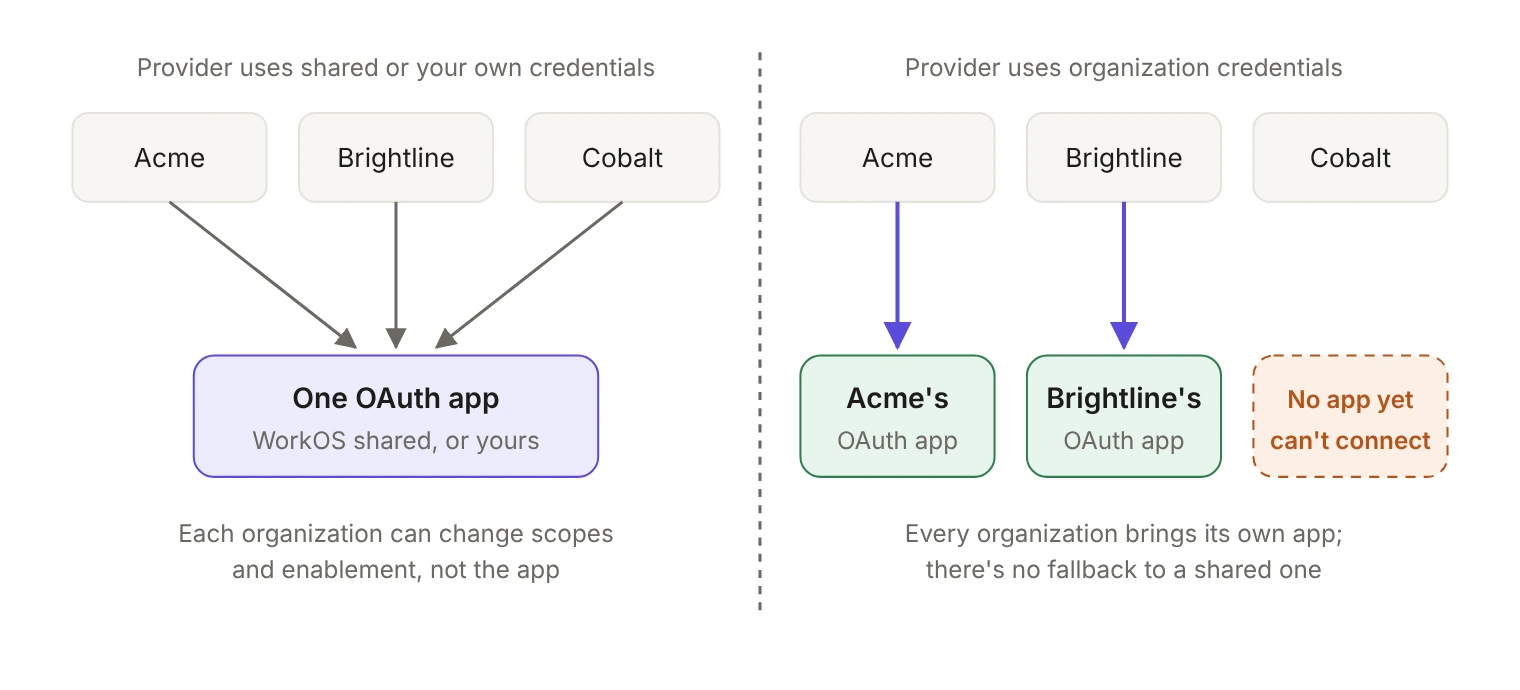
The one thing to know before you start: organization credentials are a setting on the provider, for your whole environment. Once a provider uses them, every organization has to bring its own app, and members of an organization that hasn't configured one can't connect.
Why would a provider need each customer's own OAuth app?
Sometimes it isn't your call. Some providers require each organization to use its own credentials, so the customer authenticates against its own account. For those, there is no shared app to fall back on.
Other times the request comes from the customer, and it comes down to control. When the OAuth app lives in the customer's own provider account, their administrators decide whether it exists at all, and authorization activity sits where their security team already looks rather than against a vendor app shared across customers. Where the provider restricts which third-party apps users may approve, an app the customer registered is already inside that boundary. The WorkOS docs frame organization-level settings the same way: they let an organization's IT admin match their own security requirements, for example by allowing only a subset of scopes or requiring connections through the organization's own OAuth application.
Be precise about what organization credentials change. They decide which OAuth application the provider sees. They don't make connections organization-owned: every member who connects still gets a personal connection scoped to their organization, and each member still authorizes for themselves.
Can one customer use its own app while the rest use yours?
No. The credential mode is set on the provider for your whole environment. When a provider uses WorkOS shared credentials or your own, every organization connects through that one app, and an organization can only change the scopes and whether the provider is enabled. When a provider uses organization credentials, every organization supplies its own client ID and secret, and until an organization does, its members can't connect.
That makes switching a provider to organization credentials an onboarding decision, not a per-deal favor. Before you switch, plan how every existing customer's admin will register an app, and tell your support team that "I can see the provider but can't connect" usually means that organization hasn't finished setup yet.
What do you embed?
The admin side is the PipesAdmin widget, a React component with one required prop, an auth token:
The widget is gated by the widgets:pipes:manage permission, so it's a page you expose to admins, not to every user. Generate the token on your backend with that scope:
If you use AuthKit, the access token from authkit-js or authkit-react works too. Widget tokens expire after one hour, and the user must already hold a role that carries widgets:pipes:manage before you generate their token. You attach permissions to roles on the Roles page of the WorkOS dashboard; new WorkOS accounts come with an Admin role that already has every widget permission.
Send regular members to the standard Pipes widget instead. That's where they view available providers, connect their accounts, reauthorize when needed, and disconnect. Keep the two pages behind different permissions.
What if you want your own admin UI?
The same settings are available through the API. PUT /organizations/{organizationId}/data_integration_configurations/{slug} creates or updates an organization's configuration for one provider in a single request:
Every body field is optional, with two rules. client_id and client_secret go together, and they're only accepted for providers set to organization credentials. Passing null for scopes goes back to the provider's default scopes. There's no Node SDK method for this endpoint at the time of writing, so call it over HTTP; the other server SDKs expose it as update_organization_data_integration_configuration or the equivalent in their naming style.
The response includes a credentials object, and its read fields are what a custom UI renders:
has_credentials tells you whether the organization is ready at all, client_secret_last_four is how an admin recognizes which secret is stored without you ever displaying it, and redirect_uri is the value the admin has to register in the provider's console. To list every provider for an organization with the same fields, call GET /organizations/{organizationId}/data_integration_configurations.
What order does the admin work in?
Setup fails in a predictable way when the steps run out of order: the admin registers an OAuth app, pastes the credentials, and then the provider rejects the callback because the redirect URI was never added on their side. Give them the sequence up front.
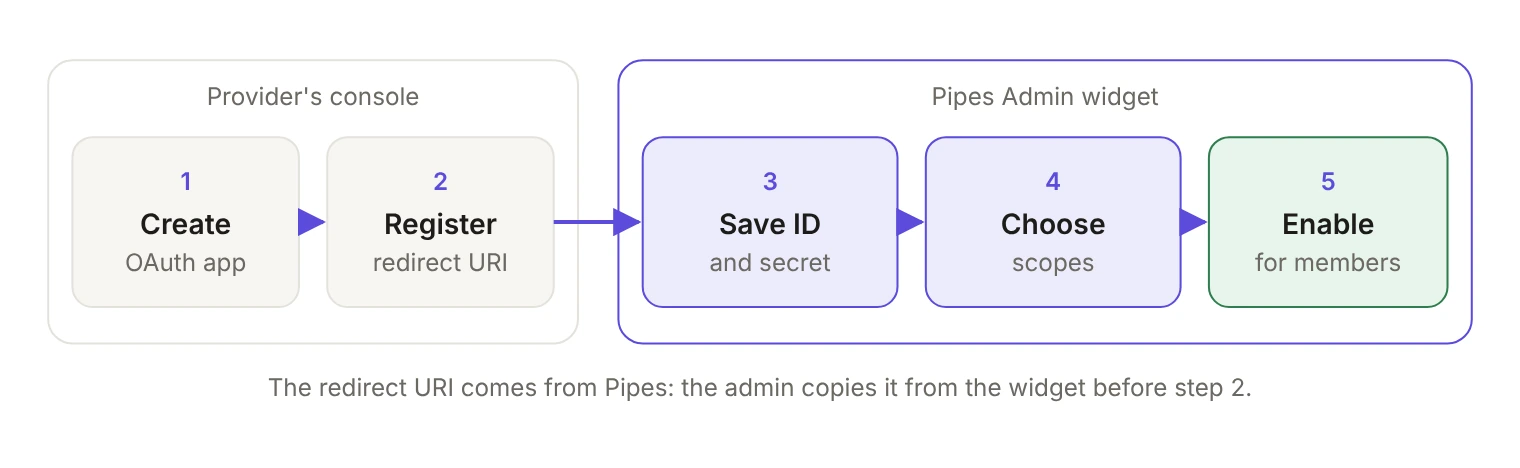
- Create the OAuth app in the provider's console. Nothing else can happen before the app exists.
- Register the redirect URI. Pipes supplies it. The widget shows it as a read-only Redirect URI field with a copy button, next to the client ID and secret fields, and the API returns it as
redirect_urion thecredentialsobject. - Save the client ID and secret together. They're a pair, and the provider stays unusable for that organization's members until both are stored.
- Choose scopes. Commonly used scopes appear in line, but the full list lives in each provider's documentation, and some providers need the same scopes set on the OAuth app too.
- Enable the provider. The Pipes widget renders every integration the organization has enabled, so this is the step that makes it visible to members.
How does an admin rotate the client secret?
Rotating a secret means saving a new value over the stored one. The admin issues a new secret for the same OAuth app in the provider's console, then enters it in the widget next to the existing client ID. Leaving the masked secret field untouched keeps the stored secret, so a scopes or enablement change never overwrites it by accident. On the API path, send client_id and the new client_secret together in the same PUT, since one isn't accepted without the other.
Run the rotation in the order the provider allows. If the provider lets an OAuth app hold two secrets at once, the safe sequence is: create the new secret, save it in Pipes, confirm that members' connections still work (a member connecting or reauthorizing through the Pipes widget is a quick test), and only then revoke the old secret in the provider's console. Members who see a connection error after the switch can reauthorize from the Pipes widget.
How does an admin retire the OAuth app?
Retirement happens in the provider's console, because that's where the OAuth app lives. Revoking or deleting it there is the customer's call and follows the provider's own rules.
Inside Pipes, the lever is the enabled setting: an organization can turn a provider off for itself, and since the Pipes widget renders only the integrations the organization has enabled, disabling one takes it out of what members see. Read that narrowly. Disabling controls visibility and availability for the organization's members; it doesn't touch the OAuth app in the provider's console. And there's no "remove credentials" button to promise an admin: the documented options are replacing the stored pair with a new one, or disabling the provider.
One wrinkle if you filter the member-facing widget: a filter that matches nothing renders an empty widget rather than an error, so a disabled provider plus a narrow filter can look like a blank page instead of a configuration change.
You can check the result from your side without asking the customer. In the WorkOS dashboard, a provider's Organizations tab lists every organization that overrides it, with its status, and an organization's Pipes tab shows the providers and overrides configured for it.
What should you hand the customer's admin?
Most support tickets here are sequencing problems, so send this along with the link to the admin page.
The boundary is worth writing down. The customer owns the OAuth app, its secret lifecycle and its consent policy. You own the page the widget renders on and the permission that gates it. Pipes owns the connection records and the token refresh in between. Put that line in your onboarding docs and the security review gets shorter.