SSO is broken? The answer is already in your session log
Every WorkOS SSO attempt records its status, origin and the IdP's response. Read it in five minutes and know whether the fix is yours or the customer's.

"SSO is broken for our team" usually arrives with no error, no username and no time. Before you write back asking for all three, open the connection's Sessions tab: WorkOS records every SSO attempt as a session with a status, an origin, and the request sent to the identity provider along with the response that came back. Read in the right order, those three things tell you in a few minutes whether the problem is the IdP, your connection's configuration, or your own app after sign-in.
Where are the SSO sessions?
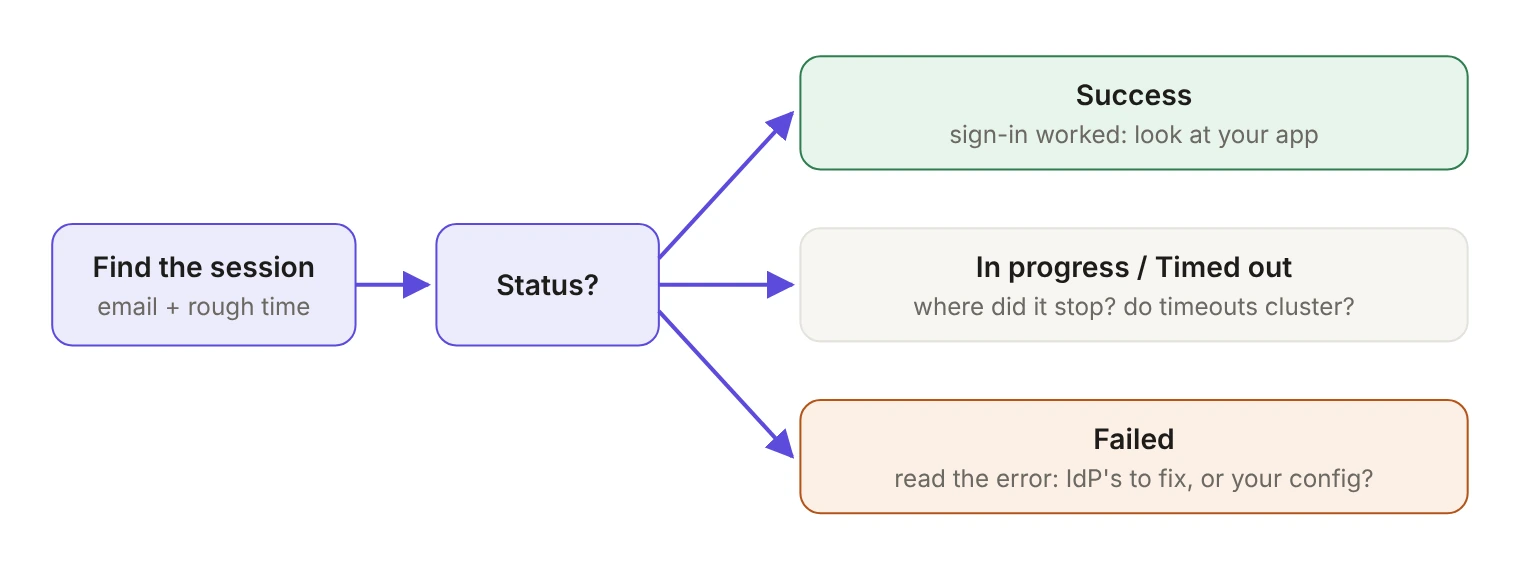
In the WorkOS dashboard, open the organization, then the connection, and select the Sessions tab. It lists sessions from up to 90 days back, and you can filter by session ID, profile email, status, origin and timestamp. A vague report almost always includes a name and a rough time, which is exactly the filter you need. Select a session to see its details, including the request made to the IdP and the response it returned; failed sessions also show the error.
What does each status tell you?
Start with the status, because each one tells you how far the flow got before it stopped.
Success is the most useful result on a bad morning. Authentication worked end to end, including the token exchange and profile retrieval, so whatever the customer sees happens after sign-in: in your session handling, your authorization rules or your own user record. Stop debugging SAML.
In progress means the flow is waiting on one of three things: the user finishing at the IdP, the IdP sending its response to WorkOS, or your application exchanging the authorization code for tokens. The third one is yours. One stuck session means nothing. A cluster of sessions on one connection that all end up Timed out, starting the hour you shipped a change to your callback, points at your code exchange rather than at the customer.
Timeouts usually mean someone wandered off: the user abandoned the flow at the IdP, closed the browser, or a network problem kept the IdP's response from reaching WorkOS. Scattered timeouts across many users and days are noise. Clustered ones are a signal.
Who fixes a failed session?
The WorkOS docs list the common causes of a failed session, and most of them sort cleanly by who can fix them.
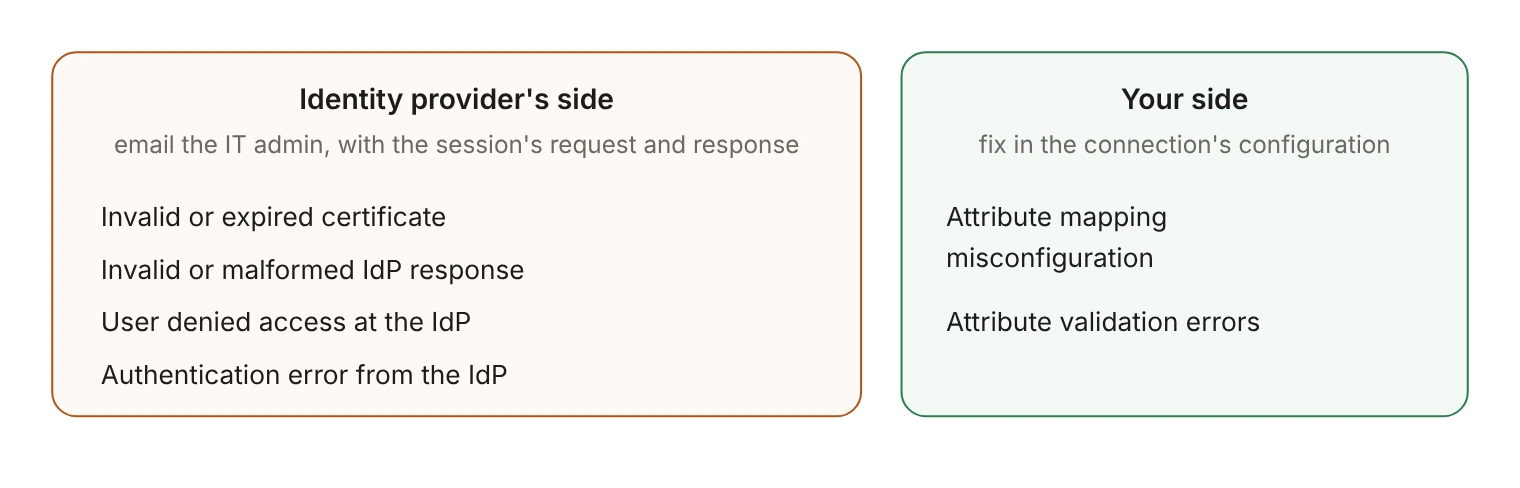
The identity provider's side: invalid or expired certificates, an invalid or malformed IdP response, a user who denied access at the IdP, and an authentication error returned by the IdP. You can't fix these from your side, so this is when emailing the IT admin is the right move. The difference is that you can now send them the exact request and response from the session instead of asking them to reproduce the problem.
Your side: attribute mapping misconfiguration and attribute validation errors. These live in the connection's configuration, and you can usually fix them without the customer.
Why do attribute problems look like the customer's fault?
Because to the IT admin, a failed sign-in looks the same whether their IdP left out an attribute or your connection maps it wrong. Two attributes are always required on an SSO profile: idp_id and email. first_name and last_name are enabled and required by default, and name is disabled and optional; you can change those per environment. If the IdP never sends what a required field is mapped to, the session fails.
Optional attributes fail quietly instead. An attribute that can't be mapped comes back as null, so a broken optional mapping produces Success sessions and empty fields in your app, not failures in the list. If the complaint is that everyone's job title disappeared, look for successful sessions with null attributes, not for failed ones.
You can edit attribute mappings on the connection page in the WorkOS dashboard, and the customer's IT contact can edit them in the Admin Portal. Changes take effect at the user's next sign-in, so checking a fix takes one login, not a deploy. Predefined and custom attributes are available on all SAML connections, and predefined attributes are always optional once you enable them.
If your integration still reads values out of the profile's raw_attributes, move them to custom attributes. raw_attributes is deprecated, and newer WorkOS accounts already get it back as an empty object.
Why does the session's origin matter?
Sessions come from three origins: Service Provider, where your app sends the user to WorkOS; Identity Provider, where the IdP sends the user to WorkOS directly; and Admin Portal, for test sessions that verify a connection's configuration. IdP-initiated sign-in only exists for SAML; OIDC connections are always SP-initiated.
Origin changes which failures are plausible. A connection that works from your login page but fails from the IdP's app tile is usually an IdP-initiated problem: WorkOS sends those users to your sign-in endpoint with a connection_id parameter, and that endpoint has to start a normal sign-in with it. We walked through that setup in IdP-initiated SSO: How to turn a dashboard tile click into a normal sign-in.
Admin Portal sessions are tests and have their own statuses: Test successful means the IdP response was received and validated, and Test failed means validation errors came up during the test. Test sessions are exempt from the standard timeout, so a test left open during a configuration call isn't evidence of anything.
How do you spot a pattern before the customer does?
The Sessions tab answers one ticket. Events tell you whether there's a pattern. WorkOS emits authentication.sso_started when a session begins, authentication.sso_succeeded when it completes, authentication.sso_failed when it fails, and authentication.sso_timed_out when it times out. A failed event carries the cause and whose connection it was:
error.code and error.message give you the machine-readable cause, and sso.connection_id and sso.organization_id tell you whose connection it is. The success event adds sso.session_id, which links the event back to the session in the dashboard. Both carry ip_address and user_agent, which is how you tell one user on a bad network from a whole office behind one proxy.
These events can be streamed to Datadog, where a monitor on authentication.sso_failed grouped by connection flips the problem around: you find out a connection broke before the IT admin does. Datadog isn't required. The Events API is an ordered list of events you read with cursor pagination, so a scheduled job that keeps its cursor and counts failures per connection gives you the same early warning.
What should the email say when it is the IdP?
Sometimes it really is the identity provider: an expired certificate, a malformed response, a user who denied access. What changes is the email. "Can you tell us more?" starts a thread that runs for a week. A session ID, a timestamp, the status, and the response their IdP actually returned gives their admin something to look up in their own logs, and usually ends the thread in one reply. Spend the five minutes in the Sessions tab first.