Stream your customers' audit logs into their own Snowflake warehouse
Each audit event lands as a row in your customer's own Snowflake table, with key-pair auth, a fixed schema, grants up front, and a freshness check.

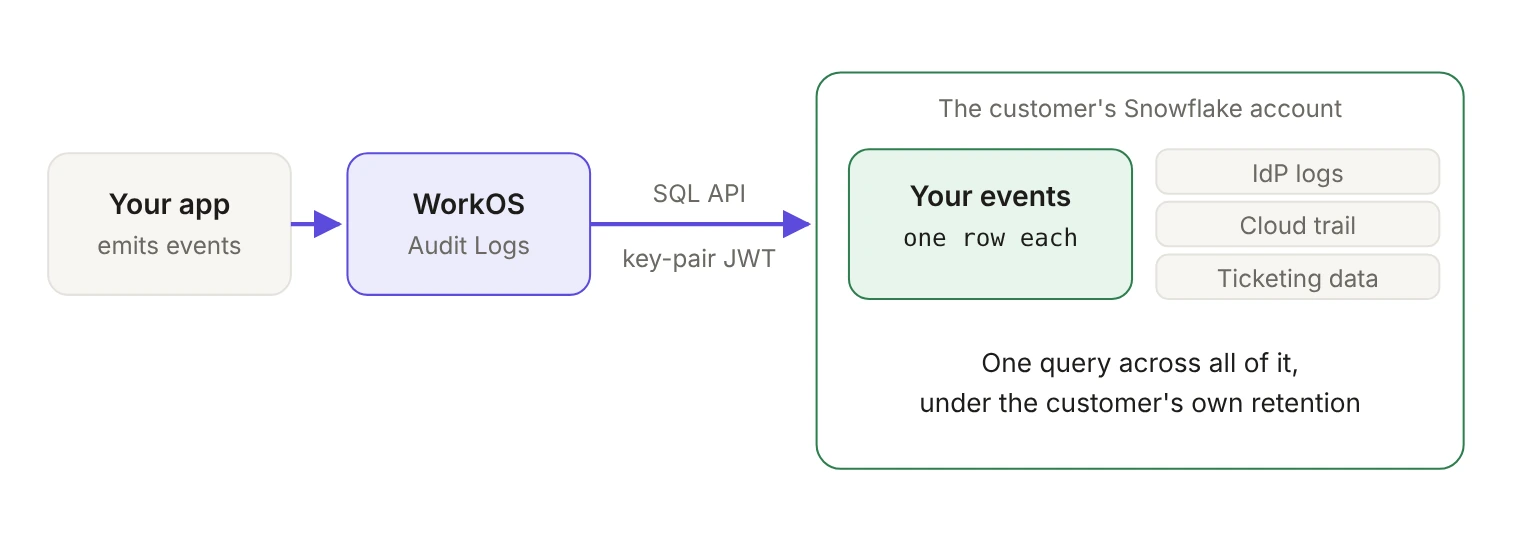
Your enterprise customers' security teams already pull identity provider logs, cloud trails and ticket data into one Snowflake warehouse. Your product's audit events should be in there too, and with WorkOS Log Streams they can be: every Audit Log event for an organization is written as a row in a table inside that customer's own Snowflake account, authenticated with an RSA key pair, so no Snowflake password ever changes hands.
Snowflake became a Log Streams destination in June 2026. Most of the setup happens on the customer's side, and most of what goes wrong later comes from skipping a step there. Here's the whole path, plus how to tell the stream is actually delivering.
Why stream to the warehouse instead of exporting?
An export is a snapshot someone has to request. A stream is a copy that keeps arriving, in the customer's account, under their own storage and access rules. Once the rows are in Snowflake, the customer applies their own indexing, monitoring and alerting to your events alongside events from the other services they run.
The second reason is retention. WorkOS Audit Log events are retained for 30 days by default and permanently deleted when the retention period ends; the period is set per organization, from one month up to ten years. Rows that have already landed in the customer's warehouse are theirs, kept for as long as their own data policy says, whatever the retention setting on the WorkOS side.
Snowflake is one of seven Log Streams destinations, alongside Datadog, Splunk, Microsoft Sentinel, AWS S3, Google Cloud Storage and a generic HTTPS endpoint. The rest of this post is specific to Snowflake.
What does the customer set up in Snowflake?
Four things, in this order: a user with a key pair, the table, a role with the right grants, and a network rule if the account has a network policy.
A user and a key pair
Snowflake key-pair authentication needs at least a 2048-bit RSA key pair, which you generate with OpenSSL:
The first command produces an encrypted private key and prompts for a passphrase. The passphrase only protects the key file and is never sent to Snowflake, so store it with the key in the secret manager the team already uses. WorkOS asks for it separately, and only when the private key is encrypted.
Create a dedicated user for the stream and register the public key on it. WorkOS signs its authentication JWTs with the fingerprint of the key in the user's RSA_PUBLIC_KEY property, so register it there:
Two details trip people up. The role running the ALTER USER needs MODIFY PROGRAMMATIC AUTHENTICATION METHODS or OWNERSHIP on the user, and the public key goes in without its BEGIN PUBLIC KEY and END PUBLIC KEY lines. If the stream later refuses to authenticate, compare the user's RSA_PUBLIC_KEY_FP from DESC USER with the SHA-256 fingerprint of the public key file before changing anything else.
The table, exactly as documented
Each event is written as one row, and the target table has to define these columns:
Use those names and types as written. occurred_at keeps its time zone, which keeps the freshness check later honest, and data is VARIANT, so the full payload stays queryable with Snowflake's JSON path syntax and the customer doesn't need a new column every time you add an event type.
Grants, before the first insert
WorkOS doesn't pick a Snowflake role. Its requests name the warehouse, database and schema but no role, so the Snowflake SQL API runs every insert as the user's DEFAULT_ROLE. Grant that role what it needs, and make sure it really is the default:
INSERT on the table isn't enough by itself: a role also needs USAGE on the database and schema that contain it, and on the warehouse that runs the statement. Make all of these grants before you configure the stream in WorkOS, so the connection check that runs when you save has everything it needs. Later, if someone changes the user's default role, the stream loses its grants with it.
A network rule, if the account has a network policy
WorkOS streams audit logs from a fixed set of IP addresses, published in the Log Streams docs for destinations that restrict access by IP. Snowflake network policies control inbound access and only take effect once they're activated for an account, a user or a security integration. They're also easy to get wrong in one specific way: as soon as an allowed list contains one IPv4 rule, every IPv4 address not on it is blocked.
Snowflake recommends network rules over the older ALLOWED_IP_LIST parameter, and scoping a policy to the users that need it rather than the whole account:
Replace the value list with the current addresses from the Log Streams docs. A policy on a user overrides the account policy, and a policy on a security integration overrides both, so check which one actually governs the stream's user.
How do you configure the stream?
There are two paths, and they produce the same stream.
From the WorkOS dashboard. In the WorkOS dashboard, open the organization, click Configure, pick Snowflake from the dropdown, click Save connection, then fill in the fields below. Use this when you're setting the stream up for the customer with credentials they sent you.
From the Admin Portal. Open the organization in the dashboard, click Invite contact, select Log Streams and click Next, then email the customer's IT contact or copy the setup link. You can also generate the link from your own app with the log_streams portal intent. The contact picks Snowflake and gets step-by-step instructions. This is the better default, because the private key never passes through your support channel.
Either way, the Snowflake fields are the same:
How do you know the stream is healthy?
Two checks, and the one worth alerting on lives in Snowflake.
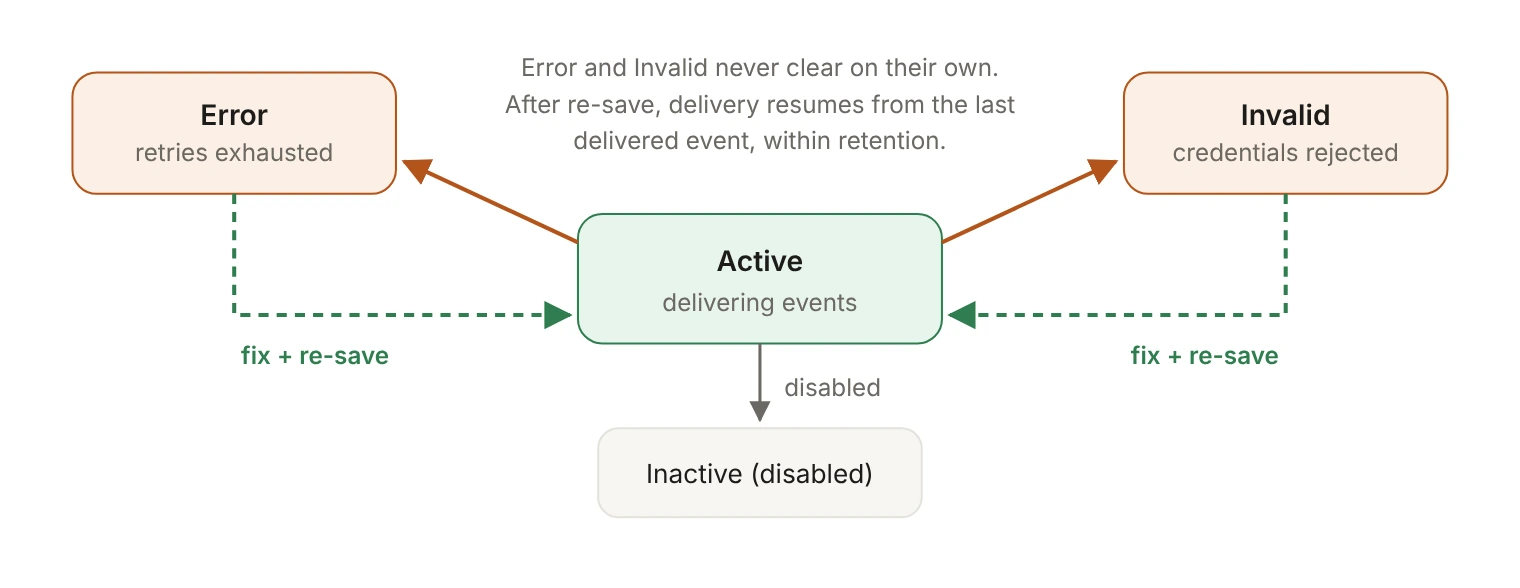
The stream's state. A stream is Active, Inactive, Error or Invalid. Anything other than Active needs a look.
Check it in the dashboard or the Admin Portal. For automated alerting, build on the freshness check below rather than on the state, and don't assume anyone will be notified when a stream stops delivering.
A freshness check in Snowflake. This is the one to alert on, because it measures rows that arrived rather than a connection that was accepted:
Pick the threshold from the organization's own traffic. A customer whose users sign in all day shouldn't go two hours without an event; one with a handful of admins can go a day, and a two-hour alert there is noise. That's why the threshold belongs to the customer rather than a default.
What happens when a stream breaks?
When delivery retries are exhausted, a stream moves from Active to Error. When the destination rejects the stream's credentials or configuration, it moves to Invalid. Neither state clears by itself: a stream only goes back to Active when someone updates its configuration and validation succeeds.
- Find the cause. A rotated or mistyped private key, a missing grant, a default role that changed, a network policy without the WorkOS addresses, or a dropped or renamed table.
- Fix it in Snowflake, then re-save the stream in the dashboard or through a new Admin Portal link. The stream returns to Active once validation passes.
- Check the gap. When a stream that has delivered before becomes Active again, delivery resumes from the last successfully delivered event, and events from the broken window are delivered as long as they're still within the organization's retention period.
That last point sets the repair deadline. With the default 30-day retention, an outage discovered in week six has already cost the customer events that no longer exist to deliver. Key rotation is the predictable version of the same problem. Snowflake lets a user hold two public keys, so rotate without a gap: register the new public key in RSA_PUBLIC_KEY_2, re-save the stream with the new private key, confirm rows are still arriving, and only then remove the old key with ALTER USER workos_audit_logs UNSET RSA_PUBLIC_KEY.
What's on the checklist?
The work that pays off later is the boring half: grants and the default role set before the first insert, and a freshness alert that treats silence as a problem. Get those right and the customer's security team gets what they asked for, your events sitting next to everything else in their own warehouse. For more on what's in those events, see WorkOS Audit Logs now capture sessions and membership changes automatically and Audit logs for AI agents: Lessons from Claude's Compliance API.