Fetch Notion pages without OAuth using WorkOS Pipes
Build a Node app that lets users connect Notion and list their pages with a refreshed access token, without implementing OAuth.

The best B2B apps win on context. A sales workspace is more useful when it can show the rep's own account plan next to the deal record. A customer success platform is more useful when the CSM can pull up the QBR doc they wrote last week, right alongside the customer's health score. An internal help desk is more useful when it surfaces the matching runbook on the ticket, instead of asking the on-call engineer to go find it. An AI assistant is more useful when it can answer questions from the customer's own policies and specs, not generic web results.
For most teams, that context lives in Notion. Specs, runbooks, account briefs, onboarding checklists, meeting notes, internal wikis. If your B2B application can read those pages on the user's behalf, you can stop forcing them to switch tabs and copy-paste.
The catch is that getting there usually means standing up a full OAuth integration: registering an app with Notion, hosting the redirect, storing access and refresh tokens, refreshing them on a schedule, and rotating credentials when something goes wrong. That is a lot of plumbing for a feature that, from the user's perspective, is just "show me my Notion pages here."
WorkOS Pipes removes that overhead. Pipes lets users connect third-party services to your app, while WorkOS handles the OAuth flow, credential storage, and token refresh for you. Your application just asks for a valid access token when it needs data and uses it to call the provider API.
In this tutorial, you will use Pipes to connect Notion and fetch page data in a Node app. You will:
- Use the Pipes widget to let users connect and manage their Notion workspace.
- Fetch a refreshed Notion access token from WorkOS on the backend.
- Call the Notion API to list pages the user has shared with your integration.
!!The same pattern works for any provider. WorkOS Pipes supports GitHub, Linear, Google, Salesforce, and more.!!
Prerequisites
- A WorkOS account (free to sign up + up to 1 million active users / month)
- Node.js 18+ installed
- Basic familiarity with Express and React
What is WorkOS Pipes?
WorkOS Pipes lets your users securely connect their third-party accounts (Notion, Slack, GitHub, Linear, Google, Salesforce) to your application without implementing the underlying OAuth flow.
Instead of building and maintaining OAuth infrastructure for each provider, you configure the provider once in the WorkOS dashboard, drop the Pipes widget in your app, and call the third-party account you want using the access token WorkOS gives you.
At a high level, the flow works like this:
- You configure Notion as a provider in the WorkOS dashboard.
- Add the Pipes widget to your app. Your frontend renders the Pipes widget so users can connect their Notion account.
- When your app needs to send a notification, your backend calls WorkOS to fetch a fresh Notion access token.
- WorkOS returns a valid token, refreshing it in the background if needed.
- You use that token to call the Notion API.
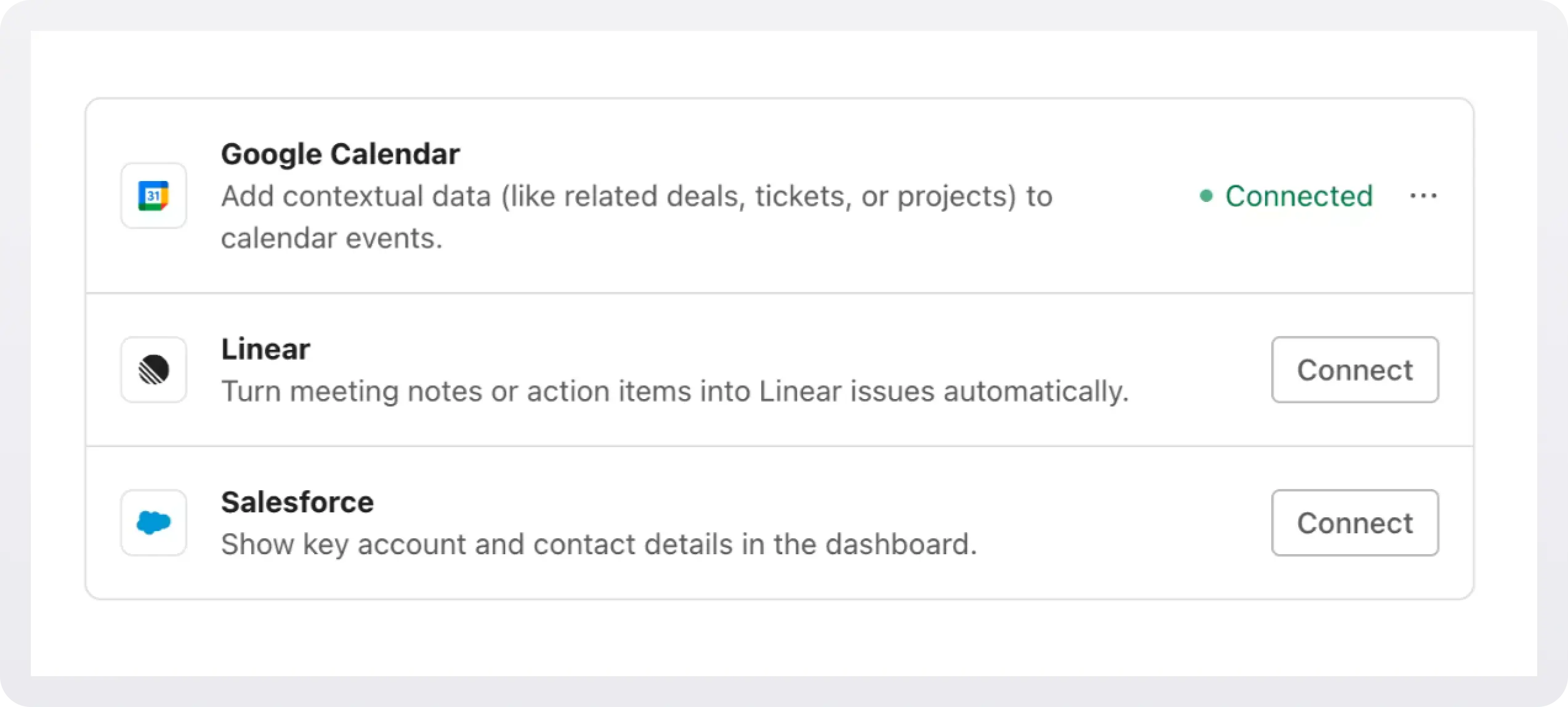
Step 1: Configure Notion
Go to the WorkOS dashboard > Pipes.
Click Connect provider and select Notion from the list.
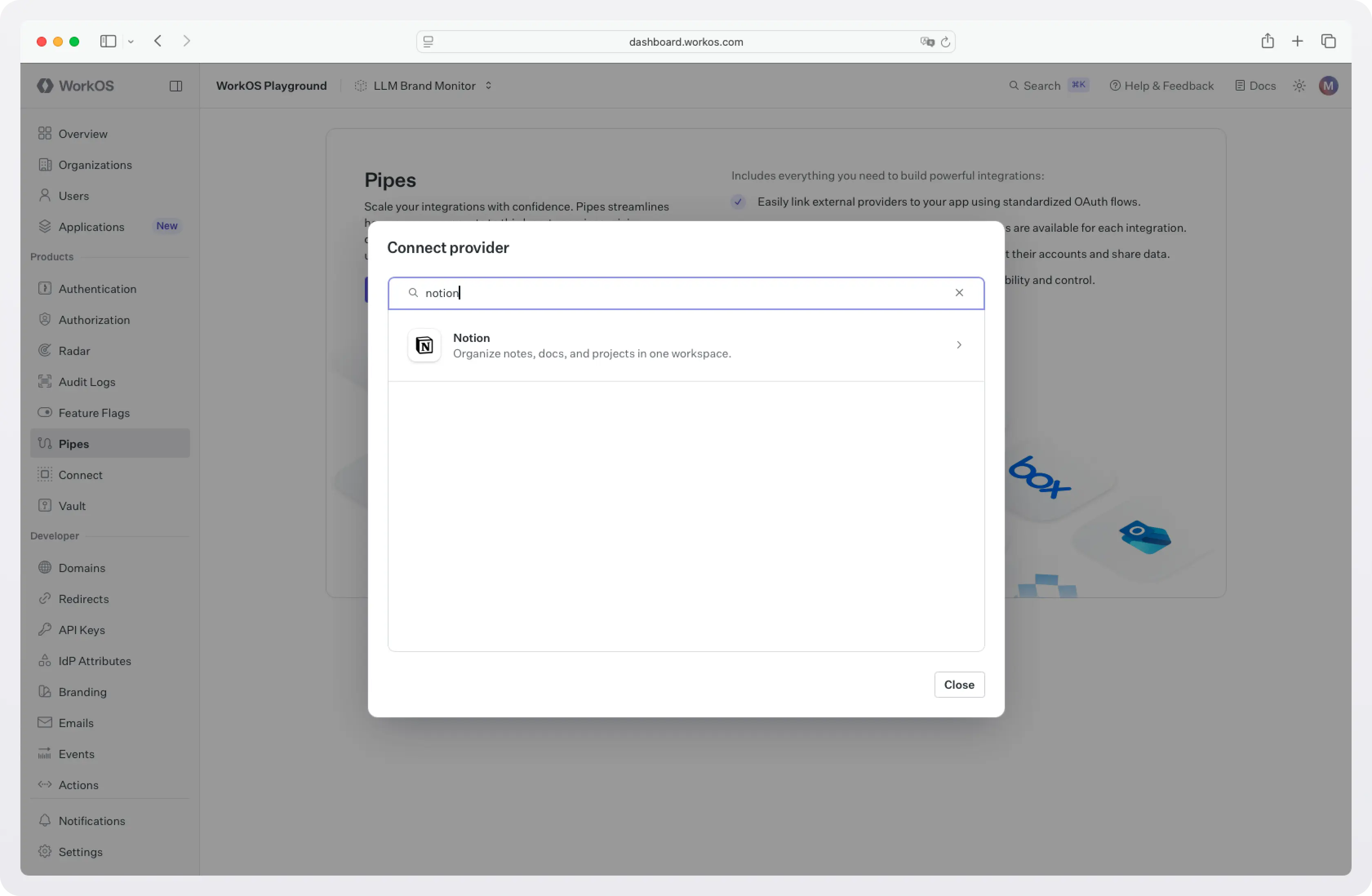
Choose your OAuth scopes
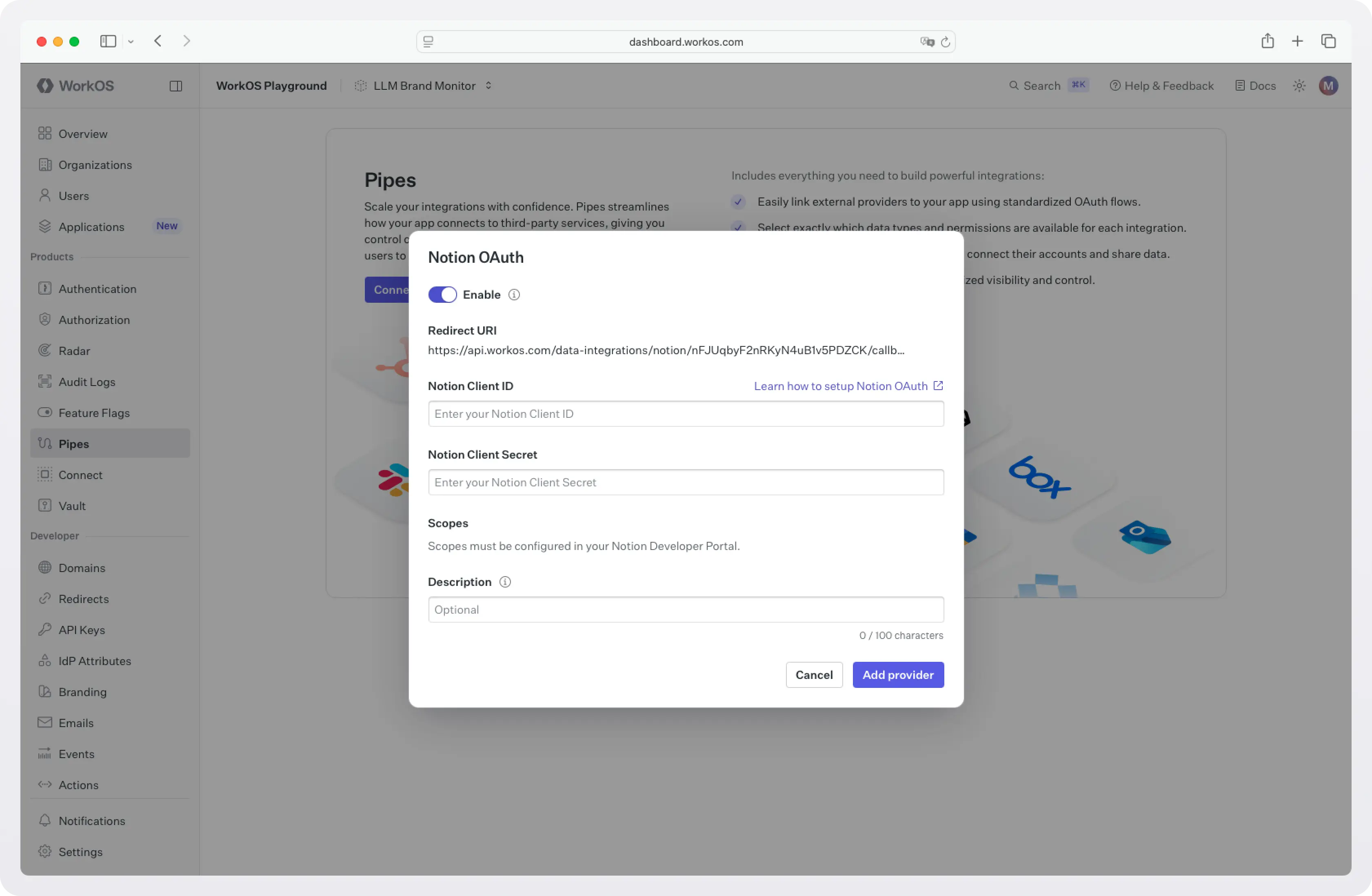
Unlike most providers, the WorkOS dashboard does not let you pick scopes for Notion inline. Instead, you'll see a note that reads "Scopes must be configured in your Notion Developer Portal," with a link to Notion's quick start guide. This is because Notion's permission model is different: capabilities (read content, update content, insert content, and user information access) are set on the integration itself in Notion, not requested per-OAuth-flow the way GitHub or Slack scopes are. WorkOS just hands the user off to whatever the underlying integration is configured to do.
For listing pages, the read content is enough. If you also want to write back to Notion later (for example, appending a comment when a ticket is resolved), you can enable the update or insert capabilities now and reuse the same connection. For more details on what each capability gives access to, see Notion integration capabilities.
Add an optional description, like "Used to display Notion documents." This description appears in the Pipes widget and helps your users understand why they're connecting their account.
Shared credentials vs. your own OAuth app
For the fastest local development, use the shared credentials option (available only in sandbox environments). This uses WorkOS-managed OAuth credentials so users can connect immediately, with no Notion App setup required. Shared credentials are available in sandbox environments only.
For production, you'll configure the provider with your own OAuth credentials. Follow Notion's quick start guide to create a public integration, set its capabilities (read is enough for this tutorial; add update and insert if you plan to write back later), and use the redirect URI shown in the WorkOS dashboard. Then paste the client ID and client secret into the Notion popup dialog box in the WorkOS dashboard.
Step 2: Add the Pipes widget to your frontend
The Pipes widget is a pre-built React component that shows users which providers are available, lets them connect or disconnect accounts, and handles the OAuth flow entirely on their behalf. You embed it once and it handles everything.
Install dependencies
WorkOS Widgets uses Radix Themes for its UI components and TanStack Query for data fetching. Install all three:
Configure your WorkOS API key and allow CORS
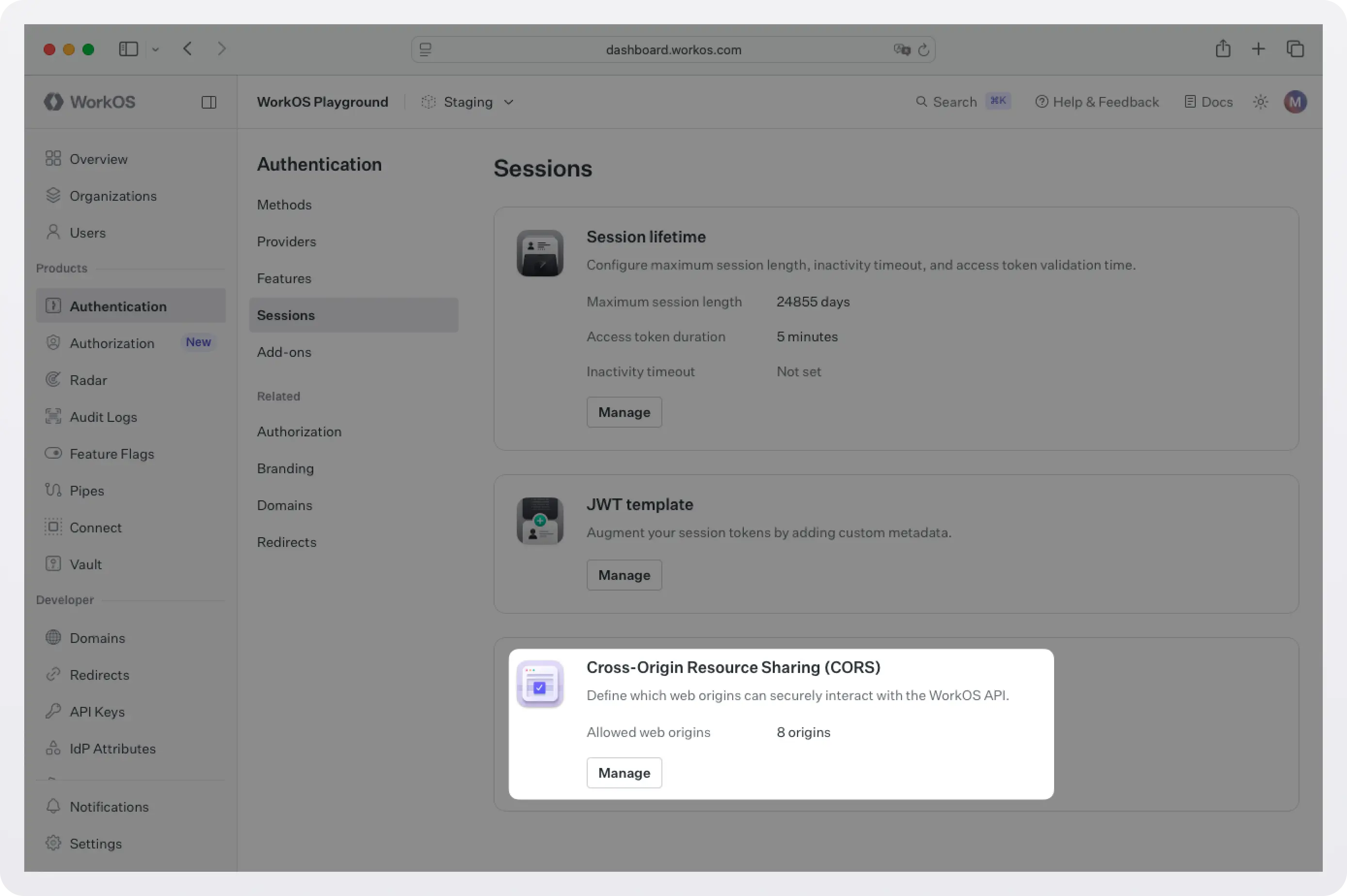
Because the Pipes widget makes client-side requests to WorkOS, you need to add your app's origin to the allowed origins list in the WorkOS dashboard. Go to Authentication → Sessions and add your local URL (for example, http://localhost:3000). This prevents CORS errors when the widget initializes.
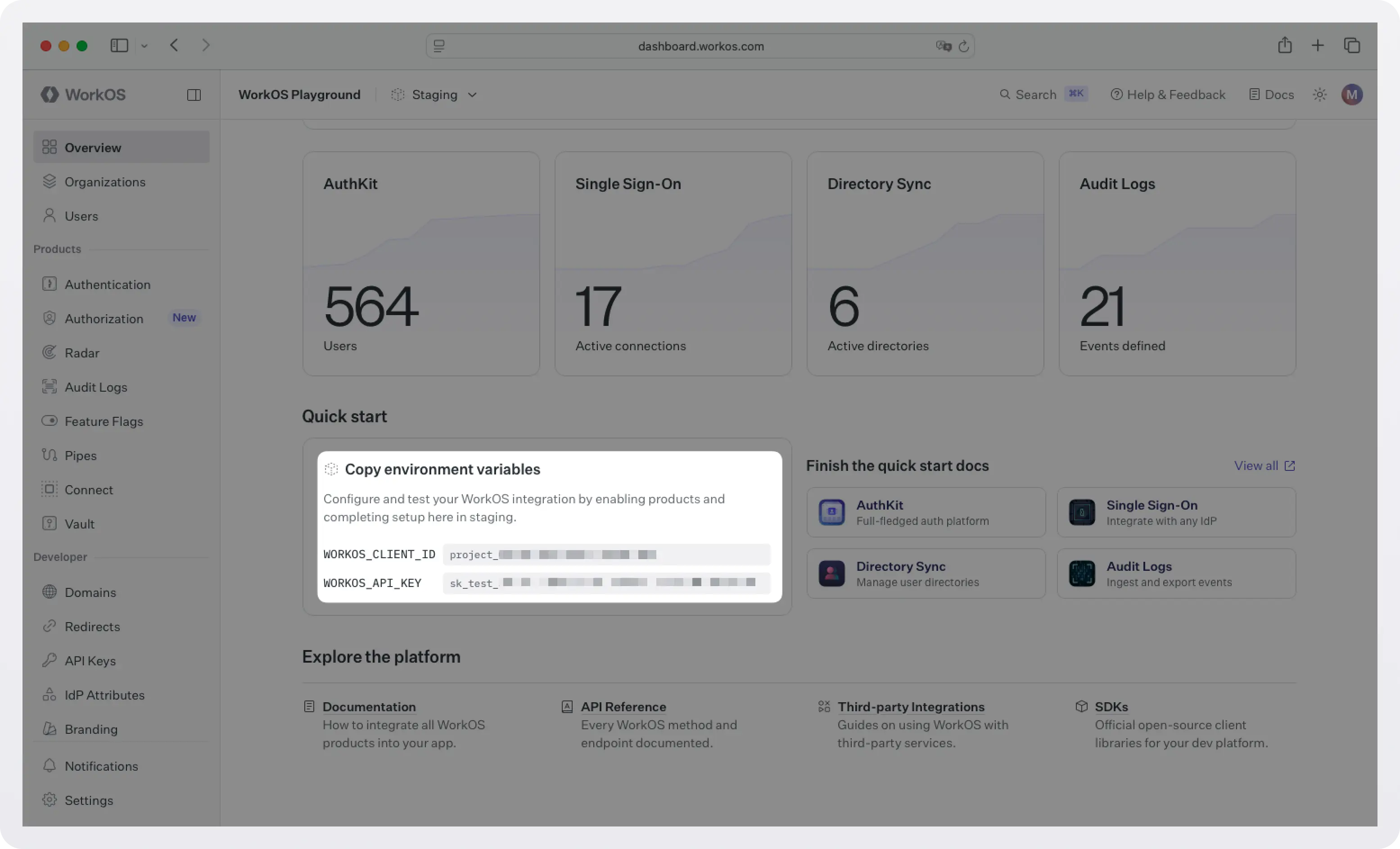
Next, set your WorkOS credentials in your environment:
You can find your credentials at the WorkOS dashboard landing page.
Generate a widget token on your backend
The Pipes widget needs an authorization token tied to the current user. Add an endpoint to your Express backend to generate one:
Render the Pipes widget
Add the widget to the settings or integrations page of your app:
When a user visits this page, they'll see a Slack connection card. Clicking it launches the Slack OAuth flow, and after authorizing, the widget shows their account as connected. If the token ever expires or is revoked, the widget automatically prompts the user to reconnect.
Step 3: Get an access token and call Notion
Once the user connects Notion and picks the pages they want to share, your backend can request a fresh access token from WorkOS. Pipes handles refresh logic so you can treat the token as ready to use.
Create pages/api/pages.js:
What this does:
- Calls
workos.pipes.getAccessToken({ provider: 'notion', userId, organizationId }). - If the user is not connected or needs reauthorization, it returns an error you can use to direct them back to the widget.
- If it succeeds, you get
accessToken.tokenready for Notion API calls. This is the "no OAuth in your app" moment:- Your app does not implement the OAuth redirect flow.
- Your app does not store refresh tokens.
- Your app just asks Pipes for a usable token, then calls Notion.
- The Notion search endpoint returns every page and database the user has shared with your integration. Filtering on
object: pageand sorting bylast_edited_timegives you a clean "recent docs" feed that maps well to a sidebar or context panel in your app.
Sample workos.pipes.getAccessToken response:
Next steps
At this point, you have a working integration that reads Notion pages for your users without implementing OAuth in your application. Pipes handles the authorization flow, token storage, and refresh logic, while your app focuses on making API calls with a valid access token when needed.
When you eventually want to do more with Notion (read full page content block by block, query a specific database for structured data, append comments or new pages on the user's behalf, or subscribe to webhooks for changes), the same Pipes setup continues to work. You only update capabilities and API calls, not your OAuth infrastructure. Pipes becomes a stable integration layer that grows with your product, rather than something you have to revisit each time your needs change.
From here, you might:
- Add additional providers. The Pipes widget automatically shows any providers you've configured in the WorkOS Dashboard. Add GitHub to notify when a PR is opened, or Linear to sync issue status; your backend uses the same token-fetching pattern for every provider.
- Reuse the same Pipes widget to let users manage multiple connected accounts in one place.
- Expand your backend logic to fetch different types of data from connected providers, using the same access token flow. For Notion specifically, the retrieve a page and query a data source endpoints are good next stops once you want full page content or structured database rows.
If you need to integrate with a data source that is not currently listed, reach out to us. Pipes is designed to grow with your product, and we are always open to adding new providers based on customer needs.
As your application evolves, Pipes remains the integration layer, so you can focus on building features instead of maintaining OAuth and credential infrastructure.
Frequently Asked Questions
Do I need to build a Notion integration myself? For sandbox environments, no; you can use WorkOS shared credentials and connect immediately. For production, you'll create a public integration in Notion's developer console to get your own client ID and secret, but WorkOS handles everything after that, including the OAuth flow and token refresh.
What happens if a user's Notion token expires or is revoked? WorkOS automatically refreshes tokens in the background. If the user removed your integration from their Notion workspace, getAccessToken returns an error with a clear reason, and you can direct the user back to the Pipes widget to reconnect.
Why am I not seeing all of my user's Notion pages in the API response? Notion grants access at the page level, not the workspace level. When the user goes through the connect flow, they pick which specific pages and databases to share with your integration. Pages they did not select are not visible to your app, even if the OAuth flow succeeded. This is good for end-user trust and something to surface in your UI: prompt users to share more pages from inside Notion if their results look thin.
What capabilities does this tutorial require? Just the read content capability is enough to list pages and read their titles, and the same capability covers reading the body of a page block by block. Remember that capabilities are set on the integration itself in Notion's developer portal, not in the WorkOS dashboard. To create or modify pages, comments, or database rows on the user's behalf, enable the insert and update capabilities on your Notion integration and reuse the same connection.
Can I query a specific Notion database instead of listing pages? Yes. The example in this tutorial calls the /v1/search endpoint, which is the most general way to surface what the user has shared. If your app cares about a specific database (for example, a "Customers" database the user picked during onboarding), call POST /v1/data_sources/{data_source_id}/query with filters and sorts that match its schema. The same access token works for both endpoints.