Integrate Google Drive in your app without OAuth using WorkOS Pipes
Build a JavaScript app that lets users connect Google Drive and list their files in your app, without doing any of the OAuth plumbing work, using WorkOS Pipes.

Many applications need data from tools their users already use, like Google, GitHub, or internal services. While the APIs are usually straightforward, connecting user accounts and managing OAuth flows, tokens, and refresh logic often adds a lot of complexity.
WorkOS Pipes removes that overhead. Pipes lets users connect third-party services to your app, while WorkOS handles the OAuth flow, credential storage, and token refresh for you. Your application just asks for a valid access token when it needs data and uses it to call the provider API.
In this tutorial, you will use Pipes to connect Google Drive and sync files in a Node app. You will:
- Add the Pipes widget to your app so your users can connect and manage their Google account.
- Fetch a refreshed Google access token from WorkOS on the backend.
- Call the Google Drive API to list files for the authenticated user.
The same pattern can be used to connect other data sources and bring external data into your application without building OAuth plumbing yourself.
What are WorkOS Pipes
Pipes allows your users to securely connect their third-party accounts to your application. With Pipes, you can easily integrate with popular services like Linear, GitHub, Slack, Google, Salesforce, and many more without managing OAuth flows, token refresh logic, or credential storage.
At a high level:
- You configure a provider (like Google Drive) in the WorkOS dashboard.
- Your app renders the Pipes widget so users can connect and manage accounts. You will just copy paste a snippet we will give you.
- Your backend calls WorkOS to fetch an access token whenever it needs to call the provider API.
- Pipes refreshes tokens in the background for you so you always get a usable token.
- Use that token in your app to retrieve any data you need from the configured provider (e.g., Google Drive files)
Step 1: Configure Google
In the WorkOS Dashboard, go to Pipes.
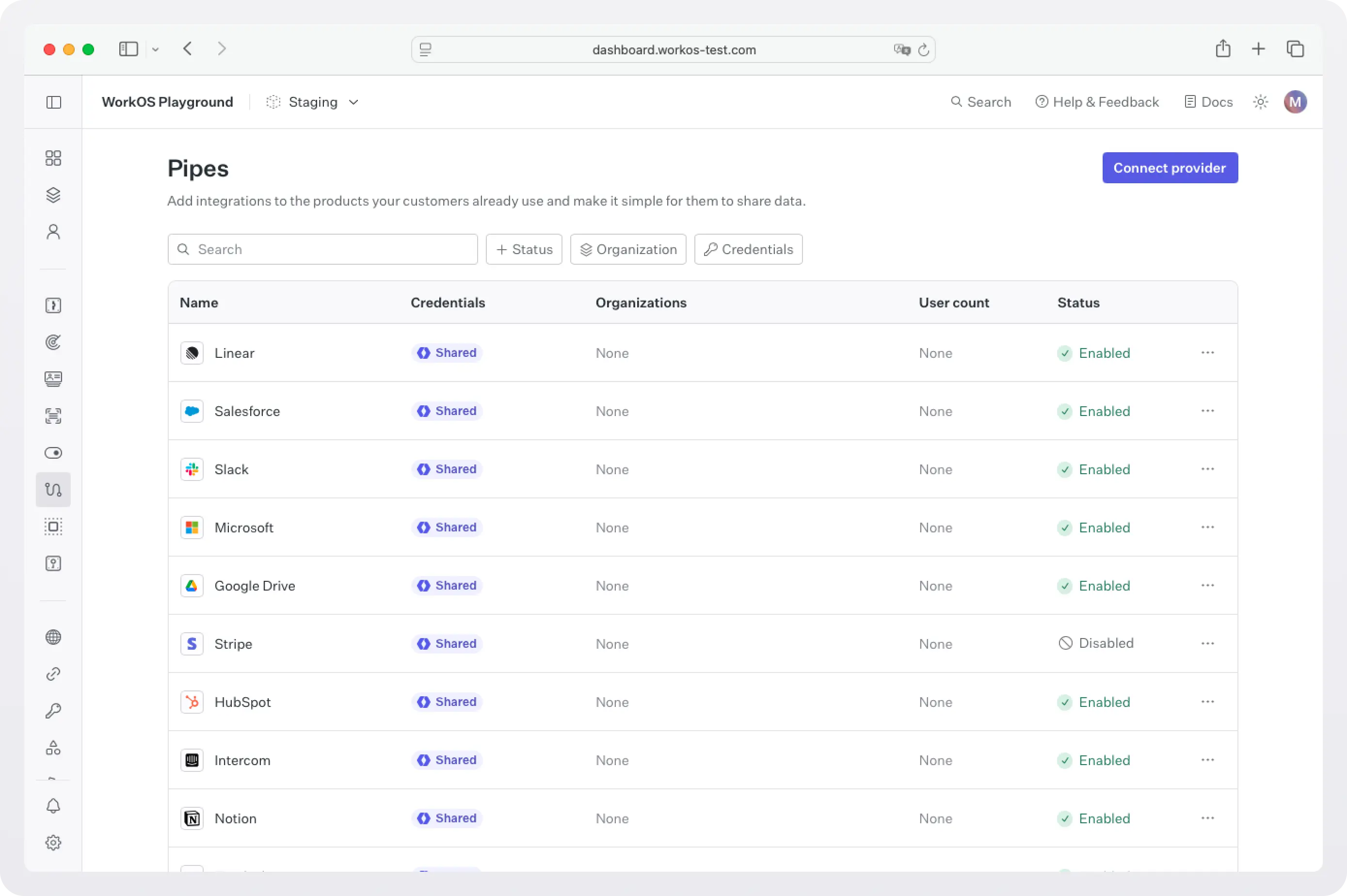
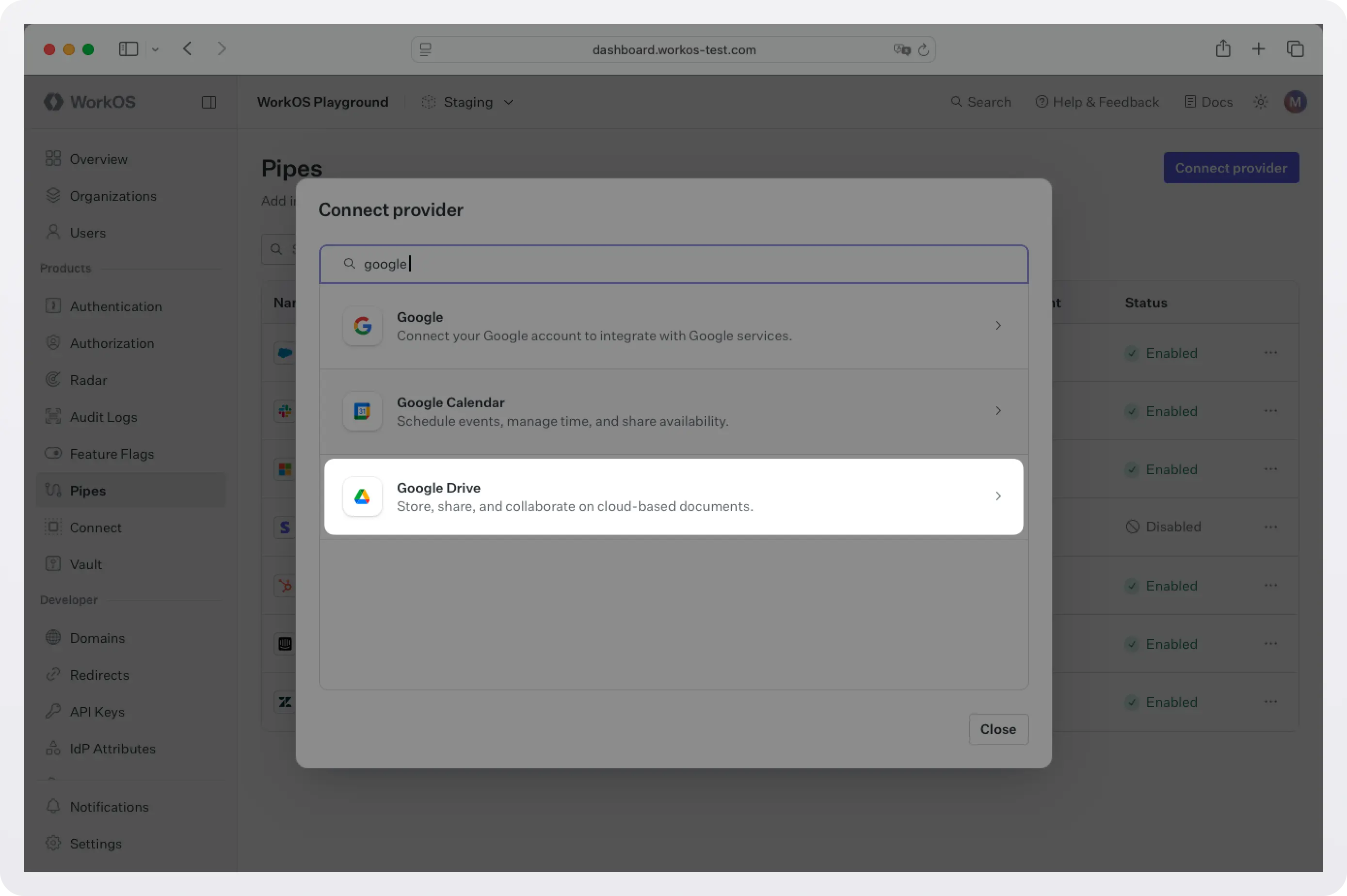
Click Connect provider and select Google Drive.
Choose your scopes. For example, to see, edit, create, and delete all of your Google Drive files, select https://www.googleapis.com/auth/drive. For more details on what each scope gives access to, see Google Drive OAuth Scopes.
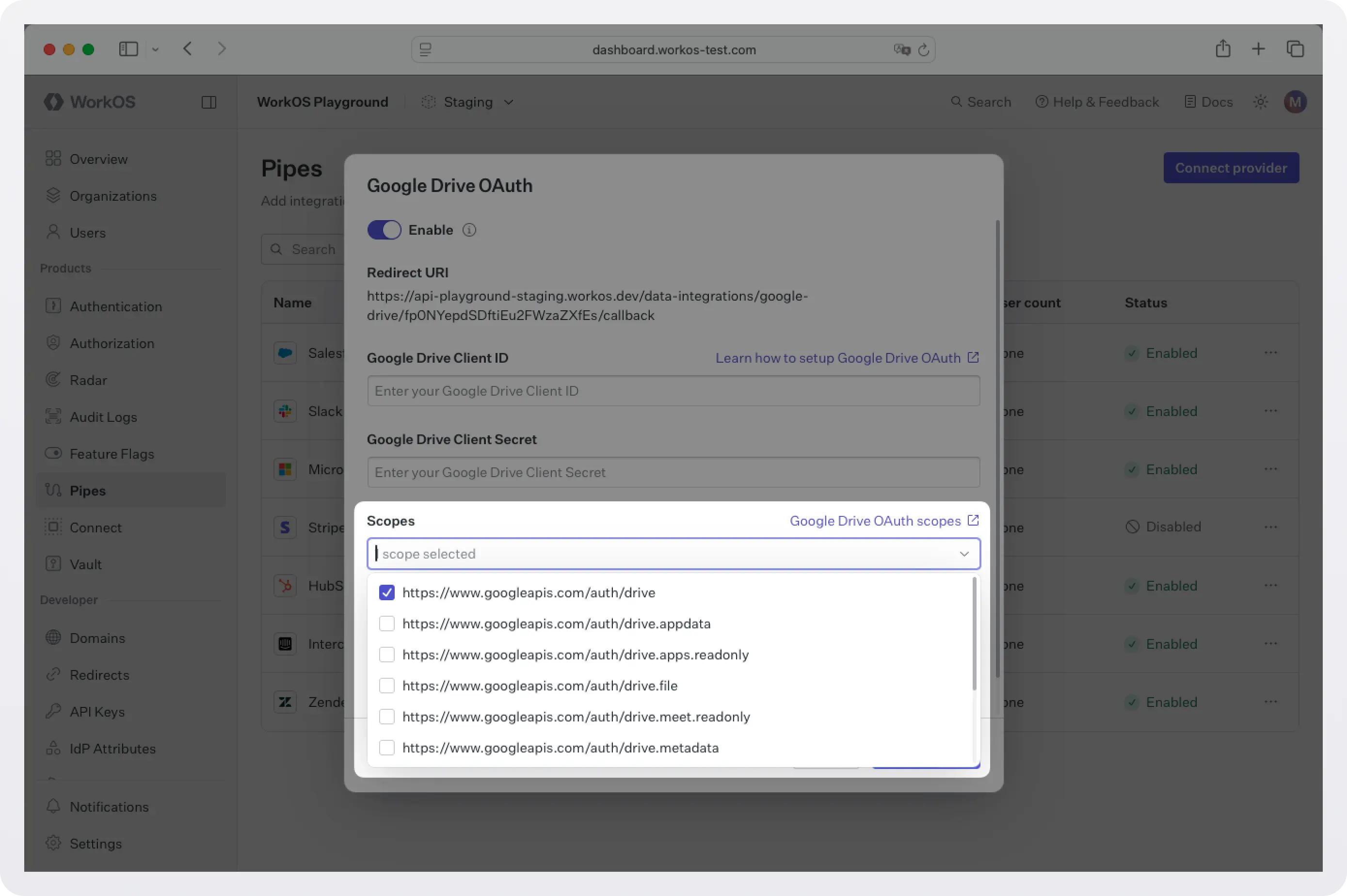
Add an optional description. This shows up in the widget to explain how your app uses the data.
For the fastest setup, go ahead and use the shared credentials option. This will allow users to connect immediately (using WorkOS-managed shared credentials) without requiring you to create OAuth applications with Google.
This option is available for sandbox environments only. For production environments, configure the provider with your own OAuth credentials. Create a Google OAuth application using the provided Redirect URI, and set the Client ID and Client Secret to the Google popup dialog box in the WorkOS dashboard.
Step 2: Add the Pipes Widget
Next we will add the Pipes widget to your app.
The Pipes widget is a pre-built UI that shows available providers and lets users connect and manage accounts. It displays a list of all the 3rd party services you have enabled and the user has the option to connect them or not.
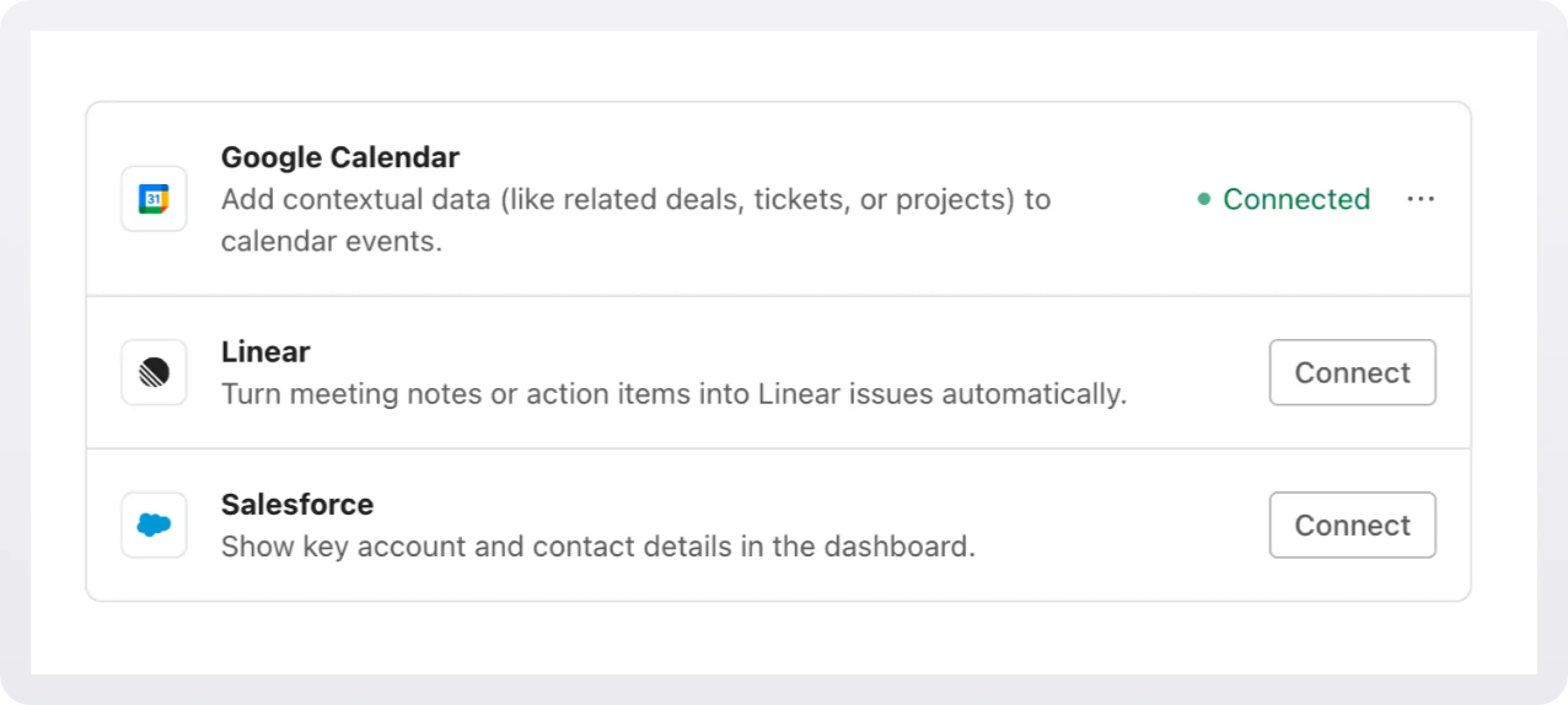
In order to add the widget to our app we need to install some dependencies, configure keys and URLs, and then get a valid token for the user.
2a. Install dependencies
WorkOS Widgets uses Radix Themes for its UI components and style customization APIs, while TanStack Query is used for data fetching and caching. Since both libraries are often used in applications, we require them as peer dependencies to avoid duplication, version conflicts, and bloated bundles.
Install these dependencies:
2b. Configure WorkOS API key and CORS
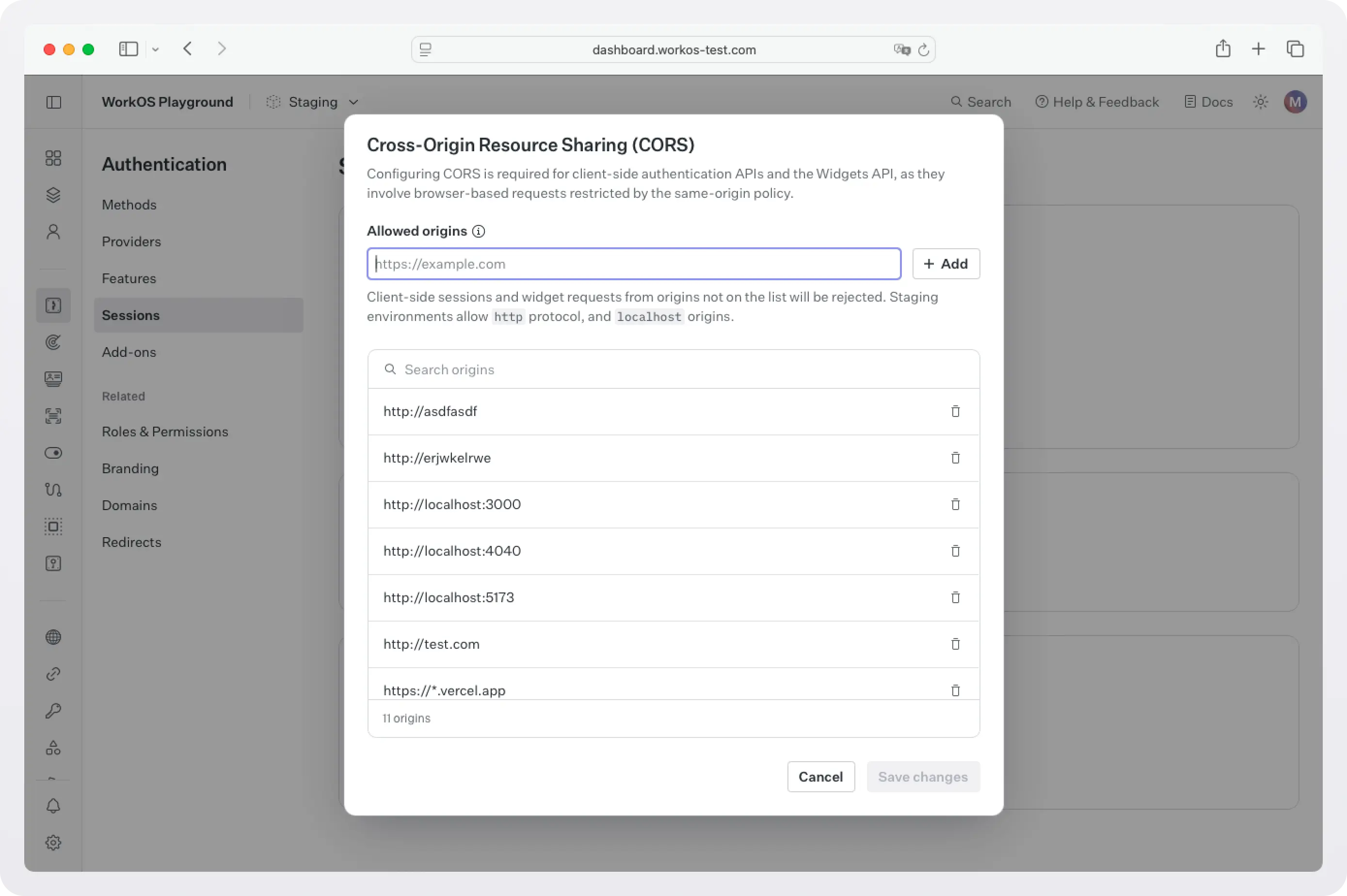
Next, because WorkOS widgets issue client-side requests to WorkOS, it is necessary to configure your site as an allowed web origin. Adding this in the Authentication section of the WorkOS dashboard will prevent CORS issues when using the widget.
You also need to set the WorkOS API key and client ID in order to make calls to the WorkOS API. Copy these values from the WorkOS dashboard.
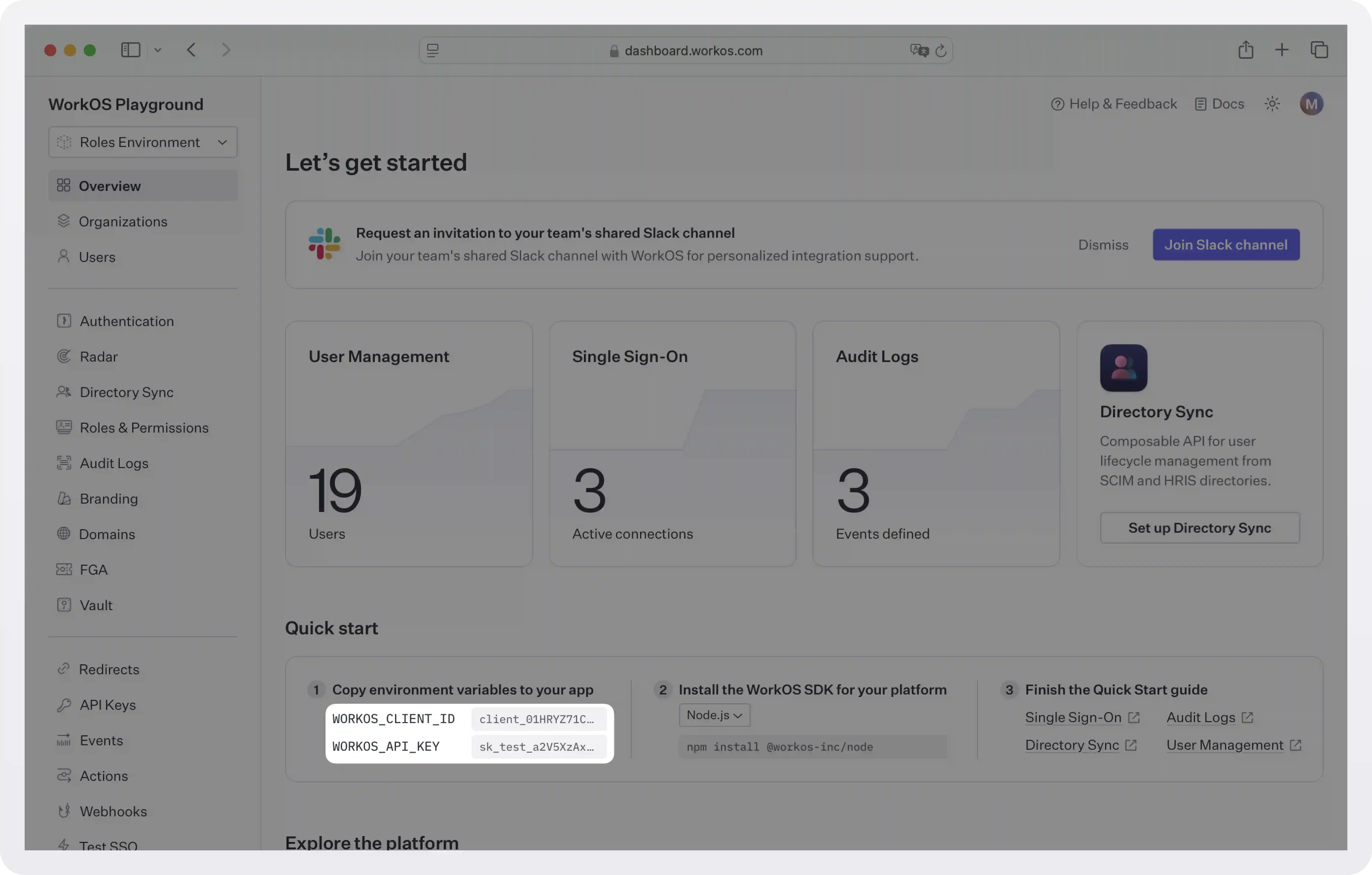
Store the values as managed secrets and pass them to the SDK as environment variables:
Environment variables example:
!!For more information on safely handling secrets, see Best practices for secrets management.!!
2c. Get authorization token
The Pipes Widget makes a call to the WorkOS API to retrieve information about all the 3rd party services the user has the option to enable and their corresponding status, so it needs an authorization token. There are two ways you can get one:
- If you are using the authkit-js or authkit-react libraries, you can use the provided access token.
- If you use one of our backend SDKs, use the
getTokenmethod in the SDK to request a token with the appropriate scope for the widget you want to use. Widget tokens expire after one hour. Node example:
!!To customize the look and feel of the widget see Styling.!!
Step 3: Get an access token and call Google Drive
Once the user connects Google Drive, your backend can request a fresh access token from WorkOS. Pipes handles refresh logic so you can treat the token as ready to use.
Create pages/api/files.js:
What this does:
- Calls
workos.pipes.getAccessTokenasking for a token for the providergoogle_drive, the useruserId, under orgorganizationId. - If the user is not connected or needs reauthorization, it returns an error you can use to direct them back to the widget.
- If it succeeds, you get
accessToken.tokenready for Google Drive API calls. This is the “no OAuth in your app” moment:- Your app does not implement the OAuth redirect flow.
- Your app does not store refresh tokens.
- Your app just asks Pipes for a usable token, then calls Google Drive.
Sample workos.pipes.getAccessToken response:
Next steps
At this point, you have a working integration that reads Google Drive data for your users without implementing OAuth in your application. Pipes handles the authorization flow, token storage, and refresh logic, while your app focuses on making API calls with a valid access token when needed.
When you eventually need write access or deeper Google Drive permissions, the same Pipes setup continues to work. You only update scopes and API calls, not your OAuth infrastructure. Pipes becomes a stable integration layer that grows with your product, rather than something you have to revisit each time your needs change.
From here, you might:
- Add additional providers such as Slack, Google, Salesforce, or other supported services.
- Reuse the same Pipes widget to let users manage multiple connected accounts in one place.
- Expand your backend logic to fetch different types of data from connected providers, using the same access token flow.
If you need to integrate with a data source that is not currently listed, reach out to us. Pipes is designed to grow with your product, and we are always open to adding new providers based on customer needs.
As your application evolves, Pipes remains the integration layer, so you can focus on building features instead of maintaining OAuth and credential infrastructure.