Send Slack notifications from your app without building OAuth
How to post Slack messages to your users' workspaces in minutes, without writing a single line of OAuth plumbing, using WorkOS Pipes.

Many SaaS applications need to send Slack notifications to their users: deployment alerts, task assignments, billing reminders. The feature itself is simple. The OAuth setup to make it work for every user's workspace is not.
To support multi-tenant Slack messaging (where each of your users connects their own Slack workspace, not a shared bot), you normally have to:
- Register and configure a Slack App.
- Implement the full OAuth 2.0 authorization code flow.
- Build a callback endpoint to exchange codes for tokens.
- Store and encrypt user tokens in your database.
- Write token refresh logic and handle expiry.
- Handle errors when tokens are revoked.
That's days of work before you send a single notification.
WorkOS Pipes removes all of it. Pipes handles OAuth flows, token storage, and refresh logic so your app just asks for a valid Slack access token when it needs one. You call the Slack API. Done.
In this tutorial, we’ll build a Node.js app that lets users connect their Slack workspace via the Pipes widget, then posts a formatted notification to a channel they choose, without writing OAuth code yourself.
What we’ll build:
- A Pipes widget that lets users connect and manage their Slack account.
- A backend endpoint that fetches a fresh Slack access token from WorkOS.
- A
chat.postMessagecall that posts a notification to the user's chosen channel.
!!The same pattern works for any provider. WorkOS Pipes supports GitHub, Linear, Google, Salesforce, and more.!!
Prerequisites
- A WorkOS account (free to sign up + up to 1 million active users / month)
- Node.js 18+ installed
- Basic familiarity with Express and React
What is WorkOS Pipes?
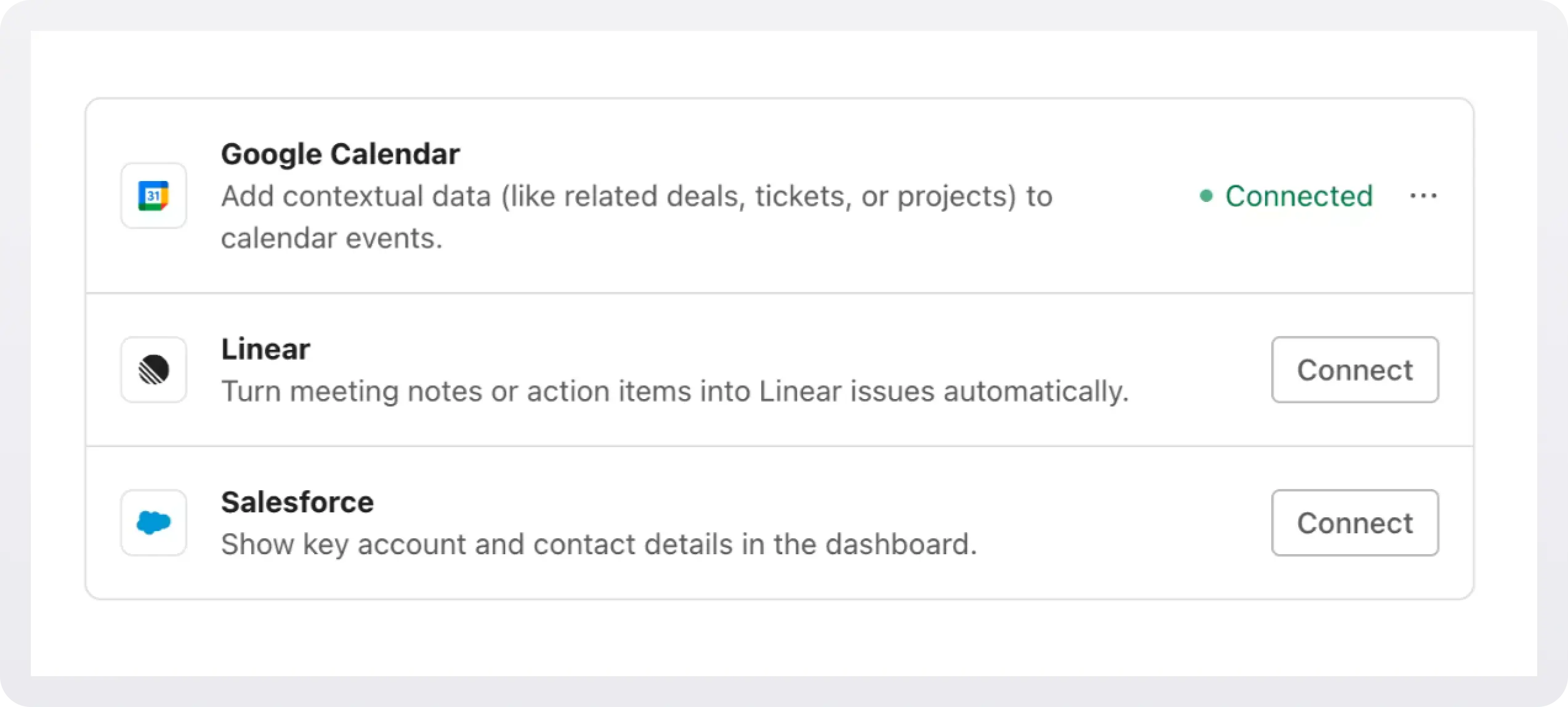
WorkOS Pipes lets your users securely connect their third-party accounts (Slack, GitHub, Linear, Google, Salesforce) to your application without implementing the underlying OAuth flow.
Instead of building and maintaining OAuth infrastructure for each provider, you configure the provider once in the WorkOS dashboard, drop the Pipes widget in your app, and call the third-party account you want using the access token WorkOS gives you.
At a high level, the flow works like this:
- You configure Slack as a provider in the WorkOS dashboard.
- Add the Pipes widget to your app. Your frontend renders the Pipes widget so users can connect their Slack account.
- When your app needs to send a notification, your backend calls WorkOS to fetch a fresh Slack access token.
- WorkOS returns a valid token, refreshing it in the background if needed.
- You use that token to call
chat.postMessageon the Slack API.
Step 1: Configure Slack in the WorkOS dashboard
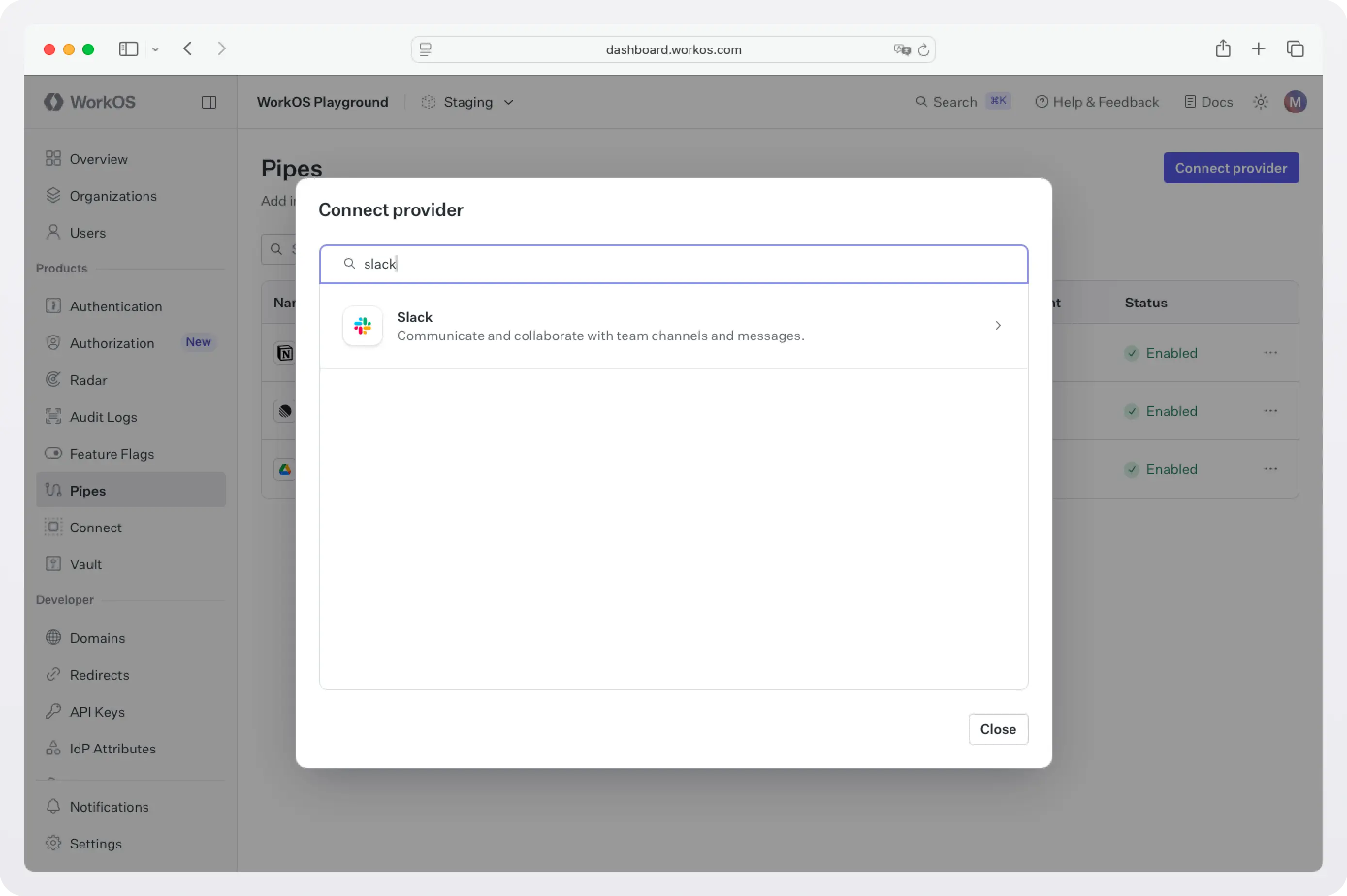
Go to the WorkOS dashboard > Pipes.
Click Connect provider and select Slack from the list.
Choose your OAuth scopes
For sending notifications to a channel, you need two scopes:
chat:write→ Lets your app post messages to channels the user has authorized.channels:read→ Lets your app list the user's public channels so they can choose a destination.
Select both scopes in the configuration dialog. Add an optional description, like "Used to send you deployment alerts and task notifications in Slack." This description appears in the Pipes widget and helps your users understand why they're connecting their account.
Shared credentials vs. your own OAuth app
For the fastest local development, use the shared credentials option. This uses WorkOS-managed OAuth credentials so users can connect immediately, with no Slack App setup required. Shared credentials are available in sandbox environments only.
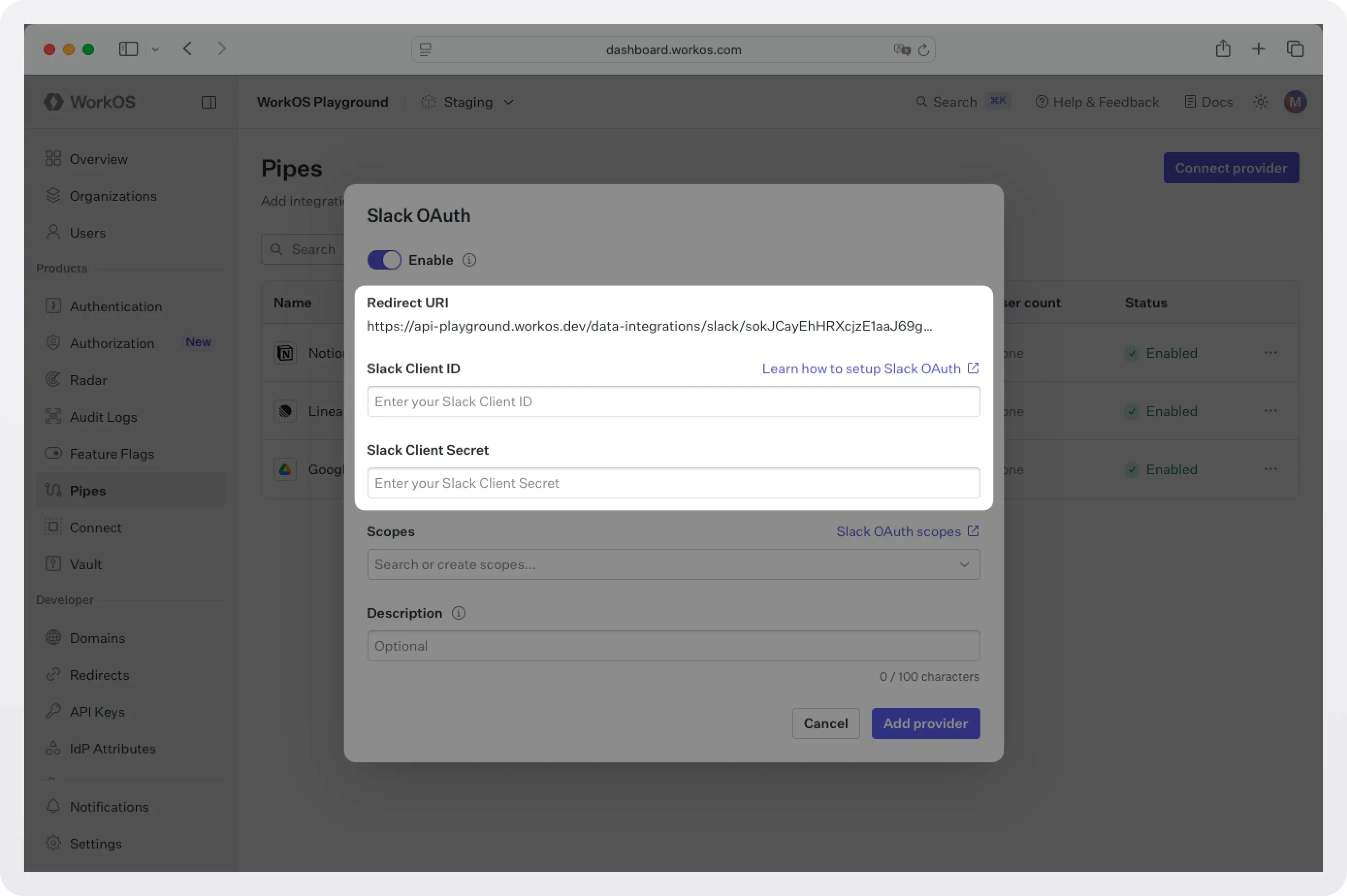
For production, you'll configure the provider with your own OAuth credentials. Create a Slack App at api.slack.com/apps, copy the Redirect URI from the WorkOS Dashboard into your Slack App's OAuth & Permissions settings, then paste the Client ID and Client Secret back into WorkOS.
Step 2: Add the Pipes widget to your frontend
The Pipes widget is a pre-built React component that shows users which providers are available, lets them connect or disconnect accounts, and handles the OAuth flow entirely on their behalf. You embed it once and it handles everything.
Install dependencies
WorkOS Widgets uses Radix Themes for its UI components and TanStack Query for data fetching. Install all three:
Configure your WorkOS API key and allow CORS
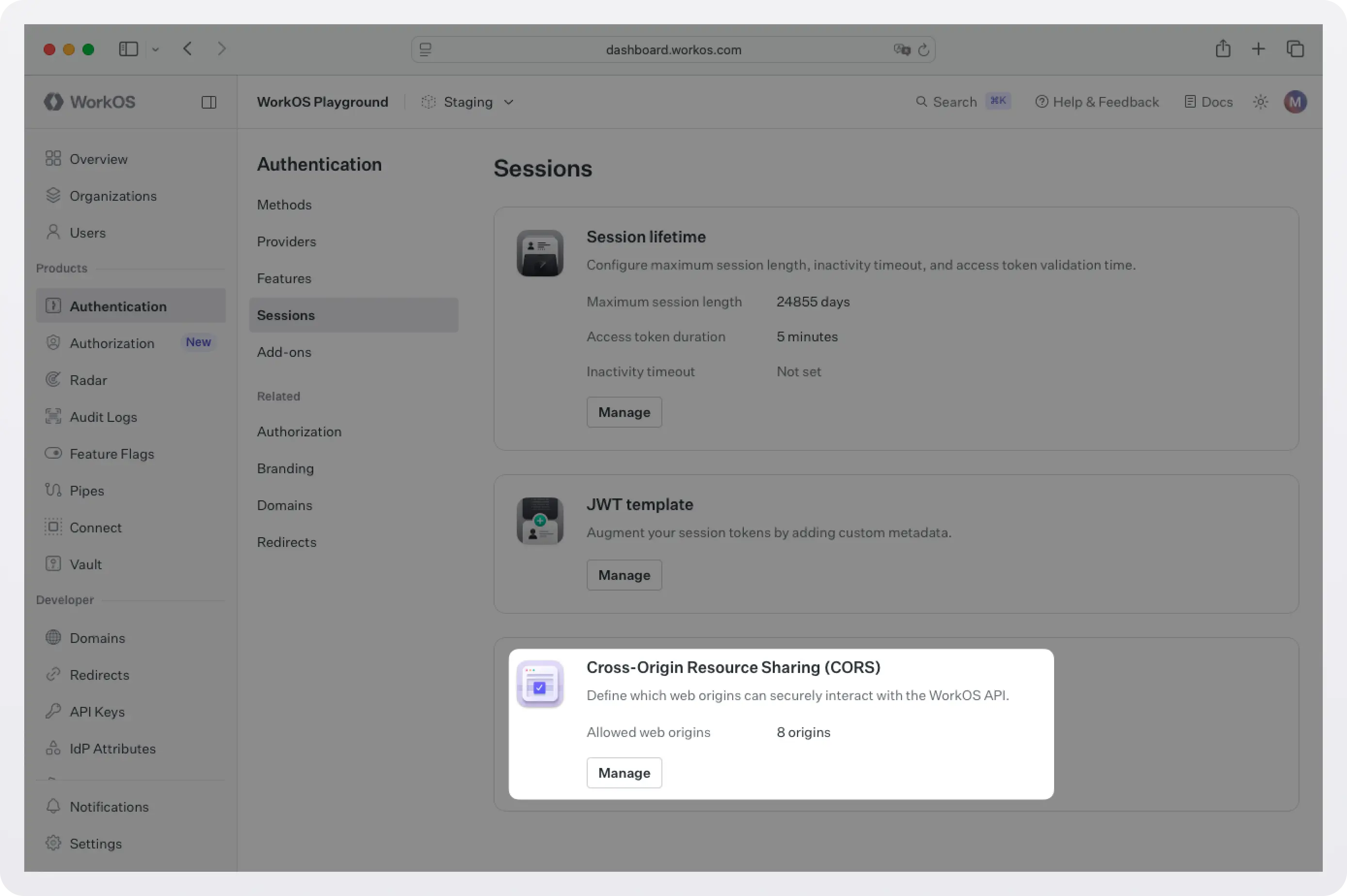
Because the Pipes widget makes client-side requests to WorkOS, you need to add your app's origin to the allowed origins list in the WorkOS dashboard. Go to Authentication → Sessions and add your local URL (for example, http://localhost:3000). This prevents CORS errors when the widget initializes.
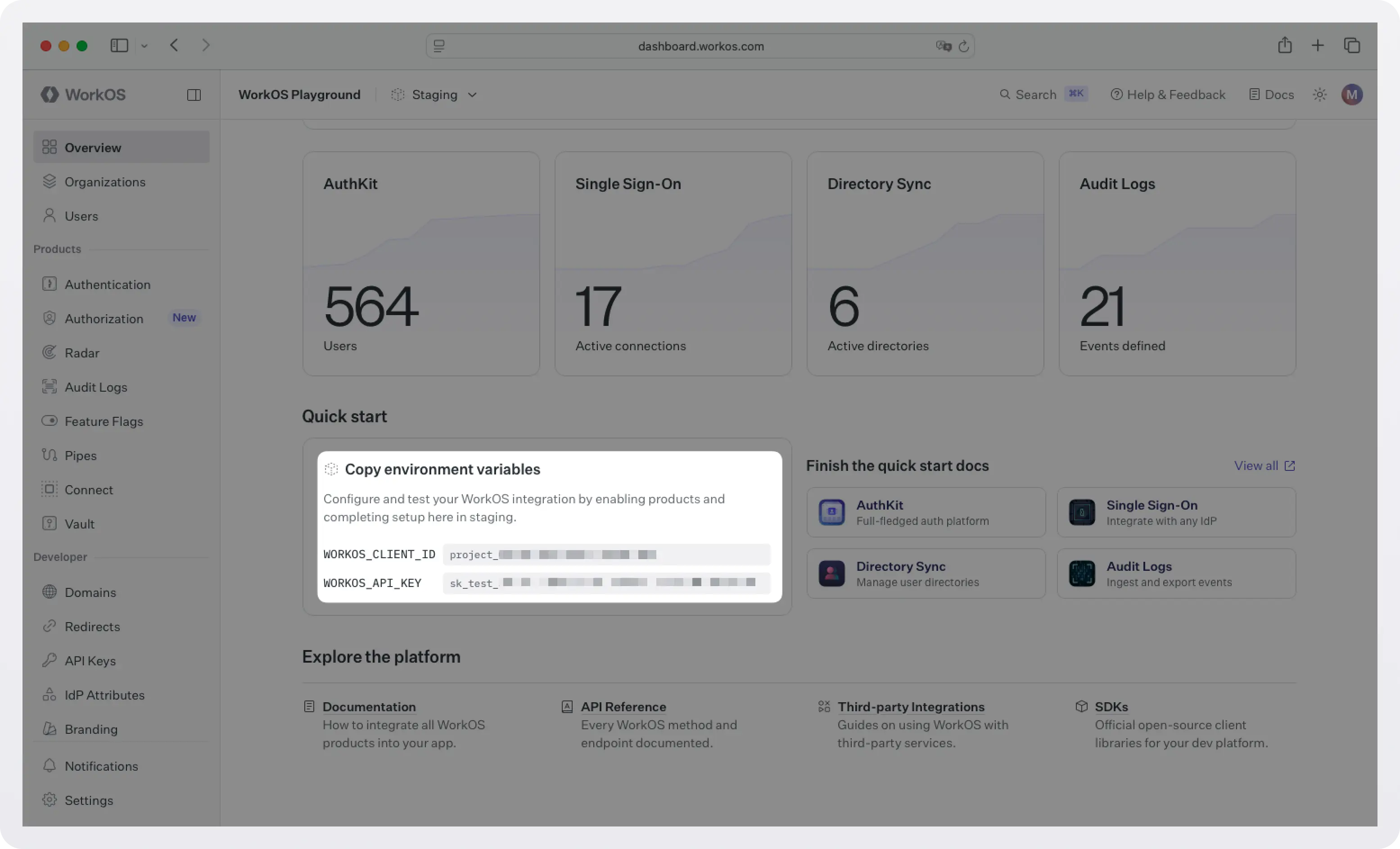
Next, set your WorkOS credentials in your environment:
You can find your credentials at the WorkOS dashboard landing page.
Generate a widget token on your backend
The Pipes widget needs an authorization token tied to the current user. Add an endpoint to your Express backend to generate one:
Render the Pipes widget
Add the widget to the settings or integrations page of your app:
When a user visits this page, they'll see a Slack connection card. Clicking it launches the Slack OAuth flow, and after authorizing, the widget shows their account as connected. If the token ever expires or is revoked, the widget automatically prompts the user to reconnect.
Step 3: Fetch a fresh Slack token on your backend
When your app needs to send a notification, it calls WorkOS to get a valid Slack access token for that user. WorkOS handles token refresh transparently; you always get a usable token.
Add a helper function to your backend:
If the user hasn't connected their Slack account yet, this call returns a descriptive error you can use to redirect them to the integrations page. If the token has expired, WorkOS refreshes it automatically before returning.
Step 4: Post a Slack notification with chat.postMessage
Now put it together. When something happens in your app (a deployment completes, a task is assigned, a subscription renews) call the Slack API using the token you just fetched:
Call this from wherever the triggering event happens in your app:
Step 5: Let users choose their notification channel
You'll want to give users a way to pick which Slack channel receives notifications. Use the same Slack token to fetch their available channels:
Render this as a dropdown in your notification preferences UI so users can select their destination channel once and save it to your database. From then on, your backend uses their saved channelId each time it sends a notification.
Putting it all together
Here's the complete flow, end to end:
- User visits your integrations page → sees the Pipes widget → clicks Connect Slack → completes the OAuth flow in Slack → returns to your app with their account connected.
- User opens notification preferences → your app calls
conversations.listusing their Slack token → user selects a channel → your app saves that channel ID. - A deployment completes (or any event fires) → your backend calls
workos.pipes.getAccessToken()→ gets a fresh Slack token → callschat.postMessage→ notification appears in the user's chosen channel.
No tokens in your database. No refresh cron jobs. No OAuth callback routes. WorkOS handles all of it.
What to build next
Once you have the Slack integration in place, the same Pipes pattern extends naturally:
- Add more providers. The Pipes widget automatically shows any providers you've configured in the WorkOS Dashboard. Add GitHub to notify when a PR is opened, or Linear to sync issue status; your backend uses the same token-fetching pattern for every provider.
- Send richer notifications with Block Kit. Slack's Block Kit lets you build interactive message layouts with buttons, dropdowns, and images. Swap the
textfield in yourchat.postMessagecall for ablocksarray to make your notifications more actionable. - Let users configure notification rules. Build a preferences UI where users can choose which events trigger notifications and which channels receive them. Your backend already has everything it needs. Just store the user's preferences and reference them when sending.
- Combine providers. WorkOS Pipes is designed to grow with your product. If you need to integrate with a data source not currently listed, reach out. We actively add new providers based on customer needs.
Frequently Asked Questions
Do I need to build and maintain a Slack App? For sandbox environments, no; you can use WorkOS shared credentials and start sending notifications immediately. For production, you'll need to create a Slack App to get your own Client ID and Secret, but WorkOS handles everything after that.
What happens if a user's Slack token expires or is revoked? WorkOS automatically refreshes tokens in the background. If a token is revoked (the user uninstalled your Slack App from their workspace), getAccessToken returns an error with a clear reason, and you can direct the user back to the Pipes widget to reconnect.
Can I send Slack messages to multiple workspaces from the same app? Yes. Each user who connects Slack via Pipes gets their own access token, scoped to their workspace. Your backend simply calls getAccessToken with the relevant user ID and WorkOS handles the per-user credential isolation.
What Slack scopes does this tutorial require?chat:write to post messages and channels:read to list channels. If you need to send direct messages to users, add im:write and use conversations.open to open a DM before calling chat.postMessage.
Can I post as the user instead of as a bot? WorkOS Pipes uses user-scoped tokens, so with the right scopes (specifically chat:write:user), you can post messages that appear to come from the individual user rather than from a bot. Check Slack's scope documentation for the specifics.