Sign in with Microsoft vs. Entra SSO: Which one does your app need?
Microsoft OAuth and an Entra SSO connection are two different integrations. What each covers, how email domains route users, and which one a deal needs.

"Sign in with Microsoft" is an OAuth login button: one app registration that serves every user of your environment, with no tie to any particular customer. Entra SSO is a SAML or OIDC connection between your app and one specific customer's Microsoft Entra ID tenant, set up by that customer's IT admin. Enterprise buyers who say "we use Microsoft" almost always mean the second.
A prospect says "we use Microsoft." Your notes say "Microsoft SSO." Two sprints later you ship a sign-in button, and then the customer's IT director asks which Entra tenant you federated with. The answer is none of them.
The two integrations share a logo and almost nothing else. One is a login button you configure once for your whole environment. The other is a connection into one customer's tenant that their IT team controls. Shipping the first and calling it the second is how an enterprise deal stalls in security review.
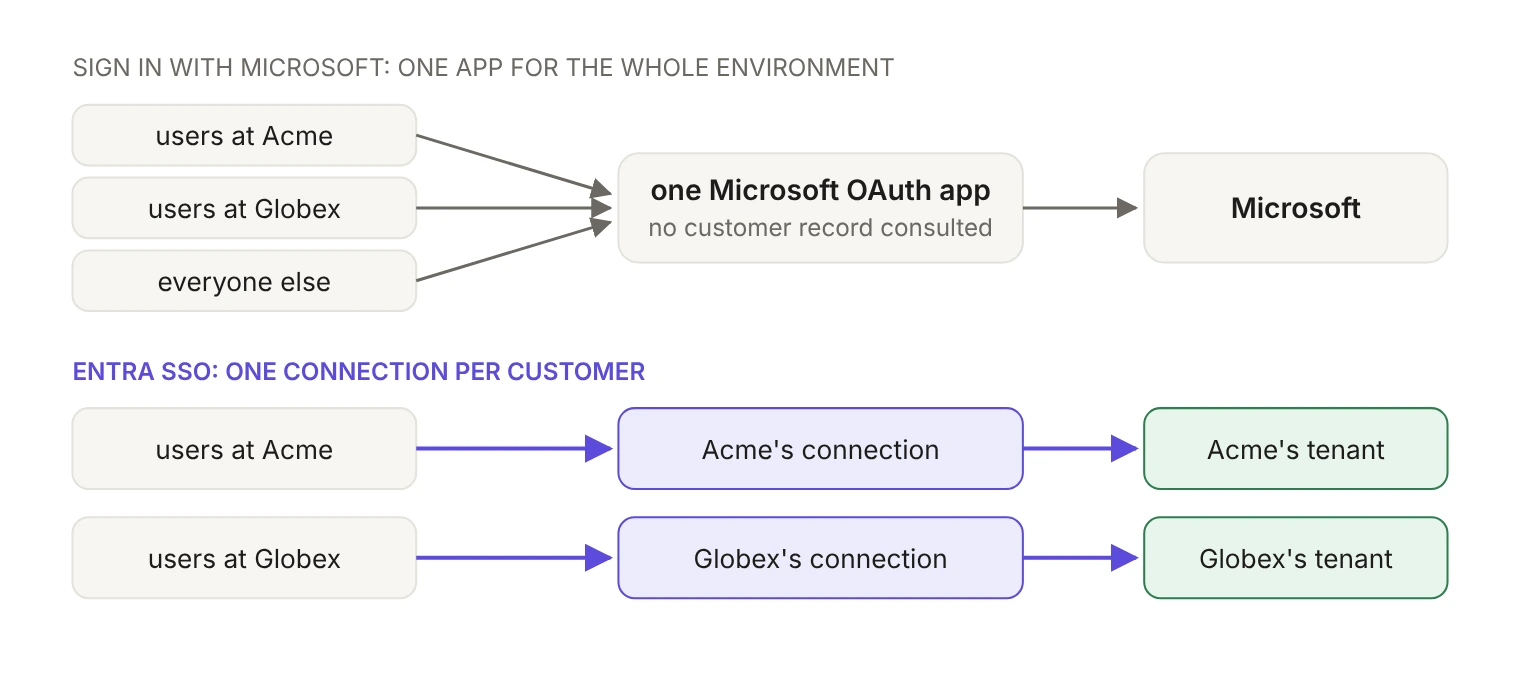
What does "Sign in with Microsoft" actually connect to?
One OAuth app for your whole environment. The WorkOS Microsoft OAuth integration authenticates users through the "Sign in with Microsoft" flow. You register a single application in Microsoft Azure, add its client ID and secret in the WorkOS Dashboard, and every user in that environment signs in through the same app. In the SSO API you reach it with the provider parameter set to MicrosoftOAuth, alongside the other OAuth providers configured at the environment level.
By default, the integration signs in personal Microsoft accounts: the setup guide has you choose "Personal Microsoft accounts only" as the supported account type when you register the Azure app. Work and school accounts can also be enabled. Either way, the button is still one app shared by everyone, which is the point that matters for enterprise deals.
The rest of the setup is short:
- Copy the redirect URI from the WorkOS Dashboard into the Azure app's authentication settings.
- Add the optional
email,family_nameandgiven_nametoken claims. - Generate a client secret. Microsoft caps secret lifetime at 24 months, so put the expiry date on your calendar the day you create it.
WorkOS provides default Microsoft credentials for testing, available only in the Staging environment. If you need more than profile and email, request extra scopes per request with provider_scopes. Turning on the "Return Microsoft OAuth tokens" option includes Microsoft's access and refresh tokens in the Authenticate with code response. For a full walkthrough in code, see the social login guide for React Router v7.
Does the Microsoft button know which company a user works for?
No. From the WorkOS docs:
The parameter exists because there's nothing else to key off. You send provider=MicrosoftOAuth and the request goes to Microsoft with no reference to a WorkOS organization. No step in the flow belongs to a particular customer, so there's no per-customer connection for their IT admin to configure, audit or turn off.
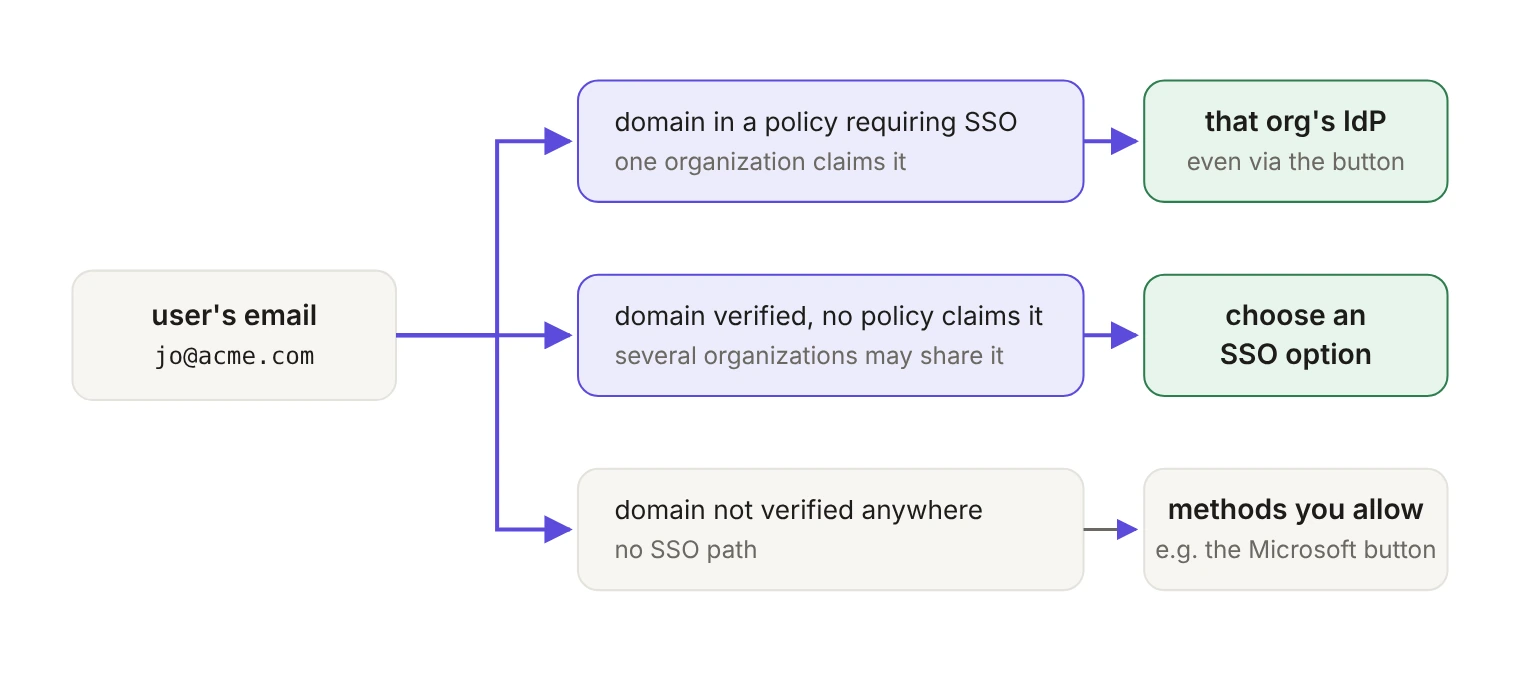
That doesn't mean the button bypasses your customers' rules. If you use AuthKit and a user's email domain falls under an organization's domain policy that requires SSO, signing in with Microsoft doesn't let them skip it. They finish the Microsoft step and AuthKit sends them on to their organization's identity provider instead of signing them in. More on that below.
What is an Entra SSO connection?
A connection into exactly one customer's tenant. In WorkOS, a connection represents the relationship between WorkOS and a collection of your app's users, typically one organization's. It works with any identity provider that supports SAML or OIDC, which is why one integration covers Entra ID and every other enterprise IdP your customers run.
Setting one up is a two-sided exchange. WorkOS provides an ACS URL and an IdP URI (Entity ID), which the customer enters as the Reply URL and the Identifier in Entra's Basic SAML Configuration. In return, you need the App Federation Metadata URL from that organization's Entra tenant (Entra ID SAML setup). In practice you don't collect these by email: you send the customer's admin a setup link that opens the Admin Portal and walks them through the steps for their specific identity provider.
Once the connection exists, you start sign-in with the organization parameter, and WorkOS picks that organization's connection, or with a specific connection ID. One thing to know before you promise group-based roles: Entra ID leaves out the group list entirely when a user is in more than 150 groups over SAML, which shows up as missing or wrong role assignments. Limit the group claim to the groups your application actually maps.
How does a work email reach the right login page?
What people usually mean by "Microsoft SSO" is a user typing their work email and landing on their employer's login page. Neither integration above does that by itself. It comes from domain configuration on the organization, which the WorkOS access model covers in depth. Here's the part that matters for this decision.
A domain policy controls authentication and membership for users whose email domain matches one of the organization's verified domains. It applies to all of them, whatever their membership status and whichever organization they pick during sign-in. When the policy requires SSO, AuthKit sends the user straight to that organization's identity provider.
The behavior to warn customers about is what happens the moment a connection goes live. When an SSO connection is first created for an organization, all non-SSO authentication methods for that organization are automatically disabled, on the assumption that an IT contact who sets up SSO wants it to be the only way in. Administrators can turn other methods back on, but tell your customer before they flip the switch, not after their contractors lose access.
Three more constraints shape how you model customers:
- One policy per domain. Only one organization can include a specific domain in its domain policy per environment.
- Shared domains are fine. Several organizations can verify the same domain as long as no more than one claims it in a policy, which is the normal shape for a large customer with separate business units. Shared-domain discovery is skipped once more than 50 organizations verify the same domain, though domain policies and routing for a single active membership still apply.
- Guests need an organization policy. For members who don't have the company's email domain, the organization policy, enforced when a member selects that organization during sign-in, is how you require SSO or MFA.
Domain scoping also protects the connection itself. During authentication, WorkOS checks that a user signing in through an organization's connection has an email on one of that organization's domains, and a mismatch sends them to your redirect URI with a profile_not_allowed_outside_organization error (SSO domains). Many identity providers let an IT contact create an account with any email address, so without the check an admin at foo.com could mint user@bar.com and sign in as them. If your product needs to accept arbitrary domains on its connections, relaxing that default is a request to WorkOS support, and for most environments it applies to every organization in the environment. Treat it as an environment-level decision rather than a favor for one customer.
Who removes the user when they leave the company?
Neither the button nor the SSO connection. Offboarding is a third integration: Directory Sync, which lets a customer's IT team provision and deprovision users centrally from their directory provider.
One distinction inside it saves real debugging time. Directory Sync on its own produces directory objects; a directory user isn't an AuthKit user and can't sign in. Deprovisioning someone in the directory updates the directory user and emits dsync.user.updated or dsync.user.deleted for your app to act on. Directory Provisioning links the two: with it enabled, deprovisioning a directory user with an active membership deactivates that organization membership and revokes all of the user's sessions, and linked memberships carry directory_managed: true.
Two operational facts to plan around. Directory Provisioning is enabled by WorkOS support, never per organization or per directory, and it applies only to directories created after it's turned on; existing directories keep their standalone behavior. It's supported for all SCIM directory providers, Google Workspace and SFTP. Users whose email domain matches a verified organization domain are added as active members without an invitation; everyone else gets a pending membership and an invitation email.
Which one do you actually need?
If you sell self-serve to individuals and small teams, the button is the right call and takes an afternoon. If a deal depends on IT controlling who can sign in, you need an organization, a verified domain, a domain policy, a connection into their tenant and a directory, and all five are per-customer objects the button never creates.
The practical tell is one question for the prospect: when someone leaves your company, what should happen to their account in our product? If the answer is "IT disables them and they're gone," you're being asked for the Entra connection and the directory, whatever the sign-in button says.
The IT director from the opening didn't want a better button. She wanted an organization, a verified domain and a connection into her tenant, ready before the next call. Build the button anyway for the long tail of users with no identity provider behind them, then use the staging Test Organization and Test Identity Provider to exercise both paths before a real customer is watching.