Set up the WorkOS MCP server in every coding agent with one command
How workos mcp install configures Claude Code, Codex, and Cursor, why configured is not the same as authenticated, and the failure modes worth knowing.

The WorkOS MCP server is one remote endpoint: https://mcp.workos.com/mcp. Getting that endpoint into your agents is where it stops being simple. Claude Code takes CLI flags, Codex writes TOML, and Cursor wants JSON in a file you're also allowed to hand-edit. The WorkOS CLI collapses all three into a single command.
This post covers the install flow. For what the server does once it's connected (the operations it supports, the limits, and what it deliberately doesn't expose), read WorkOS MCP: Manage your WorkOS account from any AI agent.
TL;DR
Then sign in to WorkOS from inside each agent. The CLI writes the configuration; the agent handles the OAuth.
Install the CLI
The CLI ships as a standalone executable from GitHub Releases. It doesn't need Node.js, Bun, or npm.
npm works too, as a thin launcher that installs the same prebuilt binary for your platform:
Direct downloads for macOS, Linux, and Windows are listed in the CLI README.
One command, every agent on the machine
The CLI detects the supported coding agents on your machine and writes the WorkOS server definition into each one. Three clients are supported today: Claude Code, Codex, and Cursor.
You don't need credentials for any of it. The WorkOS MCP server doesn't need an API key or any other secret, so the command doesn't require you to be signed in to the CLI. OAuth happens later, inside the agent.
Three clients, three write paths
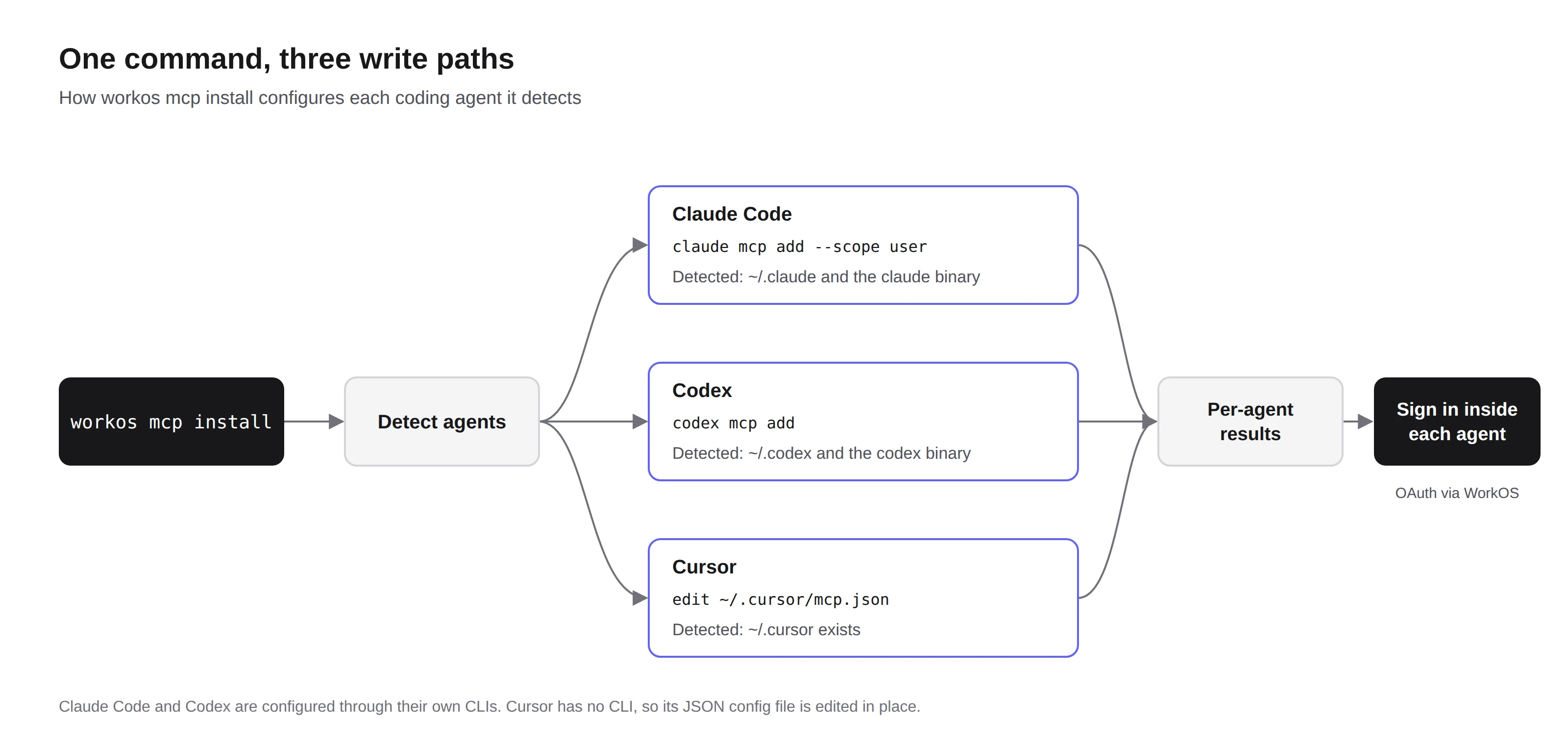
Claude Code and Codex are configured by running their own CLIs, so a change to either client's config format doesn't break the install. These are the two commands the WorkOS CLI runs:
Claude Code gets user scope on purpose. The WorkOS MCP server manages your account, not a specific repo. Project scope would put it in checked-in config and prompt teammates who never asked for it.
Cursor is the interesting case, because it has no CLI to run. ~/.cursor/mcp.json is a file people hand-edit, which means comments and trailing commas show up in real configs. The WorkOS CLI parses it with jsonc-parser and rewrites only the workos key, leaving your other servers, comments, and formatting intact. A file it can't parse is never overwritten. Instead you get:
An existing workos entry in Cursor that points at a different endpoint is overwritten, so the config always ends up on the WorkOS URL.
Target a single agent
To limit the run to one client, pass --agent (or -a). It accepts claude-code, codex, and cursor, and you can repeat it. Unknown values exit with a structured unknown_agent error that lists the accepted keys.
Configured is not the same as authenticated
This is the part that catches people. As the CLI README puts it:
"MCP configuration and OAuth authentication are separate states. The WorkOS CLI never inspects a coding agent's credentials, so "configured" means the server definition is in place. It cannot prove that OAuth is usable in any agent."
Every client keeps its own credential store, and the CLI reads none of them. That's why a successful install reports configured rather than installed: the definition landed, and the CLI claims nothing beyond that.
You finish the job inside the agent. The first time you connect, the client opens a WorkOS consent screen where you sign in and approve access. Every client connects over streamable HTTP and authenticates with OAuth through WorkOS Connect. The sign-in step for each client is in the table above. For Codex, run codex mcp login workos from your normal terminal, not from inside a sandboxed agent session.
Check what status reports
- Available means the CLI found the client on this machine. For Claude Code and Codex, that means the config directory exists and the binary responds to
--version. For Cursor, it means~/.cursorexists. - Configured means the server definition is present.
- Authentication reads
not-verifiedfor every configured client today, because the CLI can't observe any client's OAuth state. Read it as unknown, not as a failure.
For scripts and CI, workos mcp status --json adds configuredUrl and endpointValid for clients that expose their endpoint (Codex and Cursor), so you can catch an entry that points somewhere other than https://mcp.workos.com/mcp. workos doctor includes the same MCP check in its report and flags that kind of URL mismatch as a warning.
Nothing is written without opt-in
The CLI never silently writes skills or MCP configuration into ~/.claude, ~/.cursor, or anywhere else. After workos auth login or workos install, an interactive session may offer to set up your agents. That prompt defaults to No, and once you decline it doesn't ask again. Running non-interactively, in CI, or with --json installs nothing.
Opting in is explicit, at whatever level of detail you want:
Removing it is just as explicit. workos mcp remove takes the definition back out, and it's safe to run twice. When the server is already gone, Claude Code exits 1 and Codex exits 0, and the CLI treats both clients' No MCP server named ... responses as a no-op.
Failure modes worth knowing
A note on the Codex timeout case: rather than trust the exit code or match each client's success message, the CLI re-reads the config after a non-zero exit before it reports a failure. If the entry is there and points at WorkOS, the install counts as configured.
When you configure several agents at once, the full per-agent results print first. The command exits non-zero only after that, if any agent failed, so a partial success is still reported in full.
Other clients
The one-command install covers Claude Code, Codex, and Cursor. The WorkOS MCP server itself works with many more clients, including Claude Desktop, VS Code, ChatGPT, Zed, Goose, and OpenCode. For those, and for project-level Codex or Cursor config, follow the setup steps in the WorkOS MCP docs. Codex loads project-level config only for trusted projects, and credentials should never be committed.
After it connects
The agent acts as you. It inherits your dashboard role and can only do what your account is allowed to do. It works against one environment at a time, defaults to a sandbox environment, and only operates on production when you tell it to. Teams that want tighter limits have three independent admin settings: Enable, Allow production access, and Allow write access. All three are on by default.
One command gets the WorkOS server definition into every supported agent on your machine. Signing in is the part only you can do, and each agent asks for it the first time you use a WorkOS tool.