How to install and use the WorkOS plugin in Claude, ChatGPT, and Codex
Install the WorkOS plugin in Claude, ChatGPT, and Codex, connect it to the right team and environment, run one real task in each, and skip the setup traps.

The WorkOS plugin lets you manage your WorkOS environments over MCP from Claude, Claude Code, ChatGPT, or Codex. The launch post covers what it can do once it's connected: SSO and Directory Sync connections, organizations and invites, auth policies, audit logs, AuthKit branding. This is the part underneath that. Install it in each of the three surfaces, point it at the right team and environment, and run one real task in each.
One thing to know before any of the steps make sense. All three installs connect to the same place: the WorkOS MCP server, reached over streamable HTTP and authenticated with OAuth through WorkOS Connect. Its URL is the one value every setup path below asks for:
The marketplace listings in Claude and ChatGPT are one-click front doors to that server; the custom-connector and config-file routes reach it the long way.
Check three things before you install
The install itself takes a minute. What decides whether it works is set elsewhere.
- Your dashboard role. The agent authenticates as your dashboard account and inherits the permissions you already have, with no separate permission model and no broader grant. If you can't do a thing in the dashboard, neither can the agent.
- Your team's MCP settings. Team admins control three independent toggles (Enable, Allow production access, Allow write access) from the team authentication settings page at
dashboard.workos.com/settings/team/authentication. All three are on by default, so most people never touch this. If your workspace has locked them down, find that out before you blame the install. - Your ChatGPT plan, for the ChatGPT path. Settings → Connectors is available on ChatGPT Pro, Business, and Enterprise.
Install it in Claude
Two routes, and the one you want depends on whether you're in the Claude app or in Claude Code.
For Claude on web and desktop, the marketplace is fastest: WorkOS is listed in Claude's connector directory, and connecting is a single click.
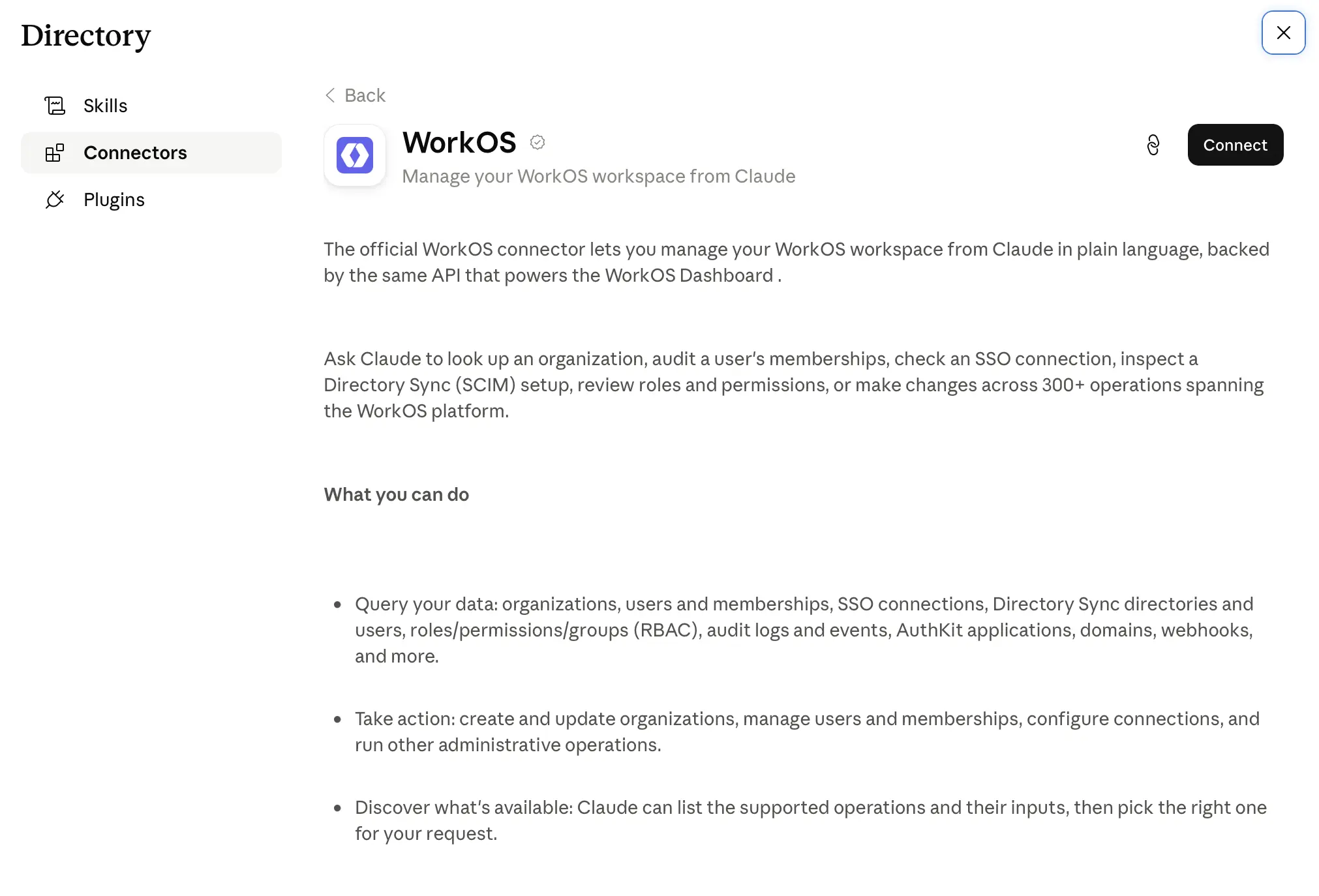
To add it by hand instead, open Settings → Connectors, click Add custom connector, name it WorkOS, enter that server URL, then click Add, Connect, and complete the OAuth consent.
Either way, your client opens a WorkOS consent screen the first time you connect. You sign in, approve access, and from then on the agent is connected as your account.
For Claude Code, it's one command:
Finish the OAuth consent in the browser tab it opens. Then run /mcp inside Claude Code any time you want to check connection status or sign in again. That's the command to come back to when a session goes stale.
Install it in ChatGPT
WorkOS is an official plugin in the ChatGPT and Codex plugin directory, so installing from there and signing in with your WorkOS account is the short path.
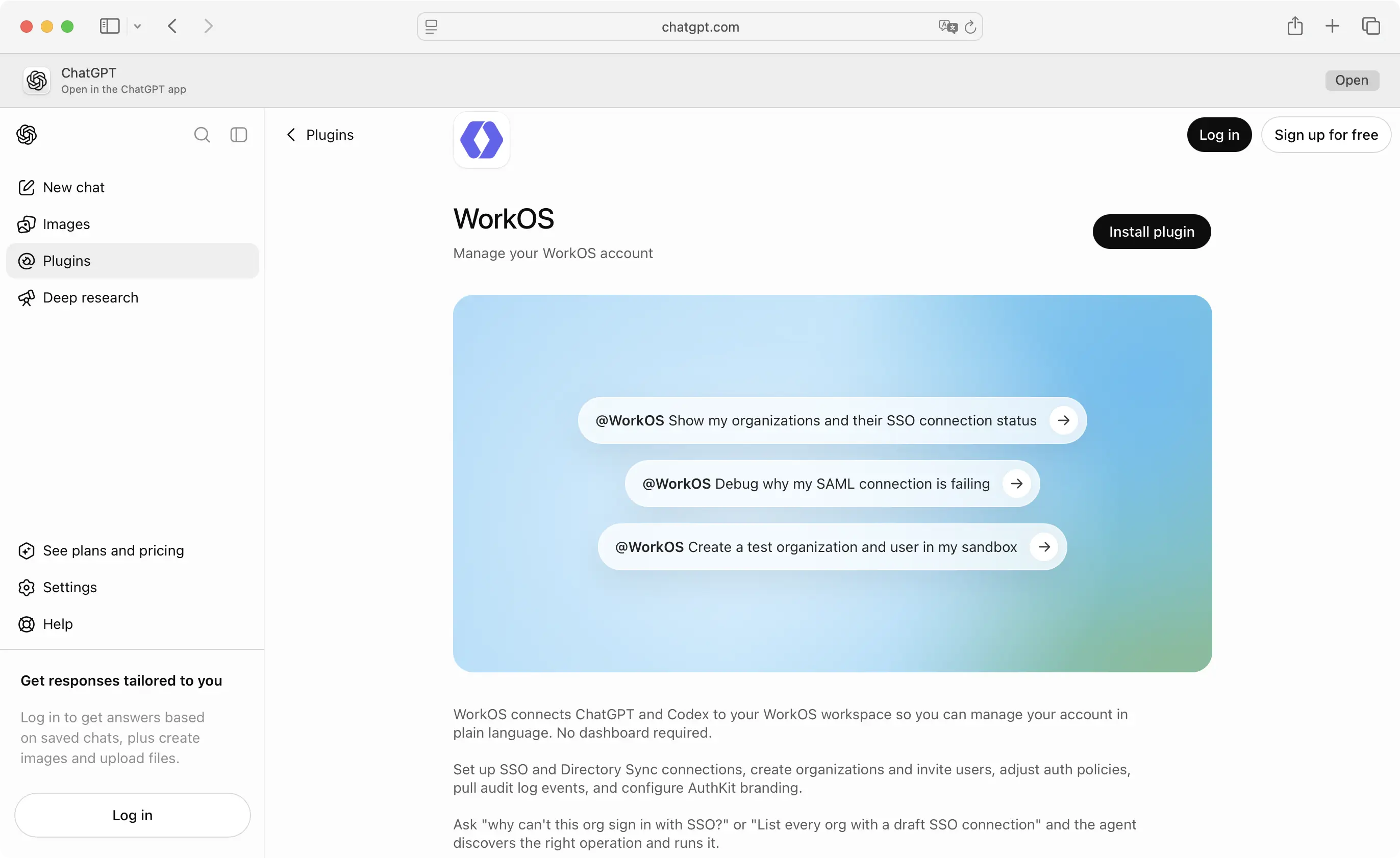
To add it manually: open Settings → Connectors, click Add custom connector (you may need to enable developer mode first), name it WorkOS, enter the same server URL, and complete the OAuth consent. If you don't see Add custom connector at all, look at your plan tier and developer mode before you suspect the URL.
Install it in Codex
Codex is CLI-first, so even though it's listed alongside ChatGPT in the plugin directory, there's no in-app one-click step; you add the server from the terminal. The command registers it in your user-level config, so it's available across every project:
Then authenticate and confirm the connection:
codex mcp login workos opens the WorkOS consent screen in your browser.
codex mcp list shows you the endpoint and confirms the auth type once you've approved it.
Restart any Codex session that was already running when you did this, Codex only picks up newly registered servers on startup.
Prefer to scope the server to one repository instead of your whole user config? Add the block directly to that repo's .codex/config.toml:
Codex only loads project-level config for repositories it trusts, and it only applies while you're working in that repo. Don't use this route if you want WorkOS available everywhere, and don't commit it unless your whole team should get the server automatically. Either way, finish with codex mcp login workos and a restart.
Point it at the right team and environment
Installing gets you connected. Two scopes then decide what the agent can actually see.
- Team. You sign in with your WorkOS account and pick the team you want to work in. The agent is scoped to that team and can't read or change resources belonging to another one. If you belong to several WorkOS teams, confirm this first.
- Environment. The agent works against one environment at a time, defaults to a sandbox environment, and only touches production when you direct it there.
The server exposes hundreds of operations across organizations, SSO connections, Directory Sync, AuthKit users and sessions, roles and permissions, audit logs, webhooks, API keys, feature flags, environments, and branding, but it doesn't hand the model hundreds of tools. It uses a discover-then-execute design with four: whoami, list_operations, query, and mutate. That gives you a useful first prompt. Ask the agent who it is and which environment it's in; whoami answers in one call, and you've verified both scopes before you change anything.
Task one, in Claude: Find out why an org can't sign in
This is the job the plugin is best at, because the answer is usually buried in the state of one connection. A support ticket says nobody at a customer can sign in.
Paste the org ID and ask: "Help me understand why org_123 is having trouble signing in with SSO."
The agent finds the org, checks the connection, and answers in the terms the ticket was written in. In the launch post's example, that answer is: "Acme Corp's SSO connection is in draft status. It has a SAML certificate uploaded but no ACS URL configured yet, so the connection was never activated."
It then offers to generate an admin portal link so the customer's IT team can finish setup.
That's the shape of the whole thing: one question, then the next action. You never had to know which API call answers a broken sign-in, and you never had to find the connection screen.
Task two, in ChatGPT: Sweep your configuration for problems
A read-only sweep suits ChatGPT because it needs nothing local. The MCP server is remote and requires no install, so it works from any agent on any device.
Ask: "List every organization with a draft SSO connection, and flag any directories that haven't synced in 24 hours."
That prompt is one of the documented examples, and it's the kind of thing nobody does in the dashboard, because doing it there means opening every org in turn. Onboarding follows the same shape, if your team has write access enabled: "Set up a new organization for Acme Corp and invite everyone in acme_employees.csv."
Task three, in Codex: Stand up a sandbox org without leaving your editor
Codex earns its install when you're writing integration code and need test data. Instead of three dashboard trips, describe the outcome:
"Create a test organization and user in my sandbox, then generate an admin portal link for them."
That runs as one request instead of three separate dashboard actions. Same for the one-off fixes that interrupt you mid-task:
"Invite bob@example.com to org_123 as an admin."
Sandbox is where the agent already is by default, which makes this the lowest-risk of the three tasks, and a reasonable way to build confidence in the plugin before you point it at production.
What differs across the three surfaces
The capability set doesn't change across surfaces: same server, same operations. What changes is how you install it, where the configuration lives, and how you re-authenticate.
The setup problems you're most likely to hit
- The agent can read but not write. Your team has Allow write access off, which restricts MCP to read-only operations. Same story for production: with Allow production access off, MCP can only reach sandbox environments. Both live in team settings.
- The results look empty or wrong. You're probably in sandbox, which is the default, and the agent only moves to production when you tell it to. Check the environment before you conclude the data is missing.
- You're in the wrong team. The agent is scoped to the team you authenticated with, one team at a time. Re-run the sign-in and pick the right one.
- Codex says
MCP startup interrupted... workosat launch. The server is configured but not authenticated. Runcodex mcp get workosto confirm Codex found the config, thencodex mcp login workosto complete the consent flow, then restart Codex so the new session picks up the authenticated server. - Your Codex config edit did nothing. Codex reads
config.tomlat startup, so an edit made while Codex is already running doesn't take effect until you restart. - Claude Code says it isn't connected. Run
/mcpto check status and sign in again. - You asked for an API key and got nothing. API keys and client secrets are stripped from responses before they reach the agent, so it can set a secret value you provide but can't read existing ones back. In the same vein, the agent can't mint or rotate credentials such as API keys, OAuth client secrets, and signing certificates, can't change the MCP access settings that govern its own access, and can't delete your WorkOS team. User impersonation isn't exposed either, and mutations are blocked on impersonated sessions.
- A delete didn't happen on the first ask. By design. Irreversible operations like deleting an organization, connection, or directory aren't executed on the first attempt: the agent gets a description of exactly what will be destroyed and has to confirm explicitly. Nine irreversible deletes require that two-call confirmation.
Where to go from here
Two prompts worth running once you're connected. Branding, which is much faster to describe than to configure:
"Here's a screenshot of our marketing site. Make our AuthKit sign-in page match its overall aesthetic."
And log streaming, which needs production access:
"Set up a Datadog audit log stream for our production environment."
Both are documented starting points. Everything you do through the plugin is recorded as an action taken by you, under your existing access, and shows up in audit logging accordingly. The trail you review afterward is the one you already review, and pointing the agent at production stays a permissions decision you made a long time ago rather than a new one.
The full client list and setup details are in the MCP docs, and the MCP server launch post covers the design underneath the plugin.