Per-workspace roles: Custom roles scoped to a resource type in WorkOS
Organization roles give a member the same access everywhere. Scope a WorkOS role to a resource type and one person can edit one workspace and view another.

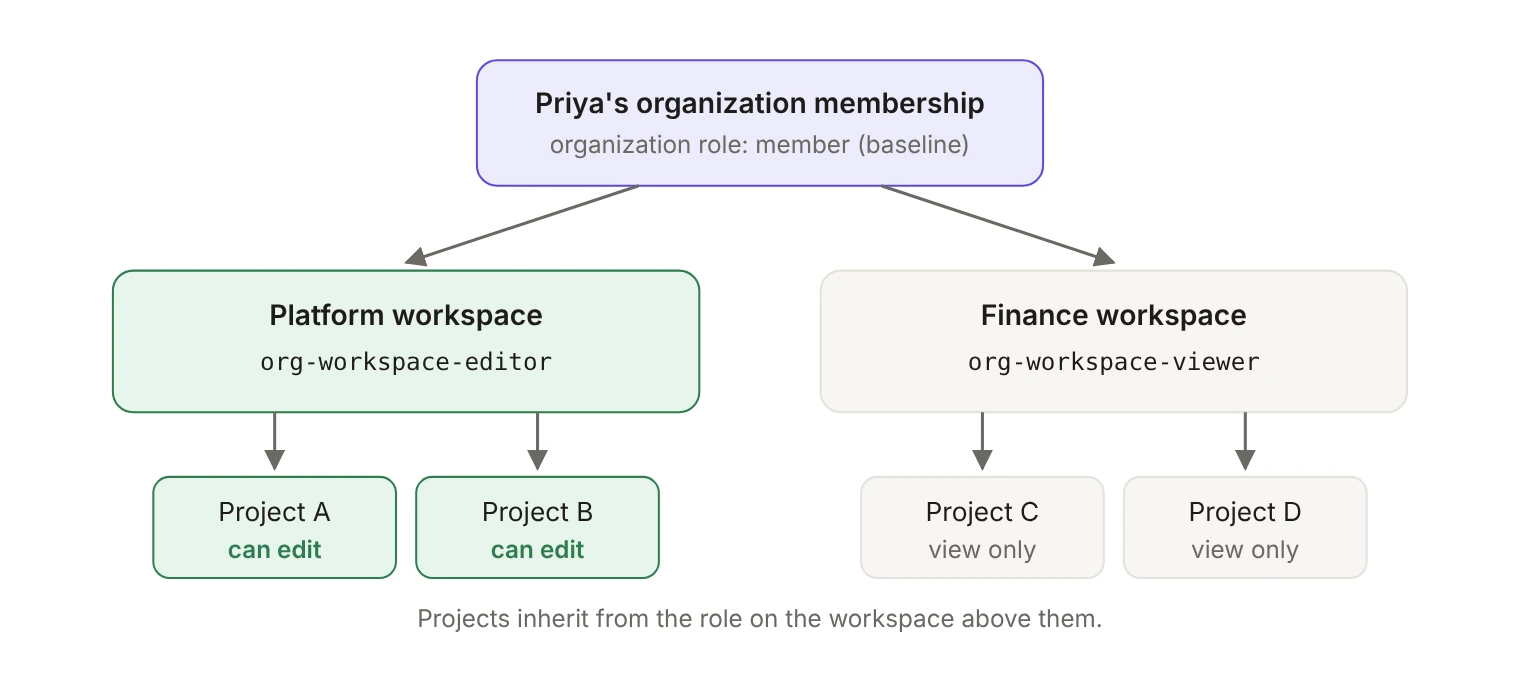
A resource-scoped role applies to exactly one resource type, such as workspace or project, and you assign it to an organization membership on a single resource instance. A resource-scoped custom role is the version that belongs to one organization: you create it through the Custom Roles API by passing a resource_type_slug. Either way, one person can hold different roles on different workspaces without you adding a new organization-wide role for every combination.
When do organization roles stop working?
Every organization membership in WorkOS carries at least one organization-scoped role, and that role sets the member's baseline permissions inside the organization. For a flat product, that's the whole authorization model. Admins do admin things, members do member things, and you're done.
The model starts to strain once your product grows a middle layer. Customers create workspaces per team, projects per client, or folders per department, and then they ask for something an organization-wide role can't express: give Priya full control of the Platform workspace and read-only access to Finance. With only organization roles available, you end up minting platform-admin-finance-viewer and watching that list grow with every new combination.
WorkOS FGA answers this by scoping roles and permissions to a resource type. A workspace role applies only to workspaces, and a project role applies only to projects. Roles can also carry permissions for child types, so one assignment covers an entire sub-tree instead of every node in it. For the wider picture of how RBAC and FGA fit together in a multi-tenant product, see How to build flexible authorization for multi-tenant B2B SaaS.
Should it be an environment role or a custom role?
Resource-scoped roles come in the same two kinds as organization roles. An environment role is defined once, in the Dashboard under Authorization, and every organization in the environment gets it. A custom role is created for one organization, from that organization's Roles tab or through the Custom Roles API.
If every customer needs the same per-workspace roles, define workspace-admin, workspace-editor and workspace-viewer once as environment roles scoped to workspace. Reach for a resource-scoped custom role when one customer needs a workspace or project role that the others don't. The rest of this post walks that custom-role path through the API, because it's the one with the most moving parts. The organization-wide version of the same idea is covered in One customer needs a role nobody else has: Organization-scoped custom roles.
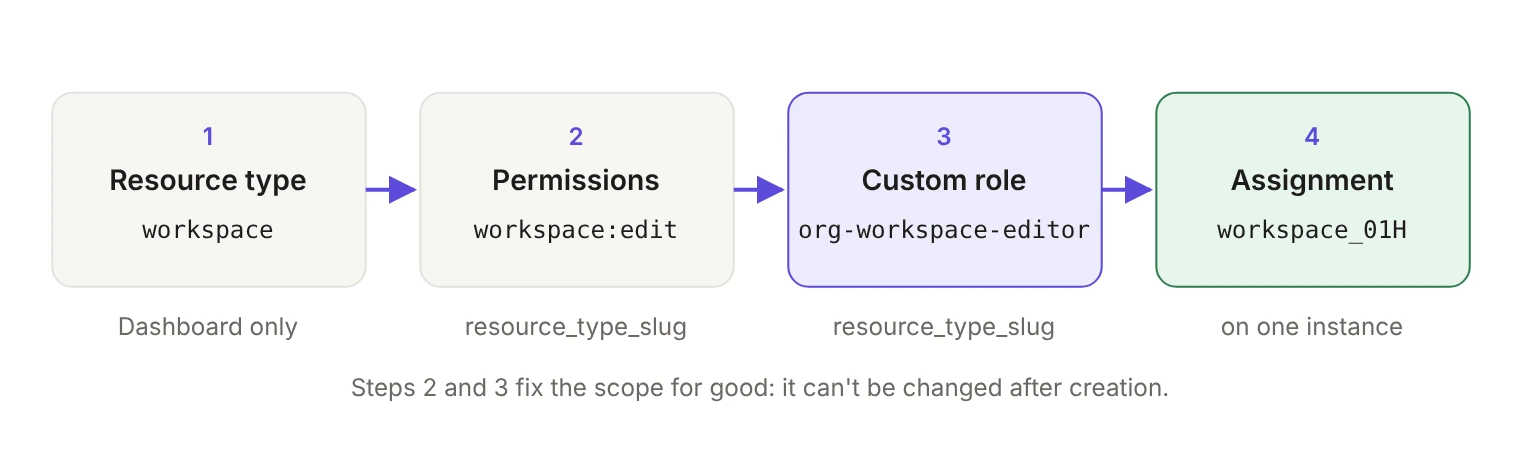
Four pieces have to line up, in order.
What should you model as a resource type?
Resource types are your authorization schema. Each one has a display name, a URL-safe slug used in API calls such as workspace or project, an optional description, and the parent types it can sit under. They're configured in the WorkOS dashboard and can't be created, modified, or deleted through the public API.
To set them up, open Authorization > Resource types in the WorkOS dashboard and click Model resource types. For a step-by-step walkthrough of the hierarchy builder, see the resource types docs.
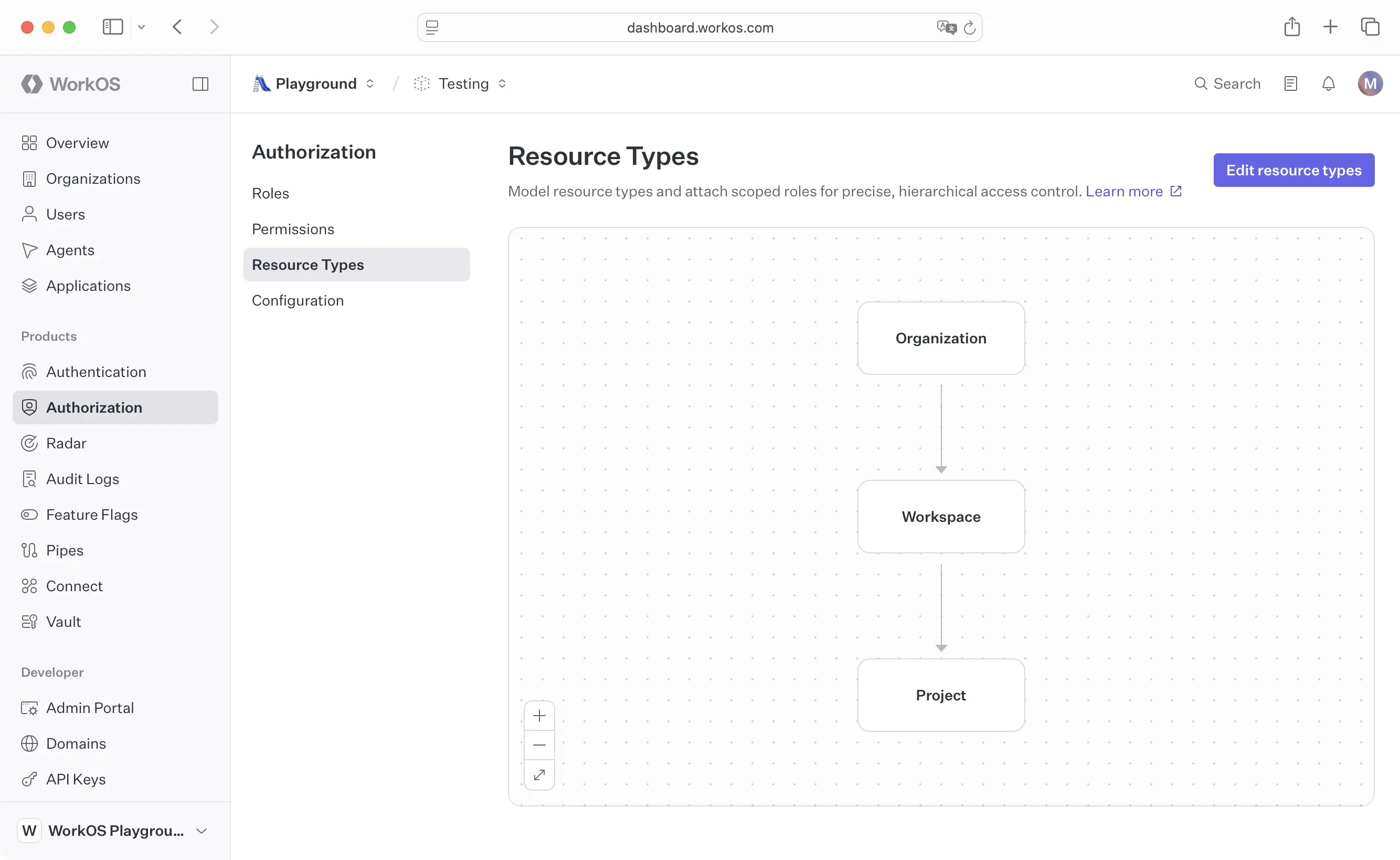
The test WorkOS recommends is simple: model something as a resource type when users can have different access levels on different instances of it. If every project in a workspace is visible to everyone who can see the workspace, project doesn't need to be its own type.
A few limits shape the design. Hierarchies go five levels deep at most, a type can have up to 10 child types, and an environment is capped at 50 resource types. Every resource instance has exactly one parent. Slugs can't change after creation because they appear in API calls.
Instances are registered at runtime through the API as your users create things. Every organization already has an organization resource that acts as the root of the tree, and for a top-level resource the parent is optional, defaulting to the organization when you leave it out. For a nested resource, pass the parent as parent_resource_id, or as parent_resource_type_slug plus parent_resource_external_id.
Use your own database identifiers as external IDs. They have to be unique within a resource type and organization, and FGA carries a soft limit of 5,000 instances per resource type per organization. Check that limit against your largest customer before you model a high-volume entity as a resource.
How do you scope permissions to a resource type?
Permissions live at the environment level and can be attached to both environment roles and custom roles. Each one describes a single action on a resource type and carries a name, a slug you use in code, and the type it applies to.
When you create a permission, resource_type_slug is the field that scopes it. Leave it out and the permission defaults to the organization resource type, which is the wrong default for anything you intend to grant per workspace.
Permission slugs must be lowercase and may contain only letters, numbers, hyphens, underscores, colons, periods, and asterisks. The {resource_type}:{action} convention WorkOS recommends, such as project:delete, keeps the slug readable at the call site.
How do you create a resource-scoped custom role?
Custom roles belong to a single organization. You manage them from the Roles tab under an organization in the Dashboard, or through the Custom Roles API. By default an organization has none and simply inherits the environment-level roles.
POST /authorization/organizations/{organizationId}/roles takes name as the only required field, plus optional slug, description, and resource_type_slug, the slug of the resource type the role is scoped to. In the Node SDK, createOrganizationRole accepts resourceTypeSlug from @workos-inc/node 8.13.0 onward. The examples below were written against 12.1.0, the current version at the time of writing.
The project:* permissions are scoped to the project type, a child of workspace. Including them is what lets one assignment on a workspace cover every project inside it.
The slug rules are worth reading closely, since they're the part teams get wrong first.
- If you provide a
slug, it must begin with theorg-prefix (for example,org-billing-admin). This prefix distinguishes organization-scoped custom roles from environment-level roles and is required for any explicitly supplied slug. - If you omit the
slug, WorkOS generates one for you by combining a normalized form of the role's name with a 6-character suffix derived from the role's ID. For example, a role namedBilling Adminwould receive a slug likebilling-admin-a1b2c3. The suffix guarantees uniqueness even when multiple roles share the same name, and auto-generated slugs do not include theorg-prefix.
Two things follow from this. A custom role always gets its own identifier, so it can't stand in for an environment role by reusing that role's slug, and the {resource-type}-{capability} naming convention WorkOS recommends for scoped roles becomes org-workspace-editor once the required prefix is applied. Slugs are also immutable after creation, so supply an explicit one when your application code needs a stable string to reference, and let the API generate one when the role is only ever selected by an admin in the Dashboard.
Beyond the prefix, slugs may contain only lowercase letters, numbers, hyphens, and underscores, with no leading, trailing, or consecutive separators. Creating the first role for an organization also gives that organization its own default role and priority order, independent of the environment, and new roles land at the bottom of that priority order.
How do you assign the role on a specific resource?
A role assignment connects an organization membership to a role on a specific resource. The endpoint is POST /authorization/organization_memberships/{organization_membership_id}/role_assignments, and you identify the target either by resource_id or by resource_external_id together with resource_type_slug. In the Node SDK that becomes organizationMembershipId and roleSlug plus one of the two resource identifiers. The external ID path is usually the convenient one, since you already hold your own entity IDs.
One rule governs everything here: the role must be scoped to the resource type of the target resource. A project role can't be assigned on a workspace resource. If you build an admin UI that lets customers hand out roles themselves, filter the role picker by the resource type of whatever the admin is looking at, rather than listing every role in the organization and surfacing the API error afterwards.
If your customers want access handed out to teams rather than individuals, group role assignments take the same resource-scoped roles. We covered that in Assign roles to groups, not people, with WorkOS User Groups.
How do you check access?
Checks go through the authorization API. POST /authorization/organization_memberships/{id}/check returns a JSON body with a single authorized boolean, and the check considers direct assignments on the resource, permissions inherited from a parent, and organization-scoped roles. If any of them grants the permission, the member is authorized. You don't walk the tree yourself.
With the role from earlier assigned on the Platform workspace, this check passes for any project inside it, because org-workspace-editor carries project:edit and projects inherit from their workspace.
check is one of four documented endpoints, alongside listEffectivePermissions, listResourcesForMembership, and listMembershipsForResource. Pick by the shape of the question. A detail page that renders several permission-gated components should call listEffectivePermissions once instead of fanning out, a list view or picker asking which resources a user can reach belongs to listResourcesForMembership, and a share dialog asking who has access to one resource belongs to listMembershipsForResource. For organization-wide permissions that already travel in the session token, WorkOS documents checking the token directly and using the API for resource-specific questions.
How does a resource-scoped role differ from an organization role?
What breaks if you get the model wrong?
The expensive mistake is scoping something to the wrong resource type, because scope is fixed. Neither a permission nor a role can change its resource type after creation, and their slugs are immutable too. The documented way out is a migration rather than an edit: create the replacement at the correct scope with a new slug, update your roles and authorization model, roll your application over and verify the paths, then delete the old one.
Say you created project:edit without a resource_type_slug, so it defaulted to the organization type, and attached it to org-project-editor, also created without a type. Fixing that takes two creates before anything else, since the new permission and the new role both need fresh slugs.
Then attach project:update to the new role, move every check call from project:edit to project:update, and reassign members to org-project-maintainer on the right projects. Plan for a window where both slugs are live, because your application has to keep honoring the old role until every assignment has moved.
Deletion has its own gate. A custom role that still has active assignments returns a 409 Conflict with the code role_has_assignments, and one still used in IdP group role mappings returns role_has_group_role_mappings. The reassignment pass has to finish before the cleanup pass starts.
Editing a role in place is the cheap operation by comparison. Changing a role's permissions applies to everyone holding that role, with no re-assignment required. Get the resource type right the first time, because the scope is the one thing you can't edit later. The permission set underneath it is an operational detail you can keep tuning.