How to add auth to your Lovable app
A step-by-step tutorial to adding authentication to your Lovable app with WorkOS AuthKit.

Lovable makes it incredibly fast to go from idea to working app. In minutes, you can have a full-stack Next.js application with a frontend, backend, and database; all generated from natural language prompts. But there's one thing most Lovable apps need before you can share them with real users: proper authentication.
By default, Lovable gives you basic auth scaffolding. That works fine for demos, but when you want to ship (whether to individual users or to enterprise customers) you need something more robust. WorkOS AuthKit gives you a production-ready auth layer with support for email/password, social login, passwordless, MFA, passkeys, and enterprise SSO, all in a few lines of code.
In this tutorial, we'll walk through adding WorkOS authentication to a Lovable-generated Next.js app step by step.
Prerequisites
- A Lovable app (exported or connected to a GitHub repo).
- A WorkOS account (free for up to 1 million active users, no credit card required).
- Node.js installed locally.
!!Want to skip the manual setup? The CLI Installer detects your framework, installs the SDK, configures your dashboard, and writes the integration code, all with a single command.!!
Step 1: Install the Next.js SDK
Open your terminal in the root of your Lovable project and install the AuthKit Next.js SDK:
Step 2: Configure your WorkOS dashboard
Before writing any code, you need to configure two things in the WorkOS dashboard.
- Set a redirect URI → this is the callback endpoint WorkOS will redirect to after a user authenticates. Go to the Redirects section of the Dashboard and add:
http://localhost:3000/callback - Set a sign-in endpoint → this tells AuthKit where to send users if they land on the hosted sign-in page directly (e.g. from a bookmarked link or a password reset email). In the same Redirects section, set your sign-in endpoint to:
http://localhost:3000/login
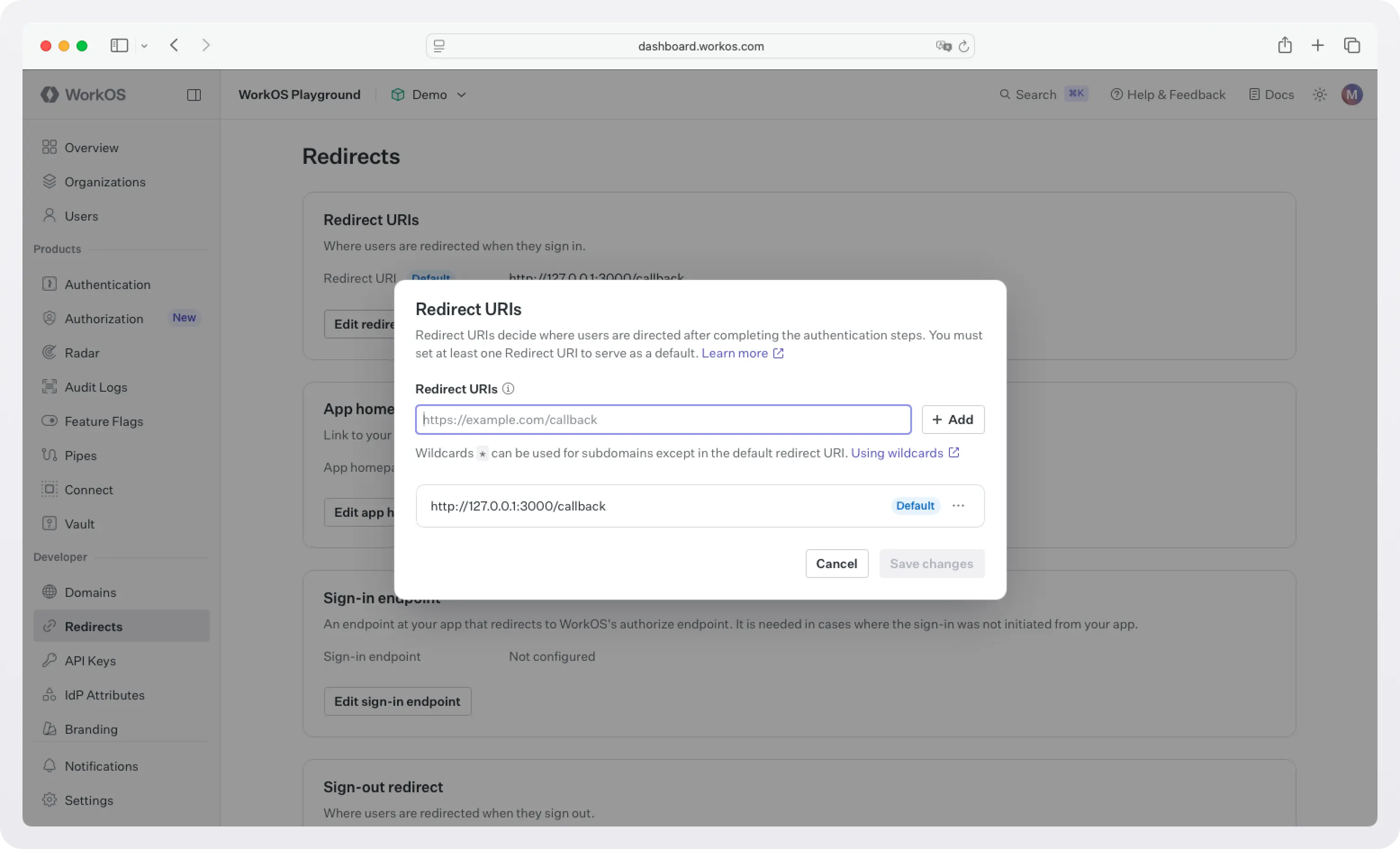
You'll update both of these to your production domain before deploying.
Step 3: Configure your environment variables
Grab your API key and client ID from the WorkOS dashboard.
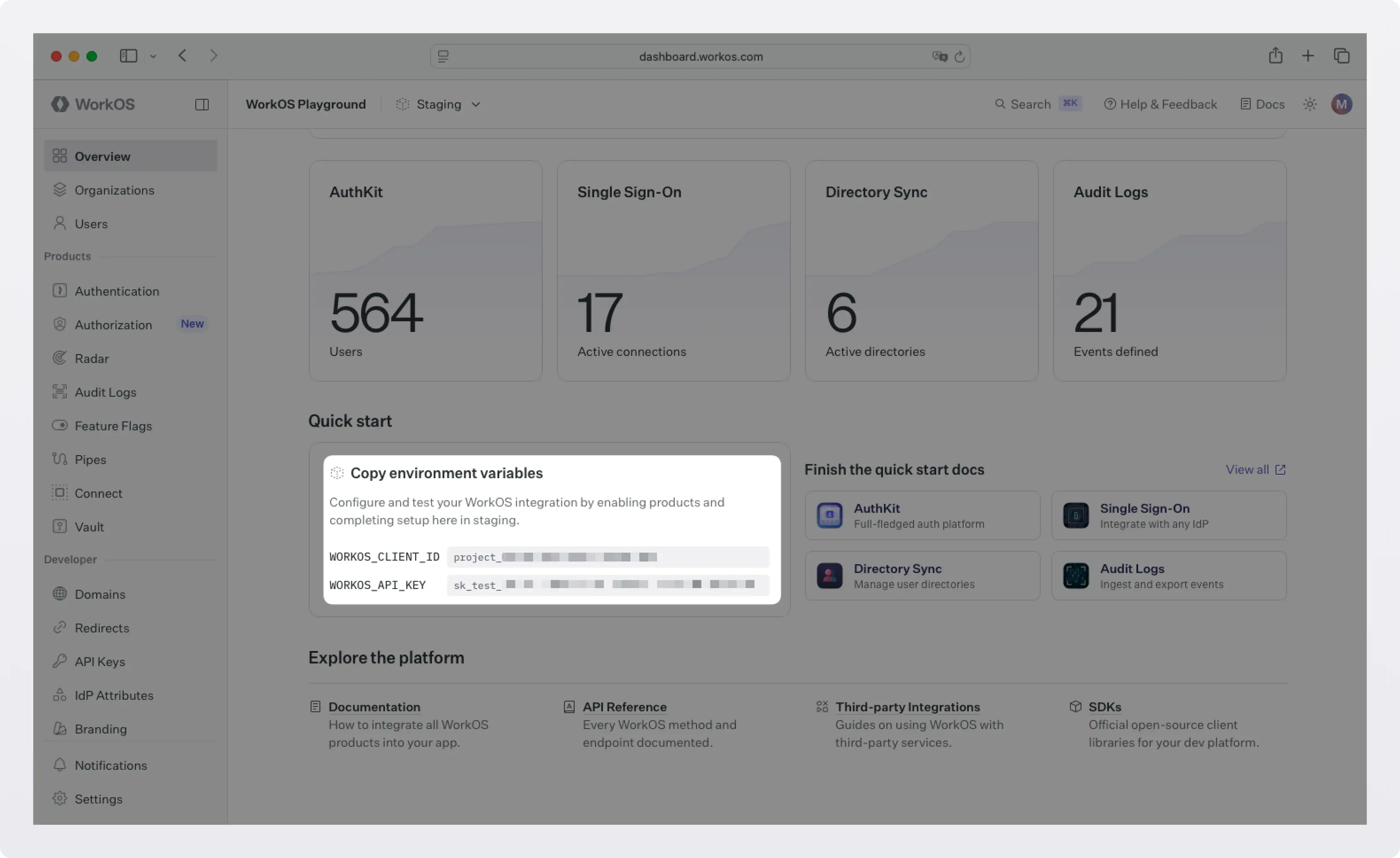
Then create a .env.local file in the root of your project:
WORKOS_COOKIE_PASSWORD is used to encrypt cookies and must be at least 32 characters long. You can generate a secure password by using the 1Password generator or the openssl library via the command line:
Note: NEXT_PUBLIC_WORKOS_REDIRECT_URI uses the NEXT_PUBLIC_ prefix so it's accessible in edge functions and proxy configurations (useful for Vercel preview deployments).
Step 4: Wrap your app layout with AuthKitProvider
AuthKitProvider adds protections for auth edge cases and is required to wrap your app. Open your root layout file (app/layout.tsx) and add it:
Your existing Lovable-generated components stay exactly as they are; the provider just wraps around them.
Step 5: Add the proxy
The proxy controls which routes require authentication. In Next.js 16+, this lives in proxy.ts (previously middleware.ts) at the root of your project.
For most Lovable apps, middleware auth mode is the right default: all routes are protected unless explicitly listed as public.
Any route not listed in unauthenticatedPaths will require a signed-in user. Unauthenticated visitors are automatically redirected to the WorkOS-hosted AuthKit login page.
!!If you're on Next.js 15 or earlier, name this file middleware.ts instead.!!
Step 6: Create the login and callback routes
You need two route handlers: one to kick off the sign-in flow, and one to handle the redirect back from WorkOS after a successful login.
Step 7: Update your landing page
Your home page should handle both authenticated and unauthenticated visitors:
!!Make sure you've configured a Sign-out redirect in the WorkOS dashboard (same Redirects section). Without it, users will see an error after signing out.!!
Step 8: Protect your dashboard
For routes where a signed-in user is mandatory, use withAuth with ensureSignedIn: true. This automatically redirects unauthenticated users to the login flow:
Testing it locally
Start your dev server:
Visit http://localhost:3000/dashboard — you should be redirected to the WorkOS-hosted AuthKit login page. Sign up for a new account and you'll land back in your app as an authenticated user.To confirm everything is wired up correctly, open the WorkOS Dashboard and check the Users section — you should see your newly created account listed there.
What you get for free
Once AuthKit is wired up, you're not just getting a login form. WorkOS handles:
- Email + password auth: Automatic password strength and leak detection.
- Social login (Google, GitHub, Microsoft, etc.) with a single toggle in the dashboard.
- Magic auth for passwordless sign-in.
- Multi-Factor Auth (MFA): Additional authentication with TOTP and SMS.
- Biometric / Passkey Auth: Passwordless authentication with passkeys.
- CLI Authentication: Quickly add auth to your command-line tools.
- Email verification: Verify user email addresses with magic codes.
- Organization auth policies: Restrict domains, MFA, and SSO per organization.
- Just-in-time (JIT) user provisioning: Automatic provisioning based on email or SSO.
- Role-Based Access Control (RBAC) and Fine-Grained Authorization (FGA): Powerful and flexible permissions for your users.
- Admin Portal: A self-serve UI your enterprise customers can use to configure SSO themselves.
- And more.
Deploying to production
Before deploying, update your environment variables and WorkOS Dashboard to use your production domain:
In the WorkOS Dashboard under Redirects, add https://yourdomain.com/callback as an allowed redirect URI, update your sign-in endpoint to https://yourdomain.com/login, and set your sign-out redirect to wherever you want users to land after logging out.
Next steps
With auth in place, your Lovable app is ready for real users. If you're targeting enterprise customers, WorkOS also gives you:
- Enterprise SSO: When an enterprise customer wants to sign in with Okta, Azure AD, or Google Workspace, WorkOS handles the full SAML/OIDC flow automatically.
- Directory Sync: Automatically provision and deprovision users from Okta, Azure AD, and more.
- Audit Logs: A tamper-proof record of every action in your app.
- Radar: Realtime protection against bots, fraud, and abuse.
- Feature Flags: Manage rollout of new features for specific users and organizations.
- And more.
You can add all of these incrementally as your needs grow; no need to rearchitect anything.