Email + Password
Configuring email and password authentication and requirements.
Email + Password authentication allows users to sign up and sign in to your application using an email address and password combination. This is one of the most common forms of authentication and is enabled by default.
In the majority of cases, no additional configuration is required. However, depending on your application’s security requirements you may wish to modify the password strength policy.
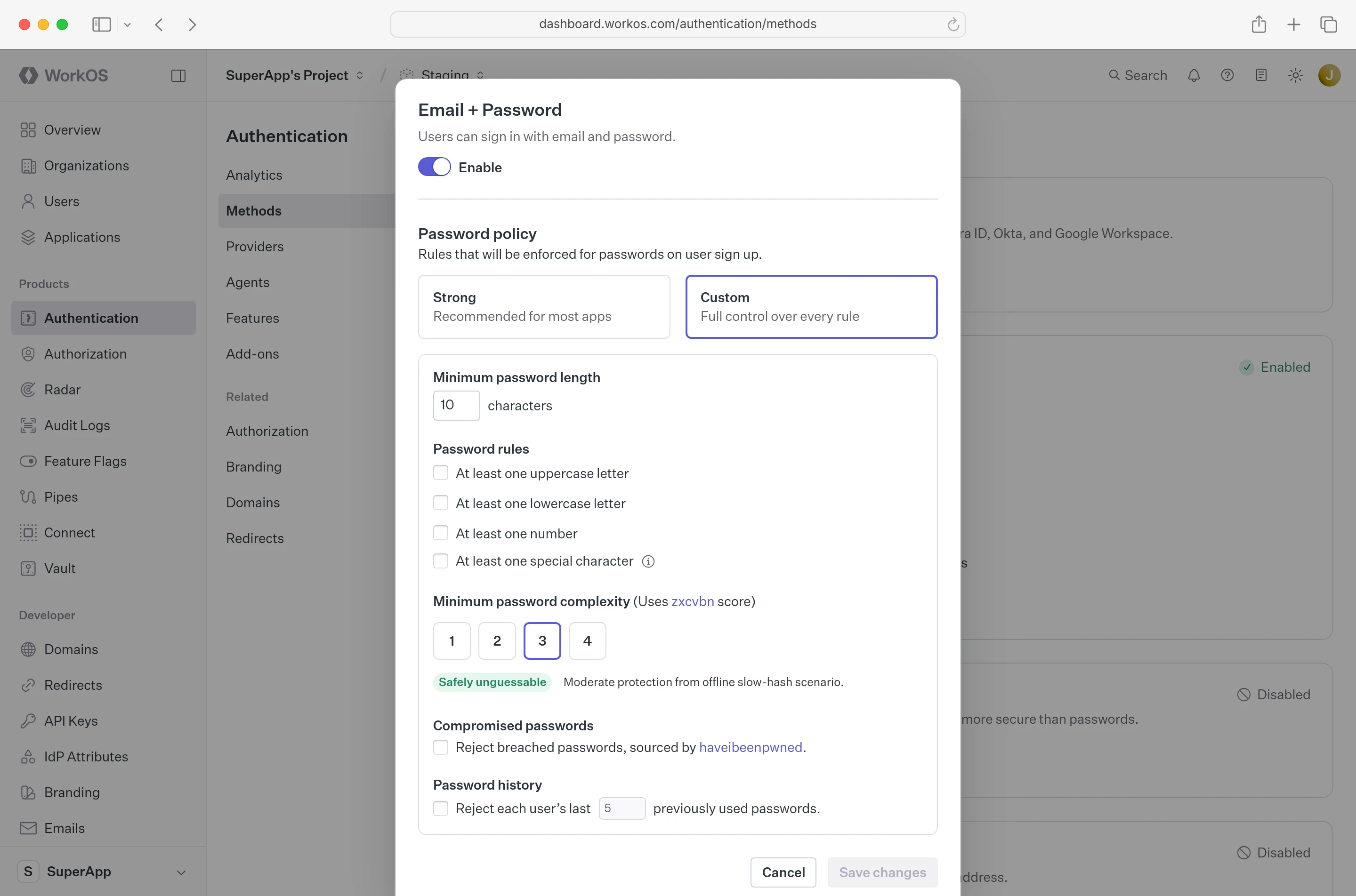
A strong set of password rules are applied to all users by default. This ensures that:
- All passwords meet a minimum required length
- Low complexity passwords are rejected
- Breached passwords (flagged by haveibeenpwned) are rejected
These defaults are recommended in the majority of cases, however, if you wish to modify the password policy you can do so in the Authentication section of the WorkOS dashboard.
You can enable password history to prevent password reuse. When modifying your policy, you can reject up to 10 of each user’s most recently used previous passwords. Password history is disabled by default.
AuthKit will enforce your policy within the sign up and password reset flows.
The password policy is set per environment and applies to every user in that environment. Organizations can’t set their own password requirements. To control which authentication methods an organization’s members can use, such as requiring SSO or MFA, use organization authentication policies.
Disabling this method entirely will prevent users from signing up or signing in using a password. This is useful when you want to restrict access to your application to only those users who have been provisioned via SSO.
If you’d prefer to build and manage your own authentication UI, you can do so via the AuthKit Authentication API.
Examples of building custom UI are also available on GitHub.